


Since we started using Resos, we have found the flexibility of the product and customer support incredible. It's very user friendly and easy to manage in-house which is a huge plus!

Resos automatically builds a profile for every guest who books, calls, or walks in. Booking history, feedback, dietary notes, and tags all live on one screen. Add bookings faster with auto-complete, recognize regulars instantly, and search any booking or guest in seconds.
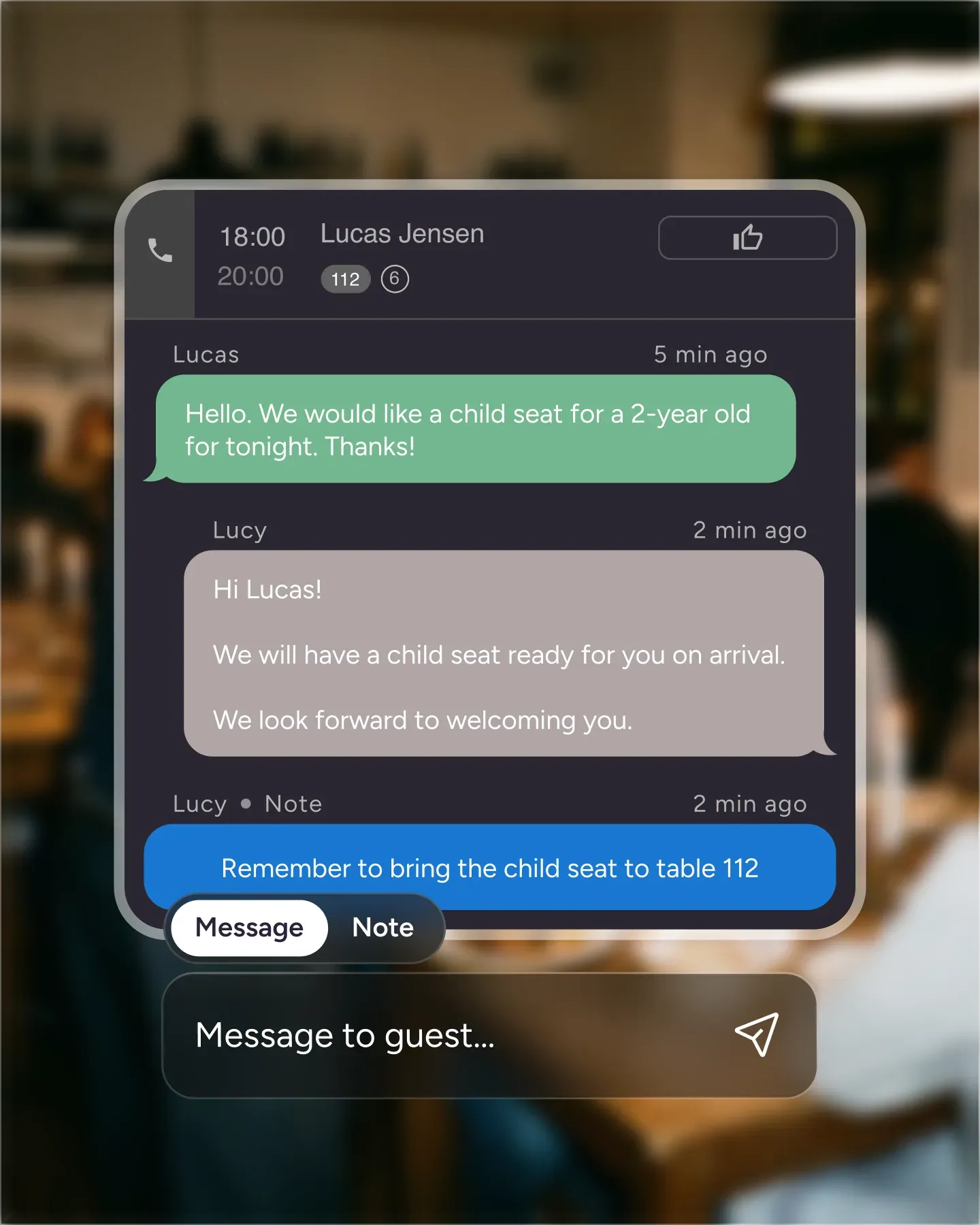












Every booking, walk-in, and phone reservation adds to the database. No manual data entry, no separate CRM to keep in sync. Online bookings get matched to existing guests by phone and email, so a regular stays a regular instead of becoming three duplicate entries.
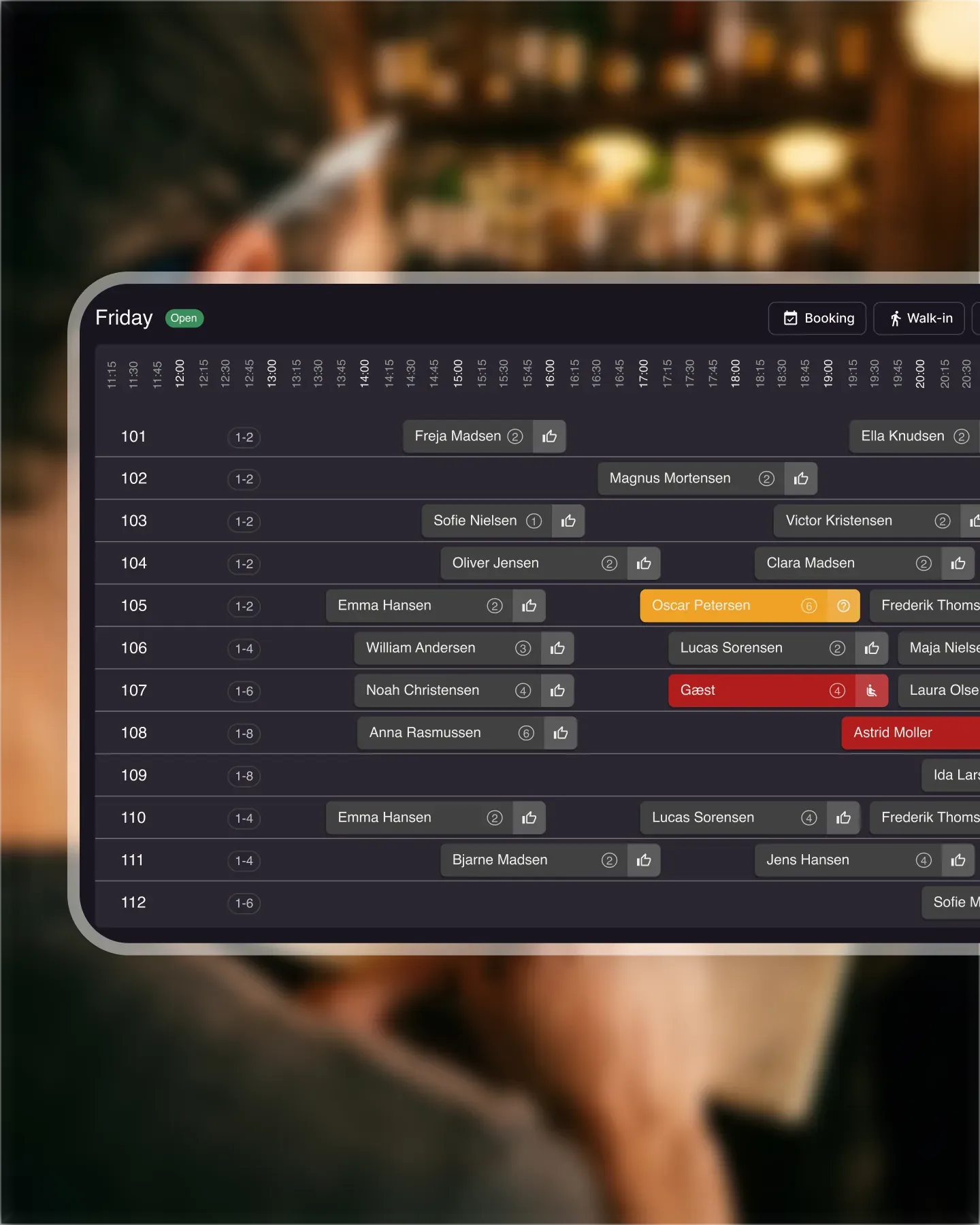
Tag a guest as a VIP, a regular, a critic, a friend of the chef. The tag follows them across every booking, so when the name pops up on Friday night the team knows without anyone having to remember. Build the tags that match how your floor actually runs.
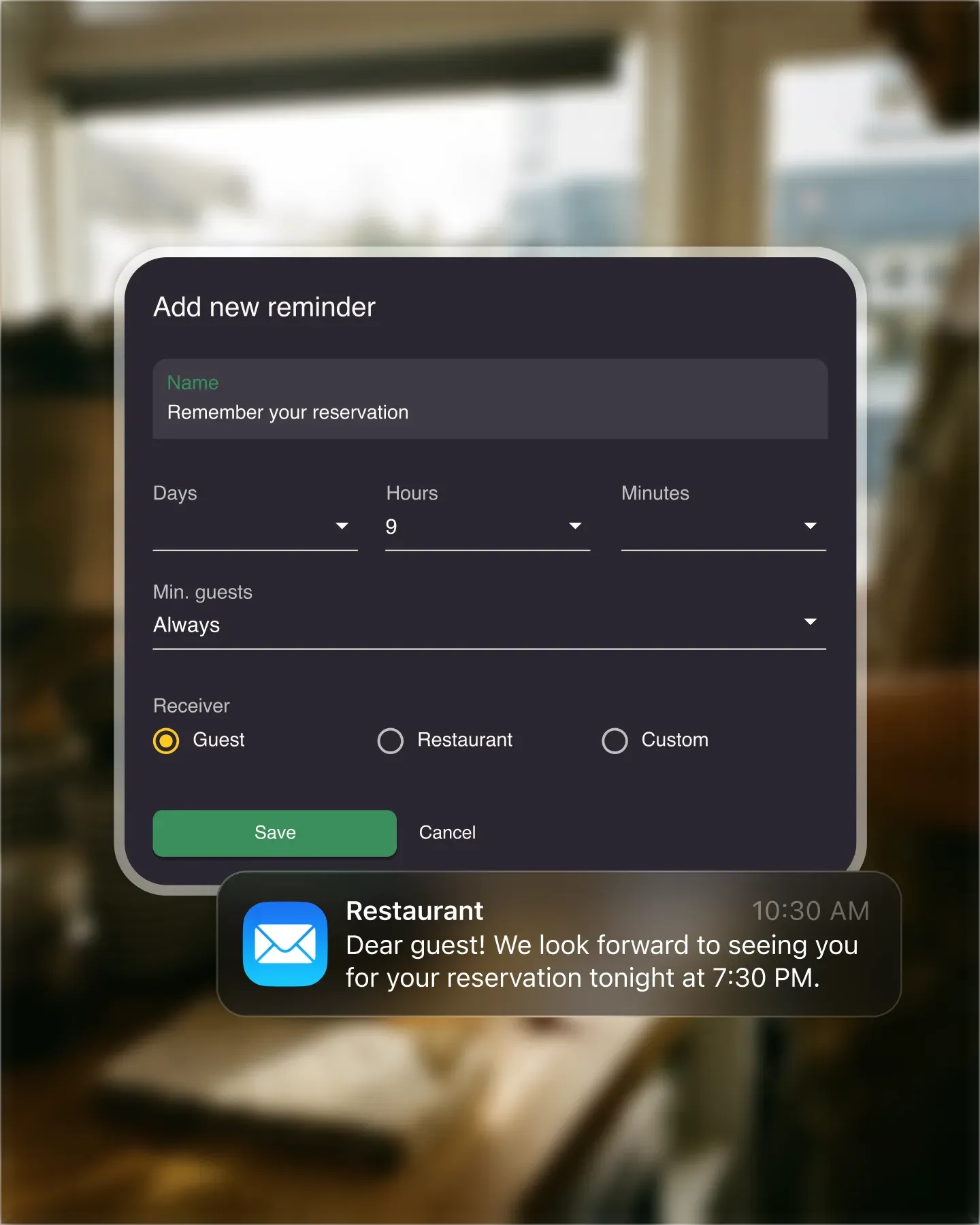
The booking form is connected to the database. Type a name, phone, or email and Resos suggests matches. One click and the form fills in, with the booking linked to the guest's profile and history. Phone bookings go from a minute to seconds.
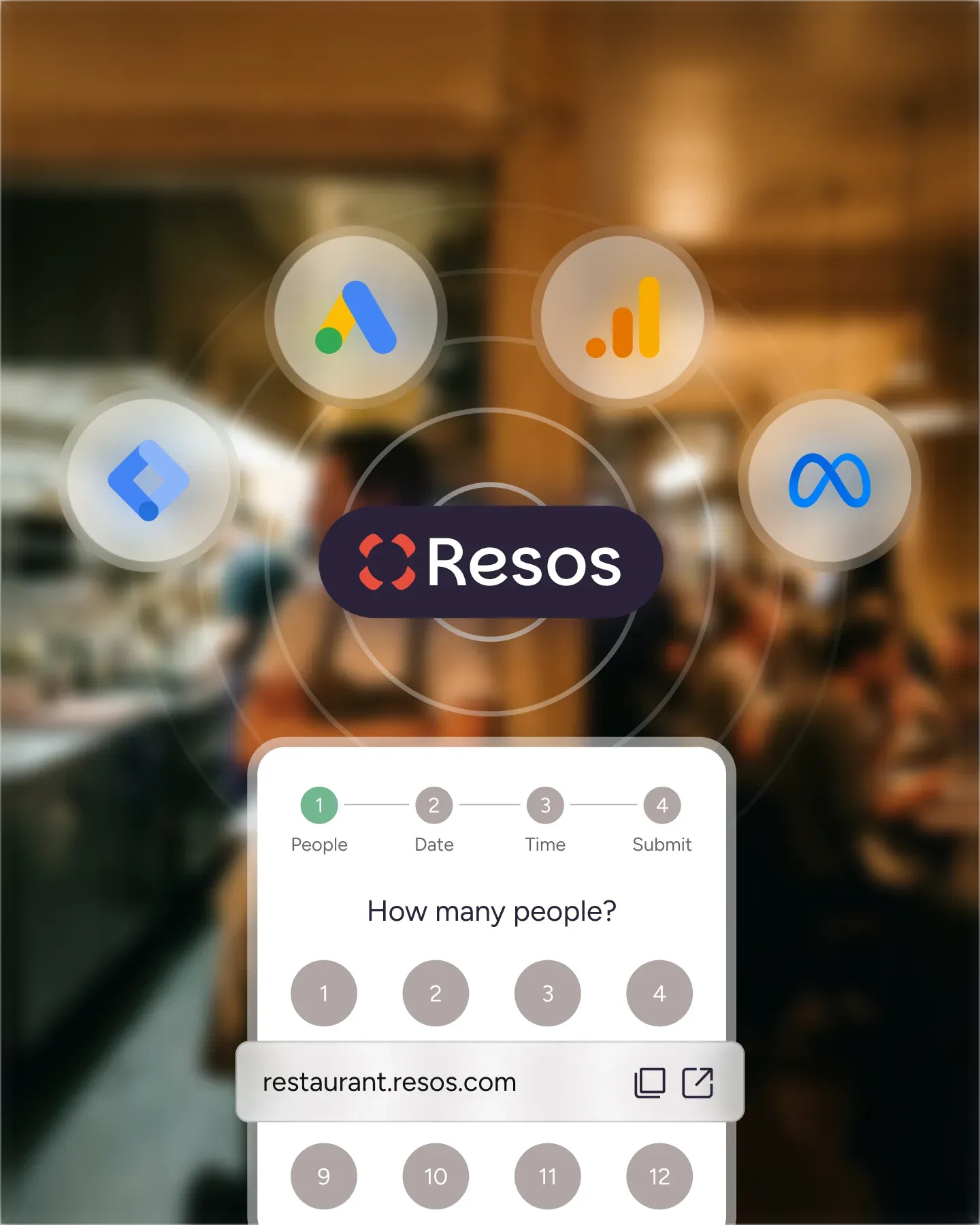
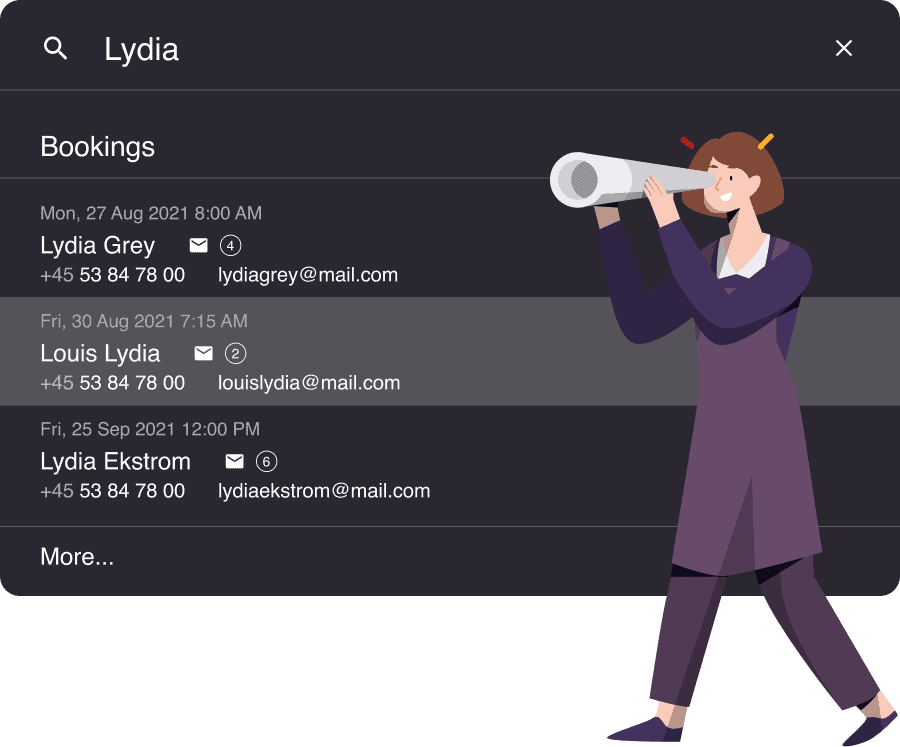
Hit Cmd-F on Mac or Ctrl-F on Windows and search across every booking and guest in the system. Past, future, cancelled, completed. The host finds the booking before the guest finishes spelling their name. The manager pulls up a year of history without leaving the screen.
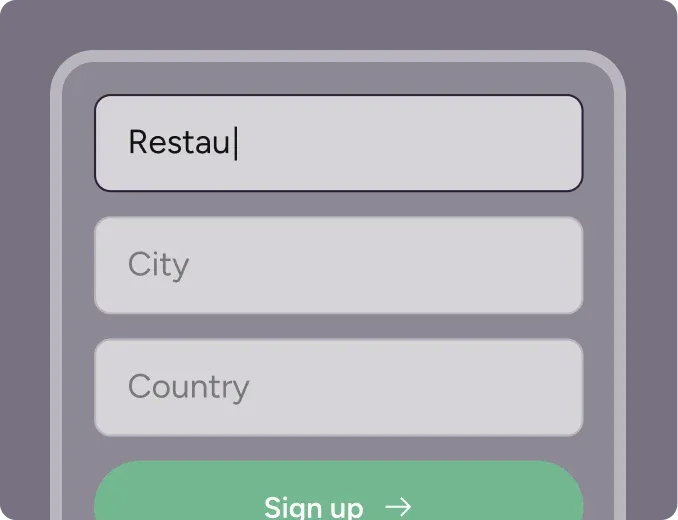
Create your account in seconds. No credit card required.
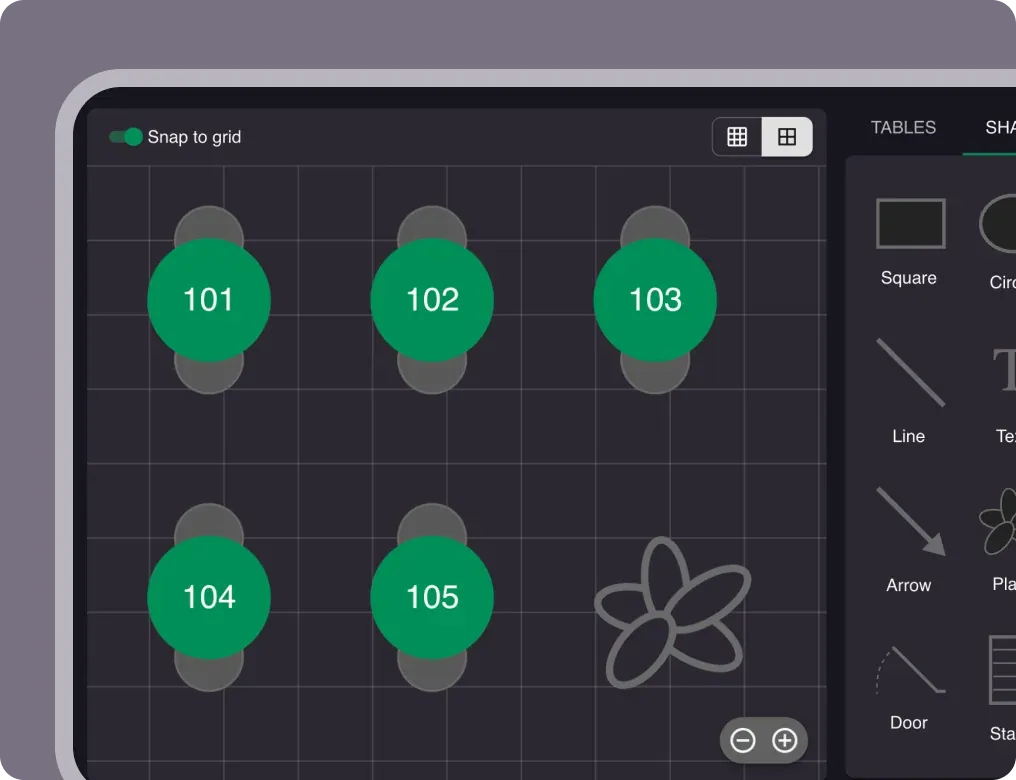
Add your opening hours, areas, and floor plan using our easy drag-and-drop editor.
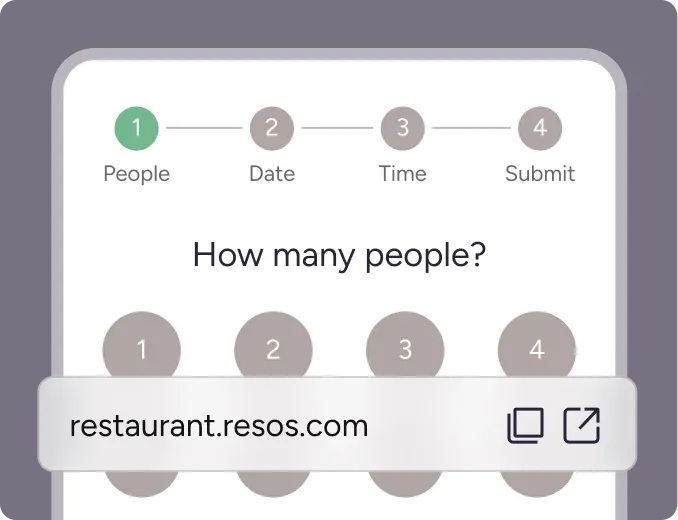
Add your booking link to your website and social media. No coding required.
Keep track of your guests, add bookings faster, and quickly search across bookings and guests.
Resos automatically adds every guest to a centralized database. From there you can find a guest, see their booking and feedback history, and pull up notes from previous visits.
Tag guests to organize them and surface the right context - for instance, flag a VIP or a regular so the team notices when they book or arrive.
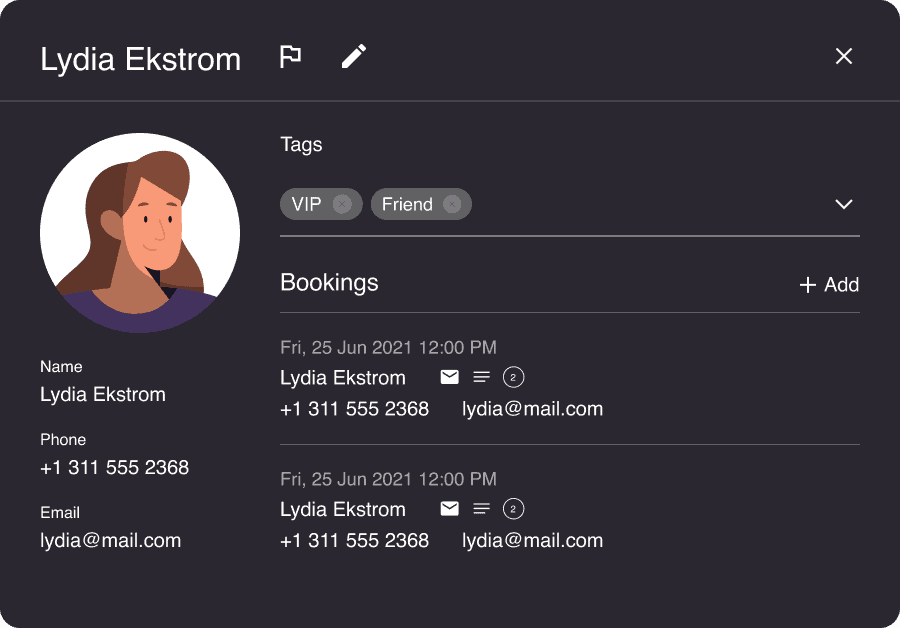
The database is connected with the booking form, which automatically searches your guests and suggests matches as you type a name, phone, or email. One click and the form is filled and the booking is linked to the guest.
Bookings made online by guests are automatically matched against the database by phone and email.
A fast search runs across all bookings and guests in seconds.
Open it by clicking the search icon (top right in the app at all times) or with the keyboard shortcut Cmd + F (Mac) or Ctrl + F (Windows).
As always, feedback and ideas are welcome - write to us at hi@resos.com.
 For Restaurants
  For Cafés
  For Bars
  For Pubs
 Since we started using Resos, we have found the flexibility of the product and customer support incredible. It's very user friendly and easy to manage in-house which is a huge plus!
We have been using Resos as the booking platform for our cheese & wine bar in Helsinki, Finland, for over six months, and we are really impressed by it!

Once set up properly, Resos will run the whole booking seamlessly. Been trying many softwares and none has reached the level of customization and speed as Resos. And great support too!

The floor view is working very nicely, you can see everything at the same time. Also, it was a very huge upgrade for us, that the guests can easily cancel their booking – it saved us from a lot of no-shows.

Easy integration into our website and Google page.

Resos makes reservations so much easier. It's straightforward, flexible, and perfect for small businesses like ours. We're so happy with it!

What sets Resos.com apart is not just its ease of use, but also the proactive approach of the Resos team. They continuously work hard to introduce new features and add value to their product.

Simplicity when booking for the customer and easily accessible through our website, Facebook and Google.

When we started our search for a booking system, Resos was the obvious choice. Not only is it affordable for us as a small business, but also offers so many features that make our jobs easier.

Being able to make a reservation without too much hassle goes a long way! Resos keeps the process intuitive and simple.

Fast, free and friendly support from real people who take the time to understand your restaurant.