


Since we started using Resos, we have found the flexibility of the product and customer support incredible. It's very user friendly and easy to manage in-house which is a huge plus!
Most reservations start with a Google search. Reserve with Google puts a Reserve a table button right next to your listing on Search and Maps, so the guest books in one tap instead of clicking through to a separate site. The booking lands in Resos like any other channel, against the same availability and the same table allocation rules.
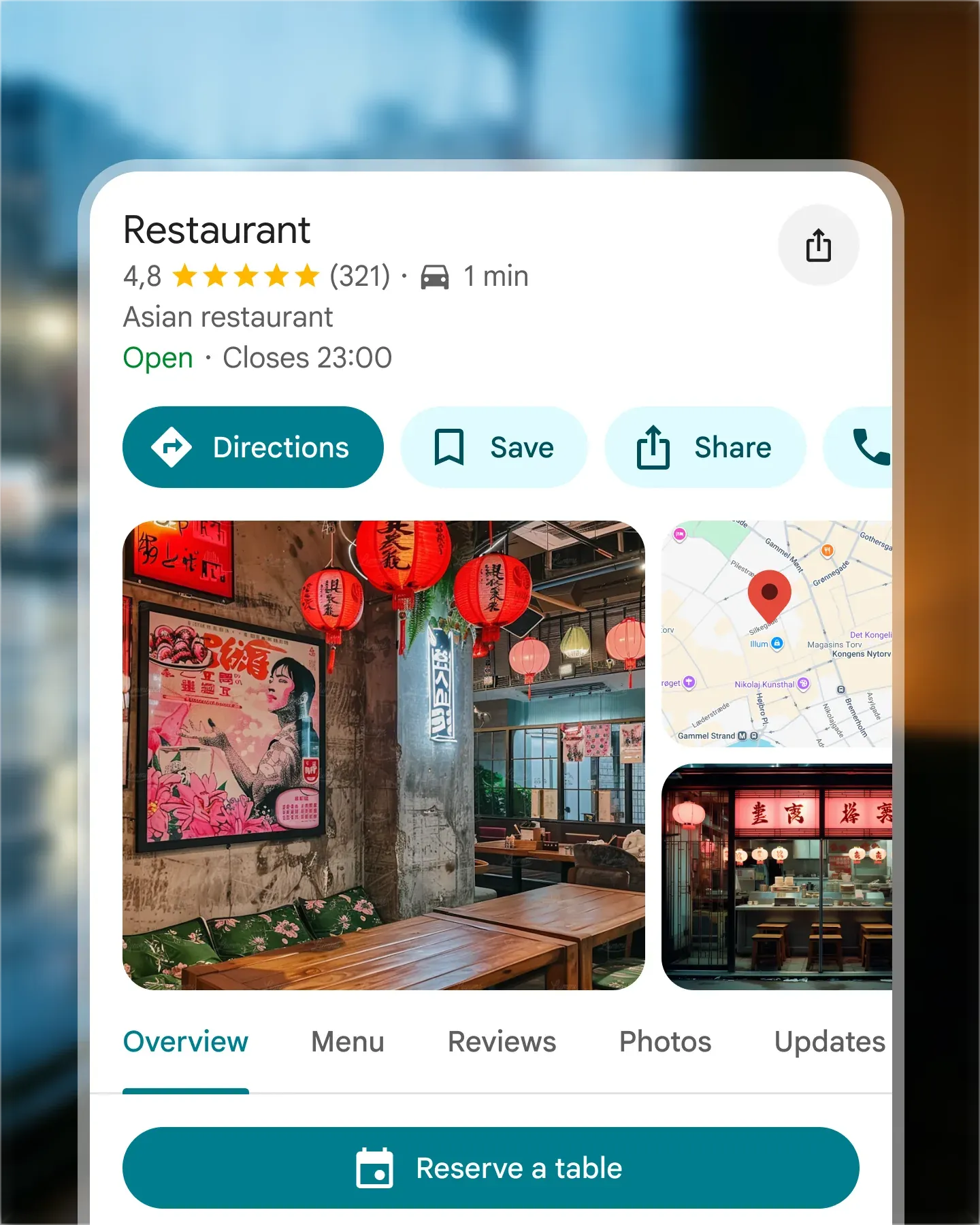












When someone searches for your restaurant, the Reserve a table button is there. One tap opens the booking flow, the guest picks a slot from your real availability, and the booking is confirmed. No detour to a separate website, no friction between intent and reservation.
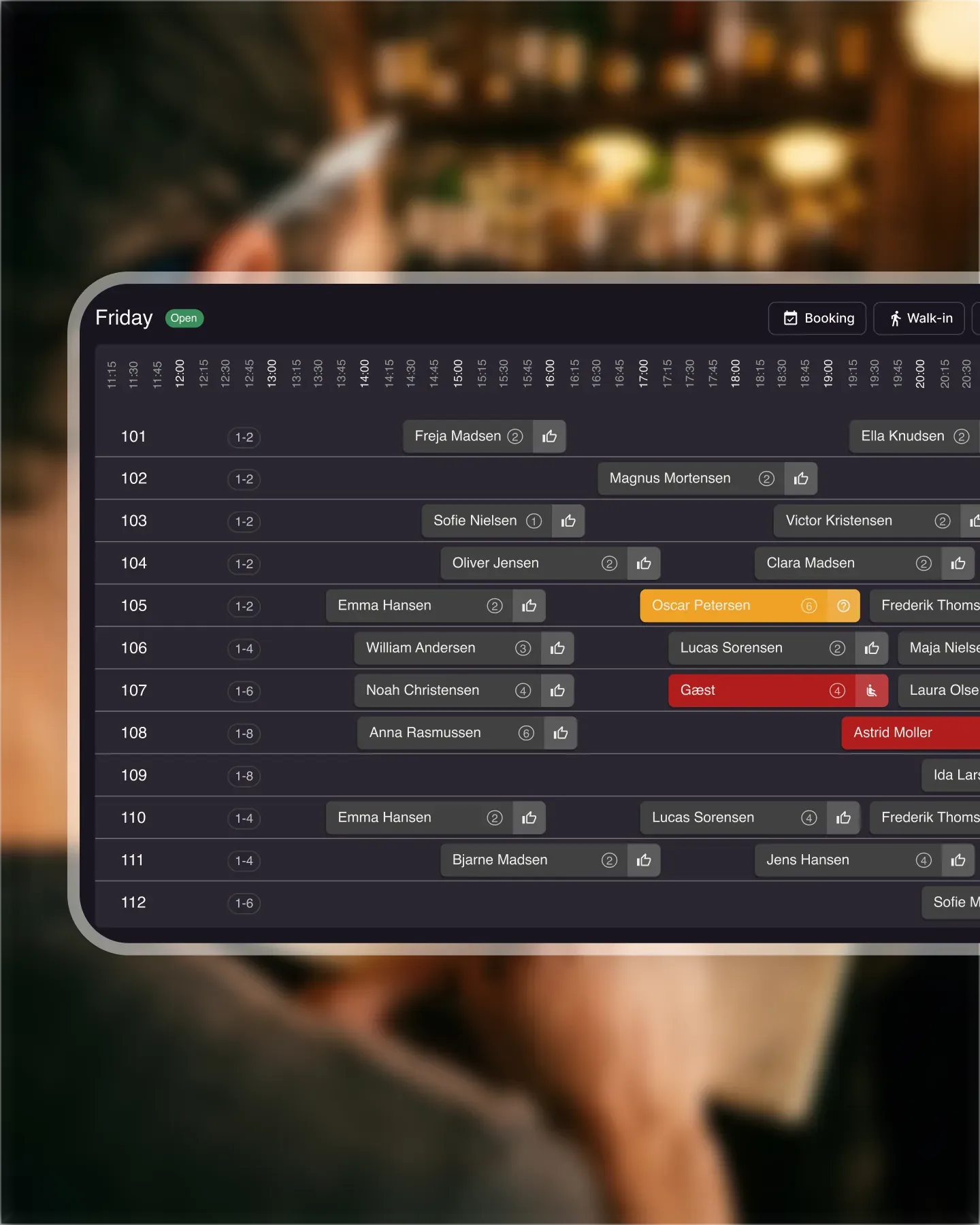
Bookings made on Google sync instantly with Resos. Your booking page, Reserve with Facebook and Instagram, walk-ins, and Google all pull from the same live availability, so two guests never end up booked on the same table.
Turn Reserve with Google on inside Resos. It supports both automatic and manual booking management, so new Google bookings either auto-confirm or wait for staff review, the same way every other channel works. Table allocation, opening hours, and reminders apply identically.
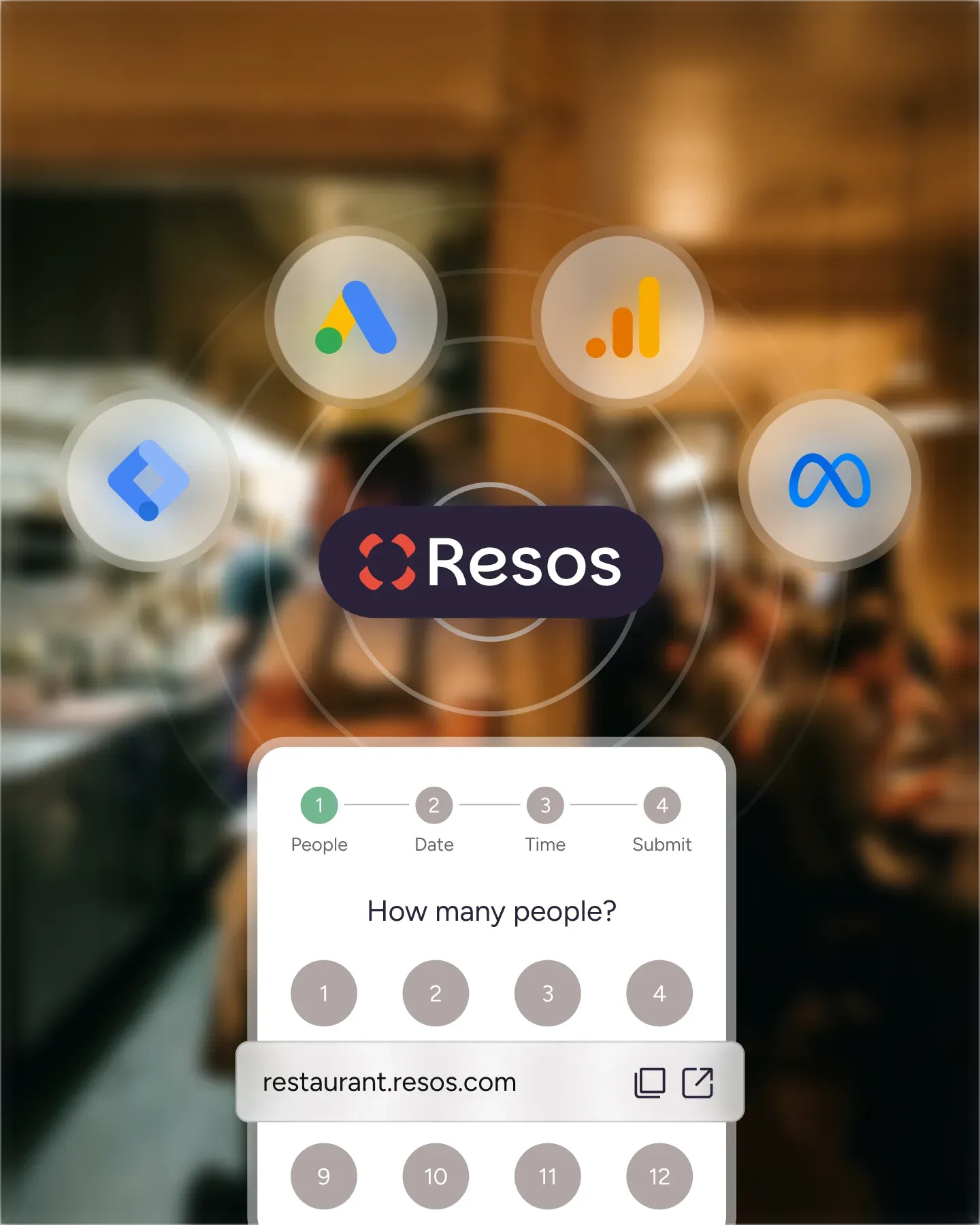
Each booking is tagged with its source, and the reports section breaks down channel performance over any window you pick. Spot how much of your traffic Google is driving and compare it against your own booking page or social channels at a glance.
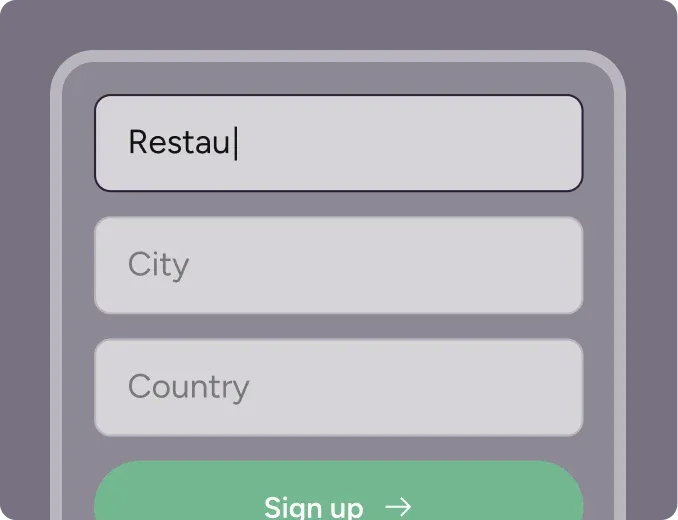
Create your account in seconds. No credit card required.
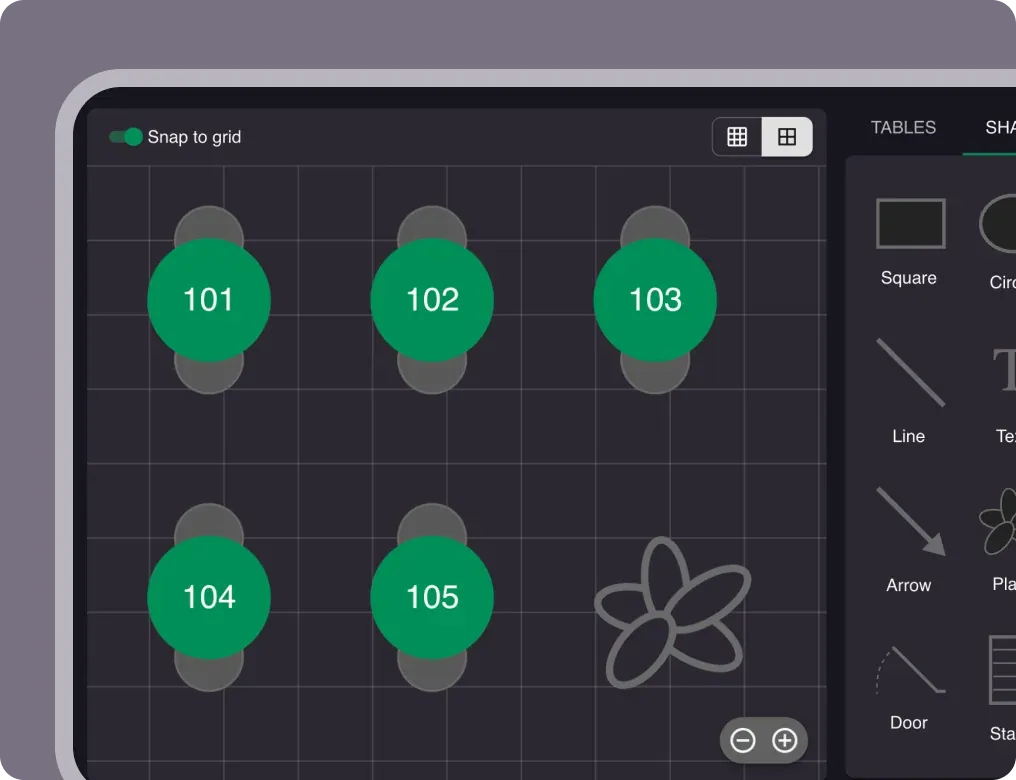
Add your opening hours, areas, and floor plan using our easy drag-and-drop editor.
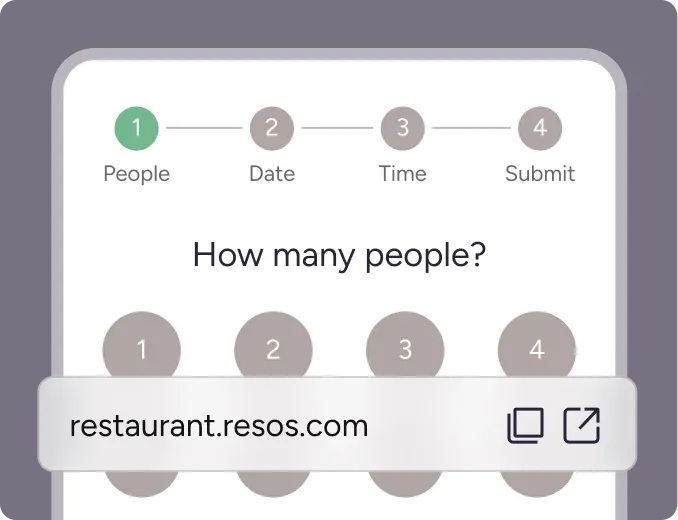
Add your booking link to your website and social media. No coding required.
Reserve with Google lets guests book a table directly from Google Search and Google Maps. When someone looks up your restaurant, a Reserve a table button sits right next to your listing, and the booking lands in Resos like any other channel – on the same calendar, against the same availability, applied to the same table allocation rules your team already uses.
If you are comparing ways to make your restaurant bookable across Google’s products, start with our guide to restaurant reservations with Google.
Reserve with Google is a feature that adds a Reserve a table button to your restaurant’s listing on Google Search and Google Maps. Diners book in real time without leaving Google, and the reservation flows straight into your connected booking system, in this case Resos, so your availability and your tables stay accurate everywhere.
Google pulls live availability from your booking provider. Once Resos is connected as your reservation partner, the Reserve a table button shows your real open slots: the guest picks a time, confirms, and the booking appears in Resos instantly. There is no separate website to click through to and no manual copying, so intent turns into a confirmed cover in a single tap.
Reserve with Google is a paid add-on on Resos plans: a flat 7.99 EUR per month, around 20 percent less if you pay yearly, and the first 30 days are free. Crucially, there is no per-cover commission. That is the important difference from third-party portals like OpenTable: you pay one predictable add-on fee, not a cut of every booking, and the guest relationship stays yours. Google itself does not charge the guest to use the button.
See the Reserve with Google help guide for the full walkthrough with screenshots.
Bookings made through Google sync instantly with Resos, and availability updates in real time across your booking page, Reserve with Facebook and Instagram, and walk-ins entered by the host, so two guests never end up on the same table. Booking changes travel back the same way: move, resize or cancel a Google booking in Resos and Google is notified as it happens. Separately, Resos sends Google a full upload of your opening hours, tables, areas and free slots once a day, so a change to the setup behind your availability takes a little longer to show on the listing. Whether you run automatic table allocation or assign manually, Reserve with Google fits the workflow you already use. One caveat: prepayments and deposits are not part of the Google integration yet, so if a booking needs a deposit, send the guest through your own Resos booking page.
Every booking is tagged with its source, and bookings from Google show up as Google in your overview. The reports section breaks down channel performance over any window you choose, so you can see exactly how much of your traffic Google is driving and compare it against your own booking page or social channels at a glance.
 For Restaurants
  For Cafés
 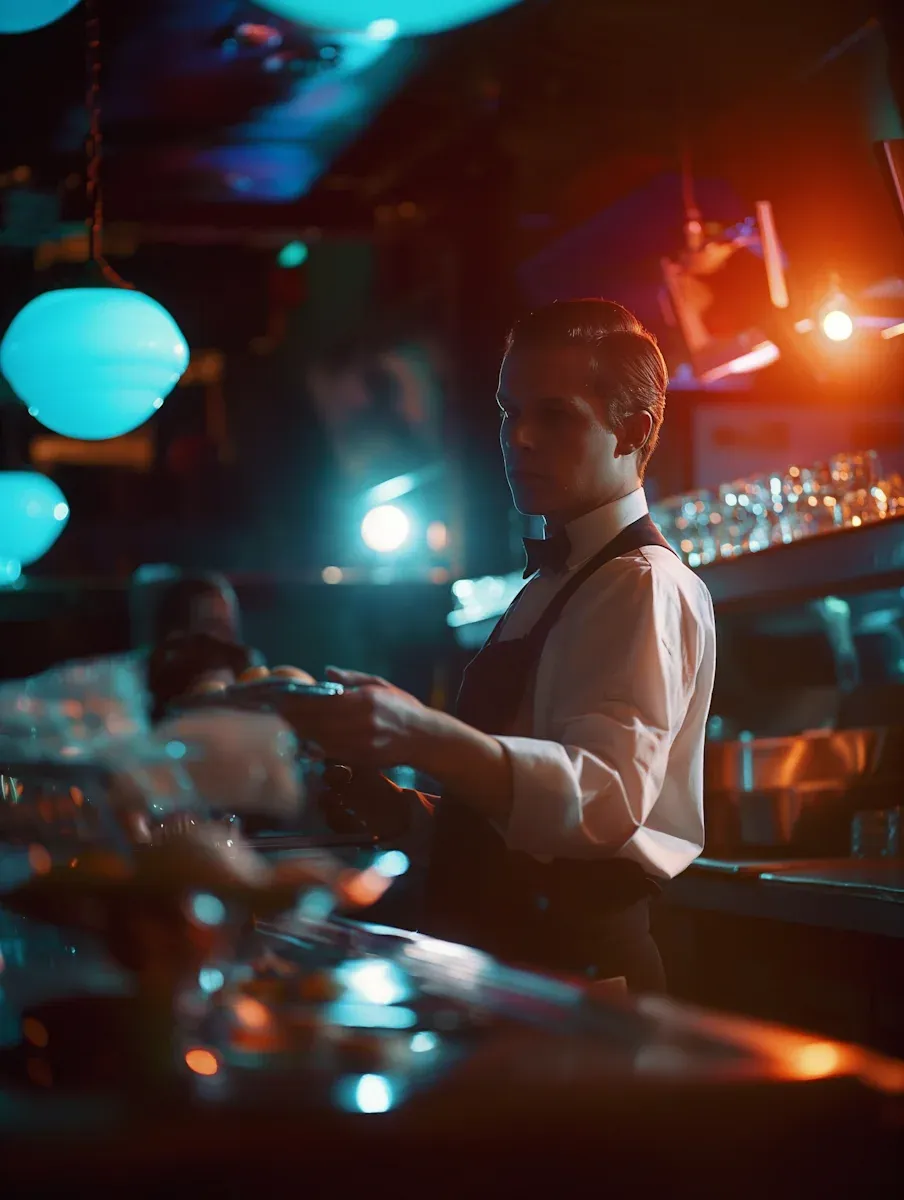 For Bars
 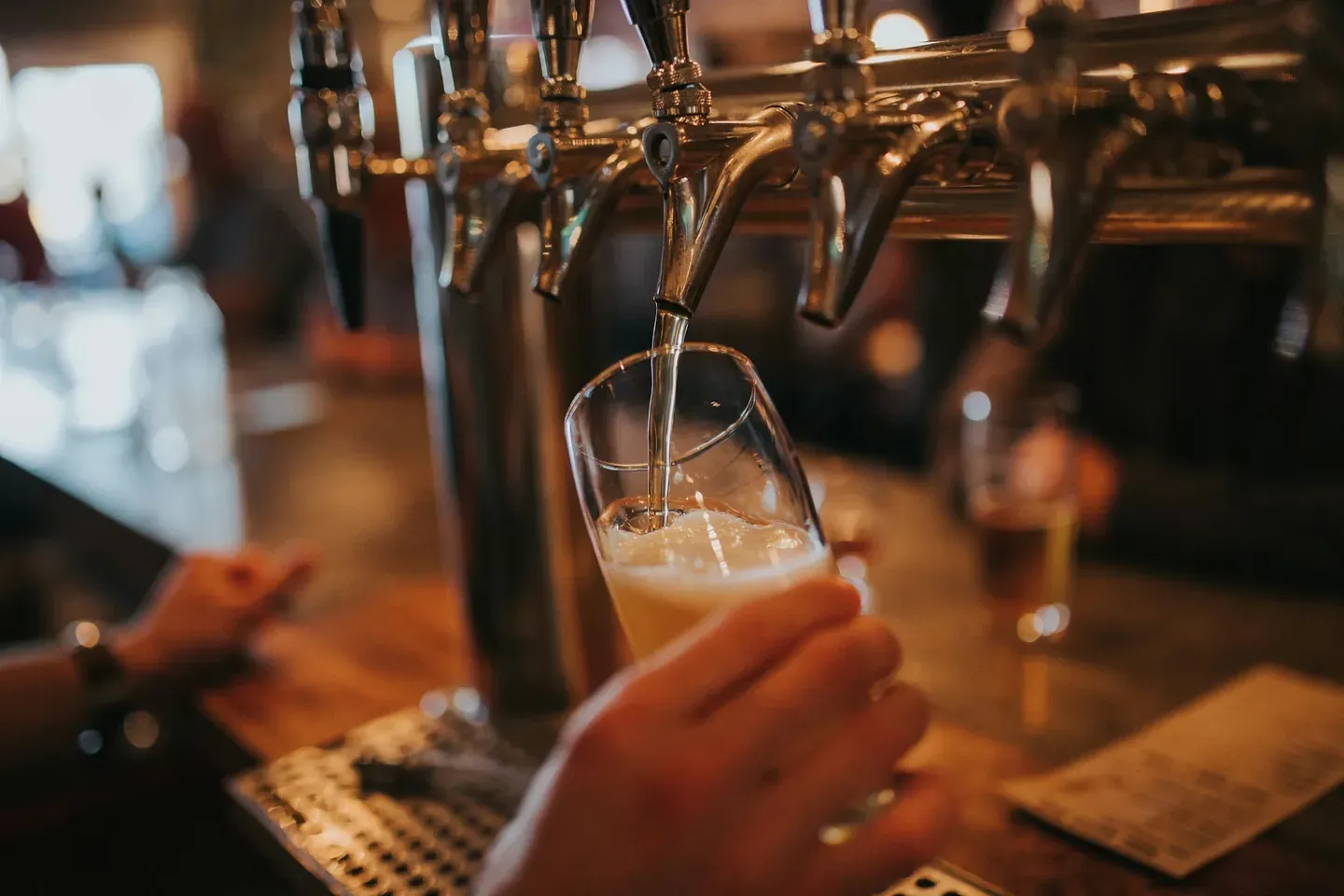 For Pubs
 Since we started using Resos, we have found the flexibility of the product and customer support incredible. It's very user friendly and easy to manage in-house which is a huge plus!
We have been using Resos as the booking platform for our cheese & wine bar in Helsinki, Finland, for over six months, and we are really impressed by it!
Once set up properly, Resos will run the whole booking seamlessly. Been trying many softwares and none has reached the level of customization and speed as Resos. And great support too!
The floor view is working very nicely, you can see everything at the same time. Also, it was a very huge upgrade for us, that the guests can easily cancel their booking – it saved us from a lot of no-shows.

Easy integration into our website and Google page.

Resos makes reservations so much easier. It's straightforward, flexible, and perfect for small businesses like ours. We're so happy with it!
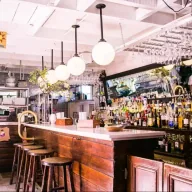
What sets Resos.com apart is not just its ease of use, but also the proactive approach of the Resos team. They continuously work hard to introduce new features and add value to their product.
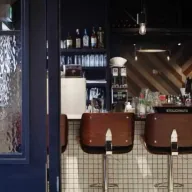
Simplicity when booking for the customer and easily accessible through our website, Facebook and Google.
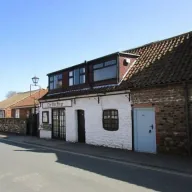
When we started our search for a booking system, Resos was the obvious choice. Not only is it affordable for us as a small business, but also offers so many features that make our jobs easier.
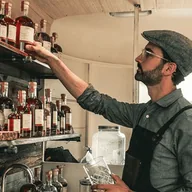
Being able to make a reservation without too much hassle goes a long way! Resos keeps the process intuitive and simple.

Reserve with Google is a paid add-on on Resos paid plans at a flat 7.99 EUR per month, and around 20 percent less if you pay yearly. The first 30 days are free. There is no per-cover commission, so unlike third-party portals you pay one predictable fee rather than a cut of every booking. Google itself does not charge guests to use the button.
In Resos, go to Menu, then Settings & add-ons, then Integrations, and activate Reserve with Google. Make sure your Google Business Profile uses the same name and address as your Resos profile and has restaurant set as its category. It can take up to 48 hours for the booking button to appear on Google.
Yes. Reserve with Google uses the same settings as the rest of your account. Your table allocation, whether automatic, partial, or manual, plus opening hours, areas, and reminders all apply to Google bookings exactly as they do on your own booking page.
Yes. If you let guests pick an area in your Resos booking flow, the same option appears on your Google booking page, so they can choose where they would like to sit.
First, Reserve with Google is only available in certain countries. If yours is supported, check that your Google Business Profile is complete, that its category is set to restaurant, and that your name and address are identical on Google and Resos. If it still does not appear, email hi@resos.com and the team will look into it.
Not yet. Prepayments and no-show fees are not supported through Reserve with Google. Guests can still book through Google, but they will not be charged automatically. If a booking needs a deposit, send the guest through your own Resos booking page, or activate the charge manually.
In Resos, open Settings & add-ons, then Integrations, select Reserve with Google, and click Disable. The button disappears from your Google Business Profile within 48 hours, and if you were paying for the add-on the billing stops once it is disabled.
Fast, free and friendly support from real people who take the time to understand your restaurant.