


Reserve with Google (FAQ)
In this article
- How to set up Reserve with Google on Resos?
- What do I need in place before it works?
- What is a Google business profile?
- Which countries is Reserve with Google available in?
- Are the booking settings the same for bookings received through Google?
- Why do the settings updates not show on Google?
- Are notes on my opening hours shown to guests booking on Google?
- Can guests choose areas on Google bookings?
Activate the integration Reserve with Google to make it even easier for your guests to book a table with you. Reserve with Google gives your guests the option to make a reservation directly on Google and shows booking availability in searches on Maps and regular Google searches. Here, we have gathered frequently asked questions in this Reserve with Google FAQ, but you can also learn more about how to use Reserve with Google through your booking system.
How to set up Reserve with Google on Resos?
Go to Menu → Settings & add-ons → Integrations → Reserve with Google, and click Activate add-on. Once it has been activated, it can take up to 48 hours for the booking button to show on the Google profile of your business.
Reserve with Google is a paid add-on, so it requires an active paid plan. The first time you activate it you get a 30 day free trial, and billing starts when the trial ends. The add-on page shows what applies to your restaurant before you activate.
Payments are not supported yet. Guests can book through Google, but prepayments and no-show fees are not collected automatically, even if you have enabled them in Resos. We’re working on adding payment support. Until then, use your Resos booking page for bookings that require payment or a card guarantee. See Reserve with Google troubleshooting for details.
Please note that if you used this integration with another booking software provider before, you will have to manually choose Resos from your Google profile!
What do I need in place before it works?
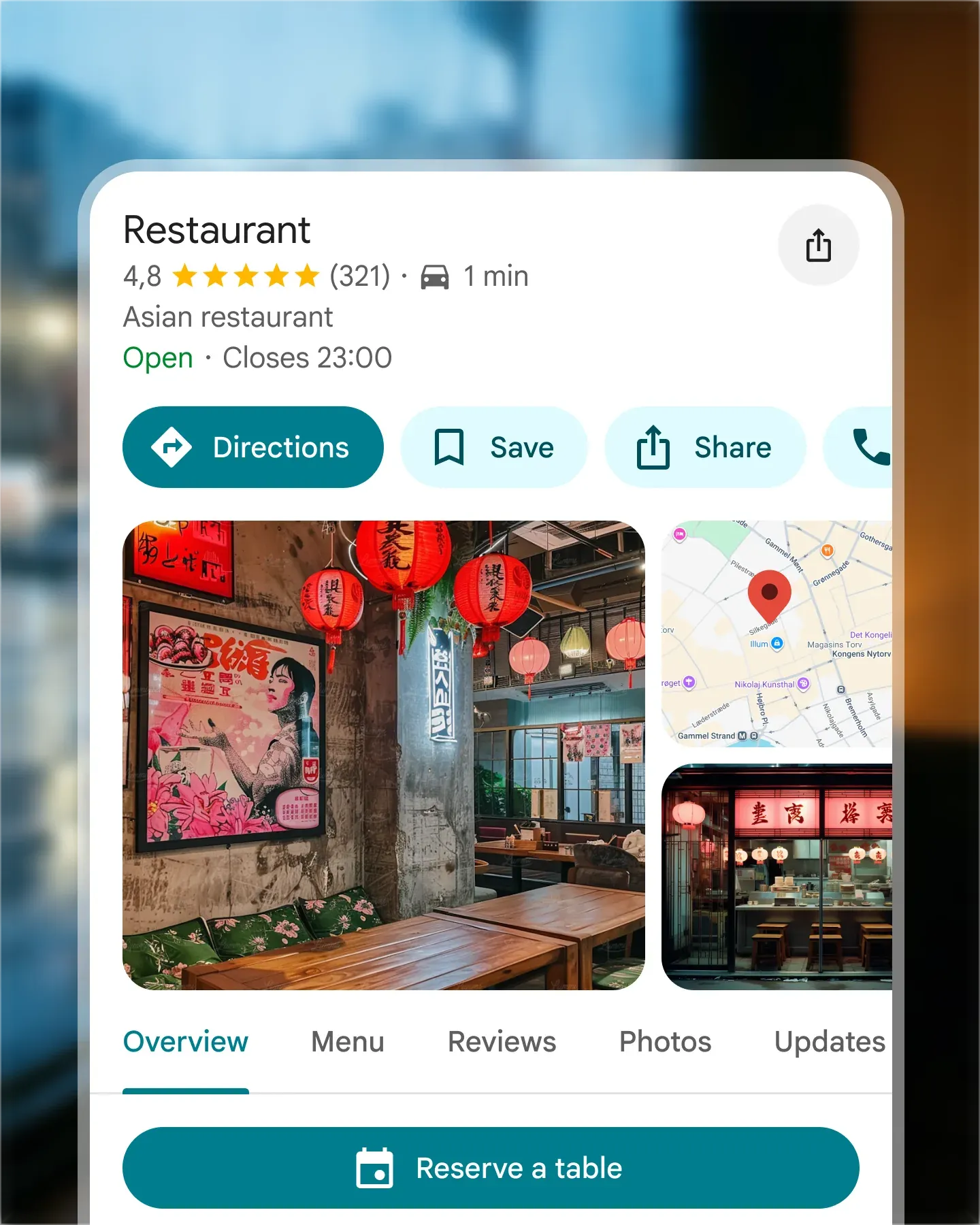
The dashboard checks these five things before Reserve with Google can send anything to Google, and it tells you which ones are missing:
- At least one area and one table set to bookable online
- At least one opening hour
- A complete address (street, postal code, city and country)
- The booking feature switched on
- The setting “Disable online booking” switched off (shown in the dashboard as Disable booking page & widget)
On top of that, Google only receives availability for the next 30 days, or fewer days if your booking window is shorter. If you have no bookable availability at all in that period, your restaurant is left out of the update to Google entirely.
What is a Google business profile?
If you haven’t already set up your Google business profile, you just need to do so by filling out your business information, such as name and address. If you have a publicly available website and/or phone number on your Google profile, please make sure that the information matches the information on your Resos profile. You can edit this information by going to Menu → Settings & add-ons → Account → Name & contact.
Once you have set up your profile and activated Reserve with Google, Resos will show as activated on your Google business profile if you select “bookings” on the sidebar.
Read here about how you can make your restaurant more visible on Google.
Which countries is Reserve with Google available in?
Google decides where its reservations integration can be offered, and the list is shorter than you might expect. If your restaurant’s country is not on Google’s list, the Reserve with Google card does not appear in your Resos dashboard at all, so there is nothing to activate.
Reserve with Google is currently available to Resos restaurants in: Åland Islands, Andorra, Anguilla, Argentina, Aruba, Australia, Austria, Bahrain, Belgium, Brazil, British Virgin Islands, Bulgaria, Canada, Cayman Islands, Chile, Christmas Island, Colombia, Cook Islands, Croatia, Curaçao, Czechia, Denmark, Estonia, Falkland Islands, Faroe Islands, Finland, France, French Polynesia, Germany, Gibraltar, Greece, Greenland, Guam, Hong Kong, Hungary, India, Indonesia, Ireland, Isle of Man, Israel, Italy, Japan, Latvia, Lithuania, Luxembourg, Malaysia, Malta, Martinique, Mexico, Montserrat, Netherlands, New Caledonia, New Zealand, Niue, Northern Mariana Islands, Norway, Panama, Peru, Philippines, Poland, Portugal, Puerto Rico, Russia, Samoa, San Marino, Singapore, Sint Maarten, South Africa, South Korea, Spain, St. Helena, St. Pierre and Miquelon, Svalbard and Jan Mayen, Sweden, Switzerland, Taiwan, Thailand, Tokelau, Turkey, Turks and Caicos Islands, United Arab Emirates, United Kingdom, United States, Uruguay, U.S. Virgin Islands, Vatican City, Vietnam and Wallis and Futuna.
Google maintains the official list on its platform policy page. We cannot add a country ourselves, and neither can you. If your country is missing, you can still take bookings from Google by adding your booking link to your Google business profile instead.
Are the booking settings the same for bookings received through Google?
Reserve with Google will use the same settings as you have set up on your Resos account. So, if you have chosen automatic allocation of tables to bookings, for example, this will also apply for Reserve with Google. The same goes if you have chosen a partially automatic or completely manual set-up for your booking and table management.
Bookings themselves move in real time. A guest who books on Google appears in Resos straight away, and if you move, resize or cancel that booking in Resos, Google is told about the change.
Why do the settings updates not show on Google?
Availability and settings travel the other way, and they are not instant. Resos sends Google a full update of your opening hours, tables, areas and free slots once a day, and Google then needs its own time to process it before anything changes on your listing. Allow up to 48 hours for any change to the booking flow to be reflected on Google.
This applies to every change of that kind, including:
- Editing your default or special opening hours
- Adding, removing or blocking tables and areas
- Closing online booking for the rest of the day or for a time interval
- Switching on Disable booking page & widget at Menu → Settings & add-ons → Bookings → Managing bookings → New online bookings
- Disabling the add-on or canceling your subscription
So if you close the restaurant halfway through service, Google can still show slots for a while. Bookings that arrive from Google in the meantime are still checked against your real availability in Resos before they are accepted.
Are notes on my opening hours shown to guests booking on Google?
No. Google’s booking flow is Google’s own, and it only shows the fields we are allowed to send. The Booking notice from your booking settings is passed on as booking terms, but a note you have written on a single opening hour or a special opening hour is not shown to a guest booking through Google. If a message matters for every guest, put it in your Booking notice at Menu → Settings & add-ons → Bookings → Managing bookings → Booking page & widget instead.
Can guests choose areas on Google bookings?
If you use automatic table allocation and you have allowed guests to choose an area themselves when making a booking, these settings will also apply to your Google booking page.
One difference is worth knowing. On Google an area is either offered or it is not. If none of the tables in an area fit the party size the guest has selected, that area is simply left out of the list for that party size, rather than being shown as unavailable. A guest looking for a table for eight will not see an area that only holds four-person tables at all.
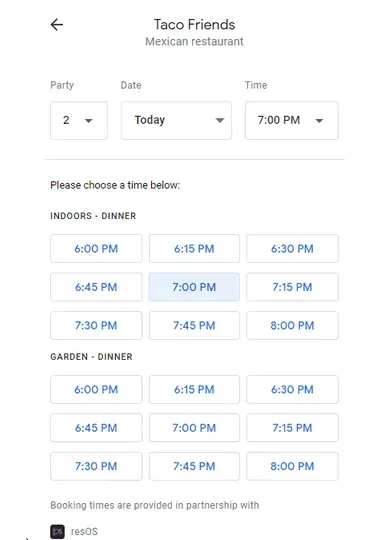
If the “book” button will not show, you get an error during activation, or you have a question about payments, turning the integration off, or its price, see Reserve with Google troubleshooting.
We, of course, hope that you have managed to activate Reserve with Google without any issues. If there’s anything we can do to help, please just let us know at hi@resos.com. We would be more than happy to answer any questions you might have or just have a small chat about how this or other features and integrations can help you.


