


Since we started using Resos, we have found the flexibility of the product and customer support incredible. It's very user friendly and easy to manage in-house which is a huge plus!

Manual bookings move fast at the host stand and the rules behind each opening hour are easy to forget. Resos watches every reservation you add by hand and flags it the moment something steps outside the settings – too many guests in the slot, a duration that overruns, an opening hour you closed last week. The warning explains what is off so the staff can fix it on the spot.
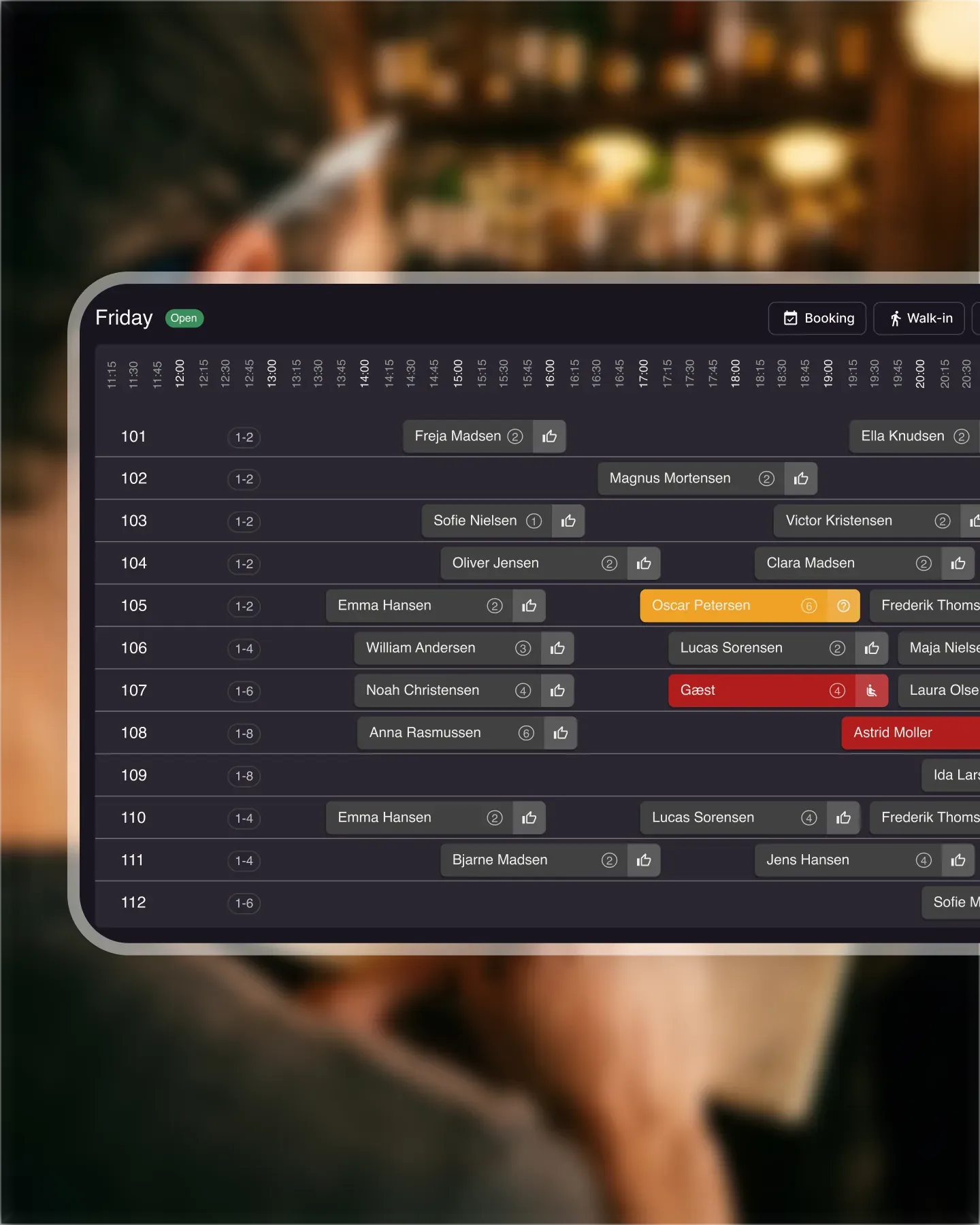










The warning appears before the date, time, and party size fields when something does not fit. Try to seat twelve in a service capped at ten and Resos says so straight away, no waiting for the kitchen to call the floor twenty minutes later asking what happened.
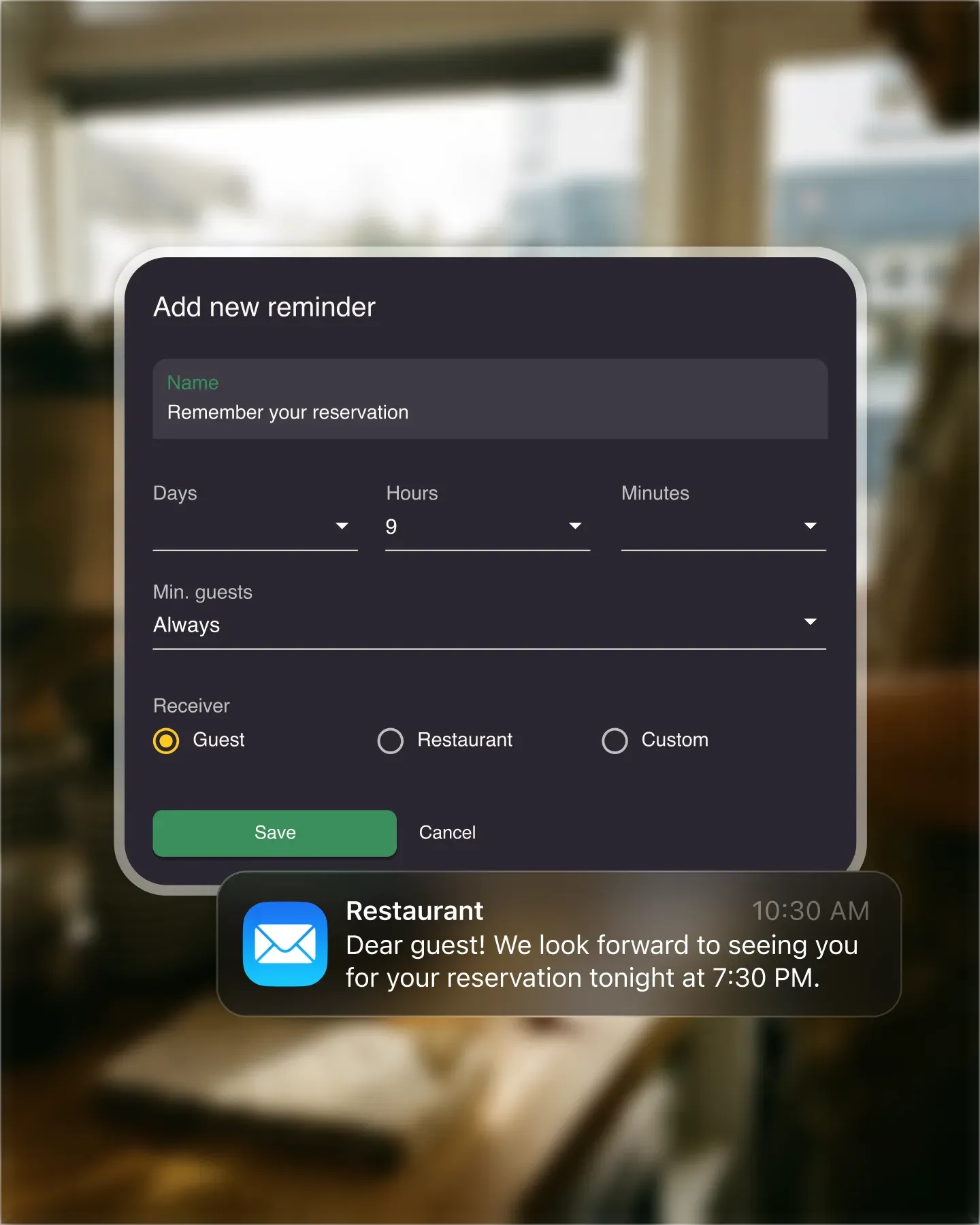
Warnings fire for every kind of setting you customized – opening hours, maximum guests, booking interval, table duration, special holiday hours. If the manual booking breaks the rule, the system catches it. Staff stop second-guessing the policy because the policy is doing the checking.
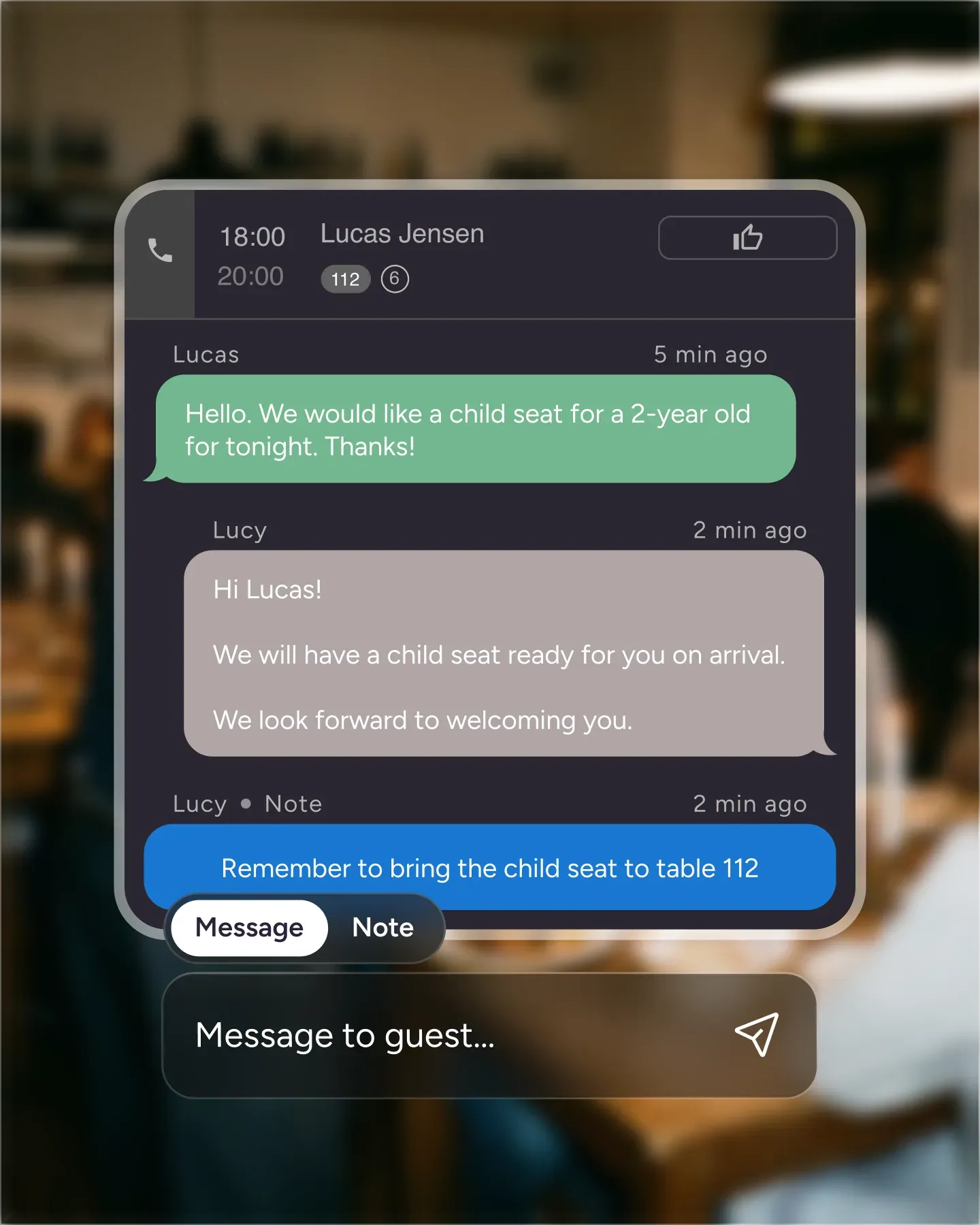
The warning does not just say no. It explains which setting was overruled and by how much, so the team can adjust the time, drop a guest, or override on purpose with eyes open. Training a new host shortens because the system teaches the rules as they work.
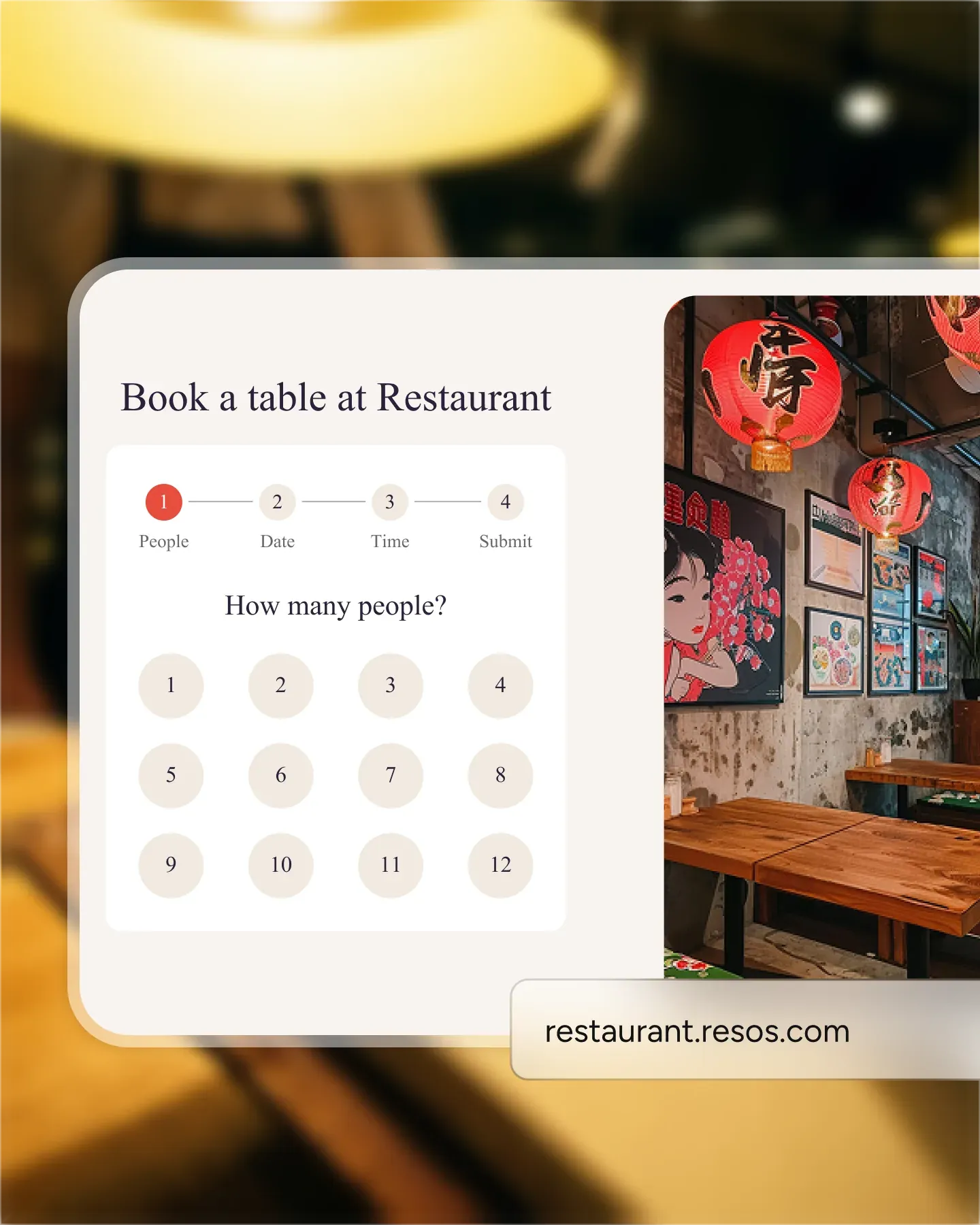
There is nothing to configure. Warnings are tied to the settings you already use, so the moment you customize an opening hour or set a guest cap, Resos starts watching for manual bookings that overrule it. New staff get the safety net without anyone needing to flip a switch.
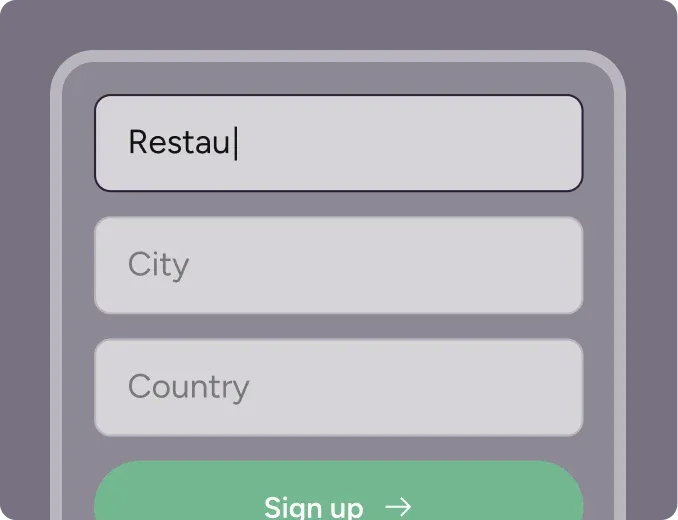
Create your account in seconds. No credit card required.
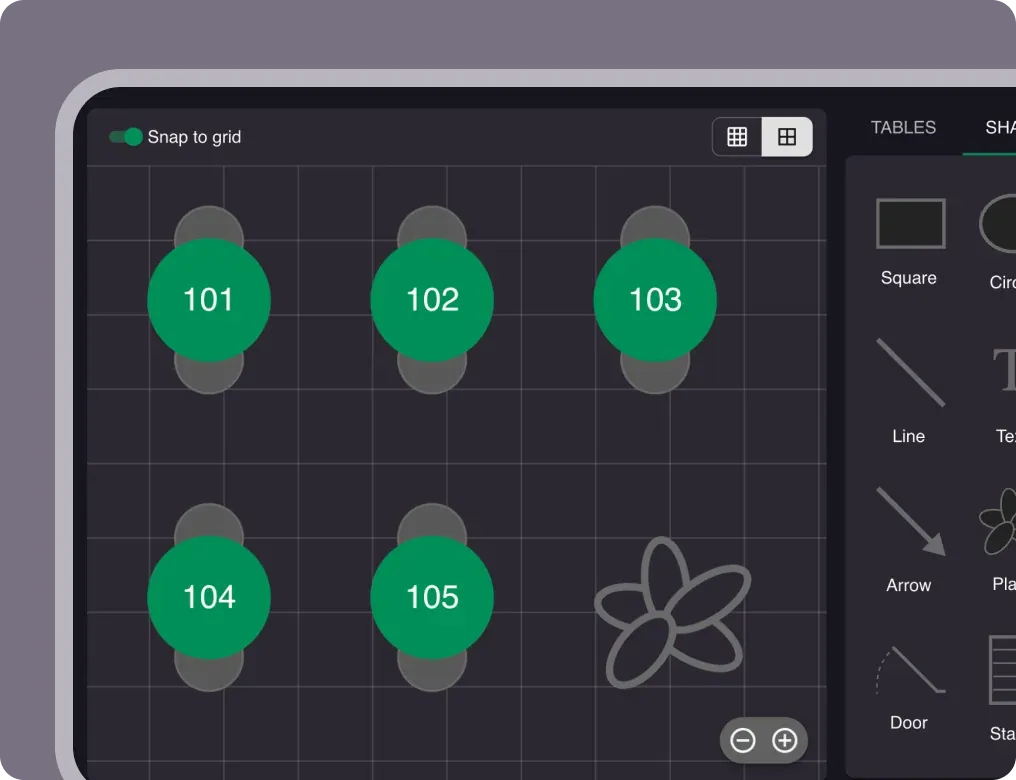
Add your opening hours, areas, and floor plan using our easy drag-and-drop editor.
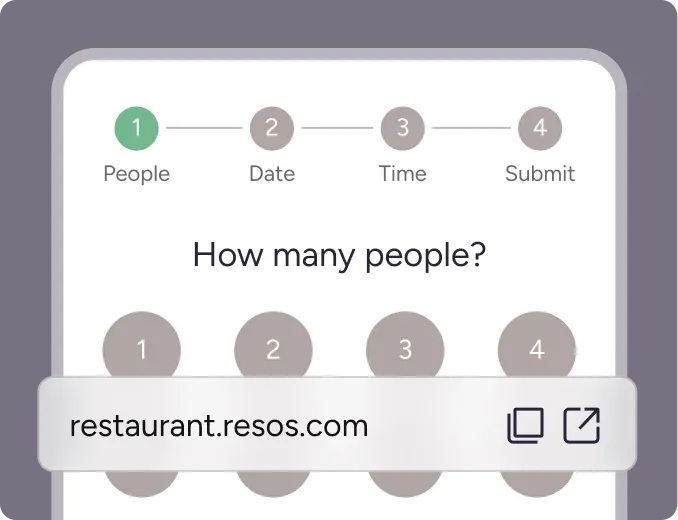
Add your booking link to your website and social media. No coding required.
An easier way for you and your staff to add bookings manually that doesn’t override your settings with the table booking warnings.
Have you and your restaurant staff ever struggled with remembering your booking and opening hour settings while manually creating a new table booking? Here at Resos we know it can be a bit overwhelming to keep in mind all the settings in the system. Especially if you choose to customize the settings for each of your opening hours. The booking warnings feature will solve these struggles by showing your warnings if you ever overrule the settings.
That means that every time you add a booking to the system and you choose its parameters outside the settings you have for your Booking, the system will show you these warnings. The warning will appear before the section with ”Date”, ”Time”, and ”People”.
If you were wondering what a warning looks like, take a look at this warning in the image below. The system shows it when the number of maximum guests per opening hour is exceeded (maximum 10 guests per opening hour).
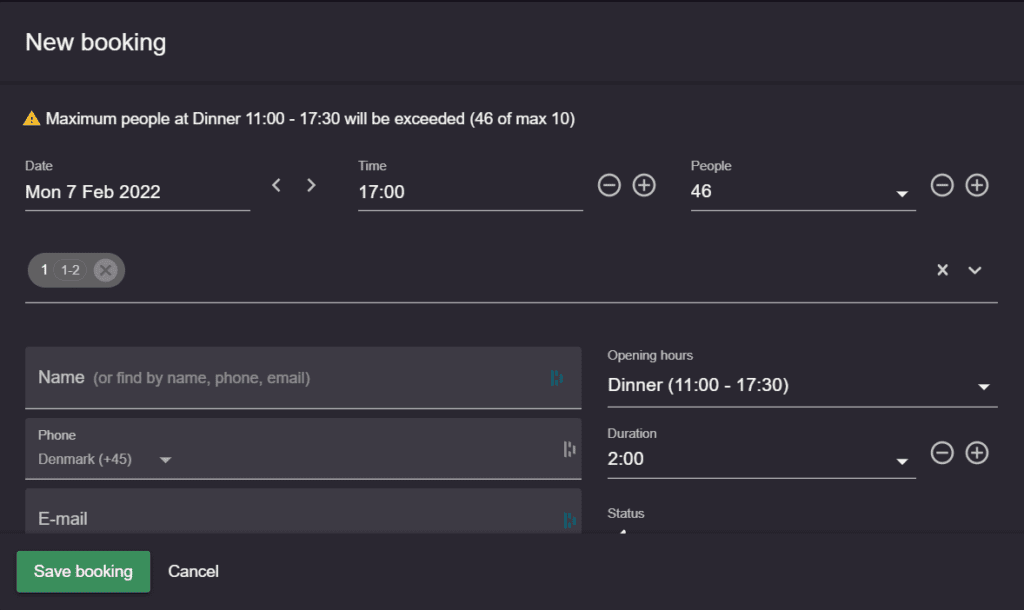
How does that work? You don’t need to set up or enable the warnings, as they will automatically show up on your screen when you create a booking outside your settings. The warnings will show up if you overrule any type of settings that you have previously customized. The settings include settings for opening hours, number of guests, booking interval, booking duration, and even special opening hours.
So, you just need to add the information you have, add the parameters of the table bookings, and if any “mistake” is made, the system will let you know!
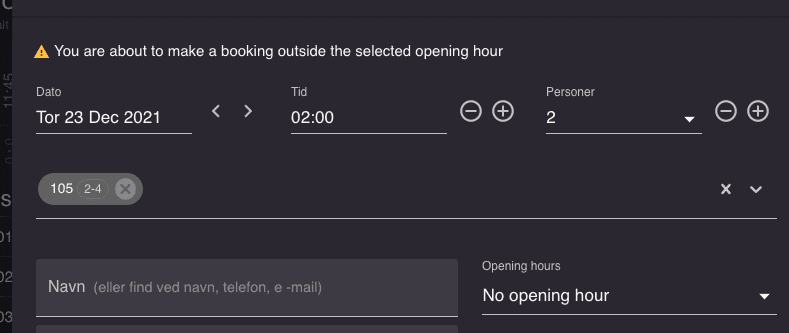
What are the benefits of the warnings? With this new feature, you and your staff can now add bookings faster and more efficiently since you don’t have to go back and forth to check all your booking settings. If you choose something wrong, the system will not only show you the warnings, but it will also explain what you did wrong, so you can fix it right away.
Once you have fixed the parameters that the warnings warned you about, you will just have to make sure you enter your guests’ information and the status of the booking. Then the booking is added to your calendar just like that!
Read also about how you can charge a reservation deposit and prevent no-shows.
If you have received table booking warnings in the system already and can spare a few minutes, we would love to hear your thoughts about this feature. Also, if you believe there are other settings in the system that could use warnings, just let us know at hi@resos.com. Our support team, together with our development team, will look into your suggestion right away and we will get back to you as soon as possible once we have talked it through!
Your feedback is the most important to us, as we are continuously working on improving the system and adding new features that fulfill your restaurant’s needs so you can focus on keeping your guests happy.
 For Restaurants
  For Cafés
  For Bars
  For Pubs
 Since we started using Resos, we have found the flexibility of the product and customer support incredible. It's very user friendly and easy to manage in-house which is a huge plus!
We have been using Resos as the booking platform for our cheese & wine bar in Helsinki, Finland, for over six months, and we are really impressed by it!
Once set up properly, Resos will run the whole booking seamlessly. Been trying many softwares and none has reached the level of customization and speed as Resos. And great support too!
The floor view is working very nicely, you can see everything at the same time. Also, it was a very huge upgrade for us, that the guests can easily cancel their booking – it saved us from a lot of no-shows.

Easy integration into our website and Google page.

Resos makes reservations so much easier. It's straightforward, flexible, and perfect for small businesses like ours. We're so happy with it!

What sets Resos.com apart is not just its ease of use, but also the proactive approach of the Resos team. They continuously work hard to introduce new features and add value to their product.
Simplicity when booking for the customer and easily accessible through our website, Facebook and Google.

When we started our search for a booking system, Resos was the obvious choice. Not only is it affordable for us as a small business, but also offers so many features that make our jobs easier.

Being able to make a reservation without too much hassle goes a long way! Resos keeps the process intuitive and simple.

Fast, free and friendly support from real people who take the time to understand your restaurant.


