


Since we started using Resos, we have found the flexibility of the product and customer support incredible. It's very user friendly and easy to manage in-house which is a huge plus!

A clean paper copy of the day's reservations still has its place. Resos prints directly from the list view and the calendar view, so the team can hand sheets to runners, write notes on the pass, or stay covered when the WiFi drops mid-service. Same data as the dashboard, formatted to read on paper instead of squinting at a screen.












Open the list view, pick the date, and hit the three dots to print. Every booking for the day comes out formatted for the kitchen pass or the host stand. Times, party sizes, and notes laid out cleanly, no manual reformatting needed.
Switch to calendar view and print a whole month at once. Useful for managers planning staffing, owners sharing the schedule with investors, or anyone who needs to mark up a month of service away from the screen.
Hand a printed sheet to every section at the pre-service briefing. Everyone walks the floor knowing the night before the first guest arrives, without staring at a tablet between covers.
A printed sheet is the safest backup when the connection dies mid-service. The team keeps seating the right guests at the right tables on time, even when the dashboard cannot load. Print before service and the floor never goes dark.
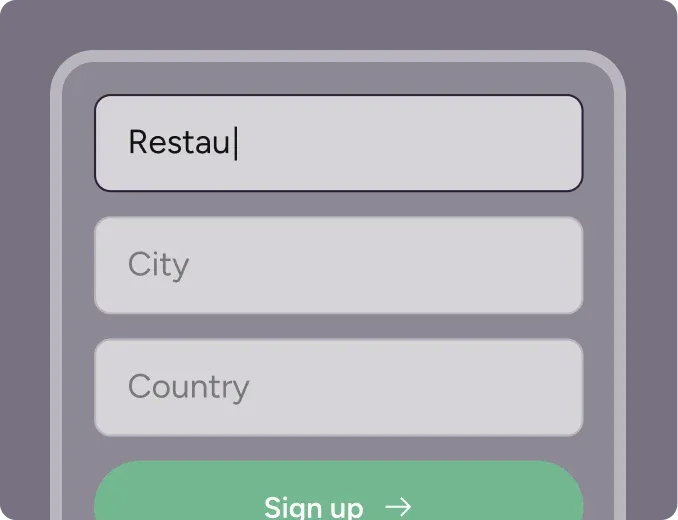
Create your account in seconds. No credit card required.
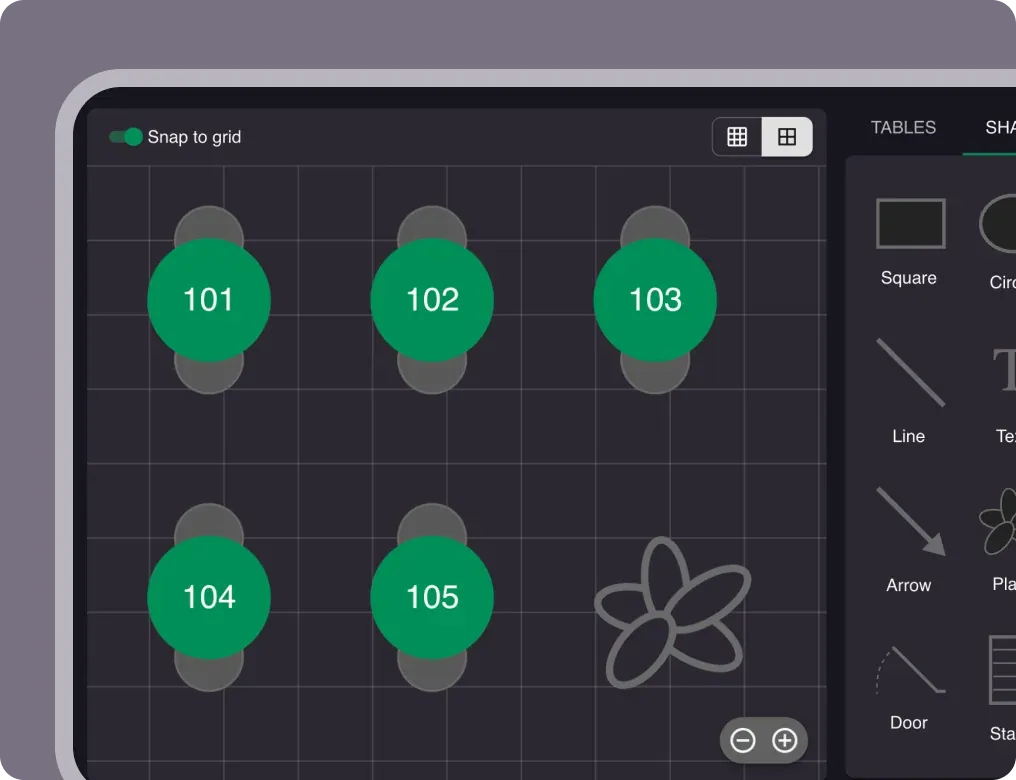
Add your opening hours, areas, and floor plan using our easy drag-and-drop editor.
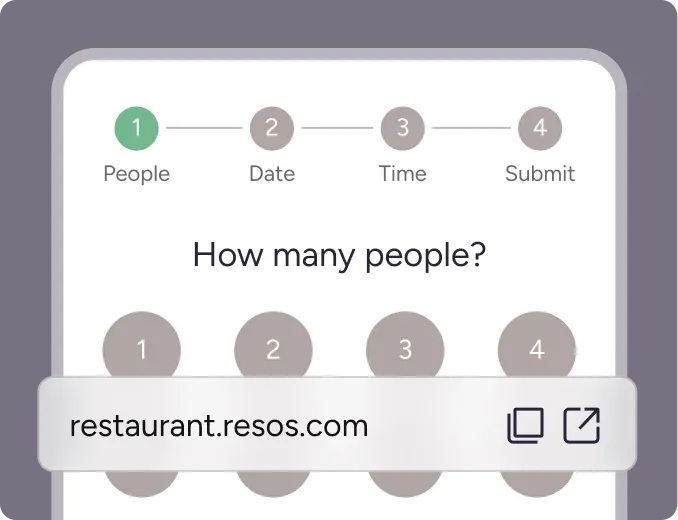
Add your booking link to your website and social media. No coding required.
With the new Printable Booking Views feature, you can easily print your bookings from the List and Calendar views.
Keep a clear and reliable overview of your reservations on paper to improve team communication and stay prepared for any situation.
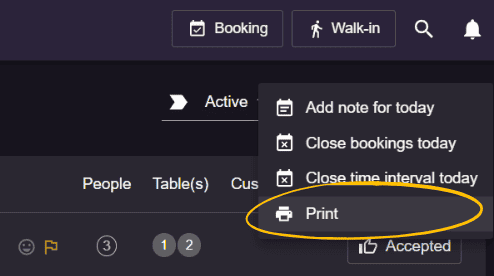
For the List view:
For the Calendar view:
👉 Check our support guide on how to print your bookings
Soon, you’ll also be able to print Floor Plans and Schedule views. We’re always working to make managing your bookings even easier!
If you have any questions or need assistance, our support team is ready to help at hi@resos.com.
 For Restaurants
  For Cafés
  For Bars
  For Pubs
 Since we started using Resos, we have found the flexibility of the product and customer support incredible. It's very user friendly and easy to manage in-house which is a huge plus!
We have been using Resos as the booking platform for our cheese & wine bar in Helsinki, Finland, for over six months, and we are really impressed by it!
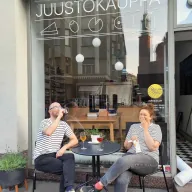
Once set up properly, Resos will run the whole booking seamlessly. Been trying many softwares and none has reached the level of customization and speed as Resos. And great support too!

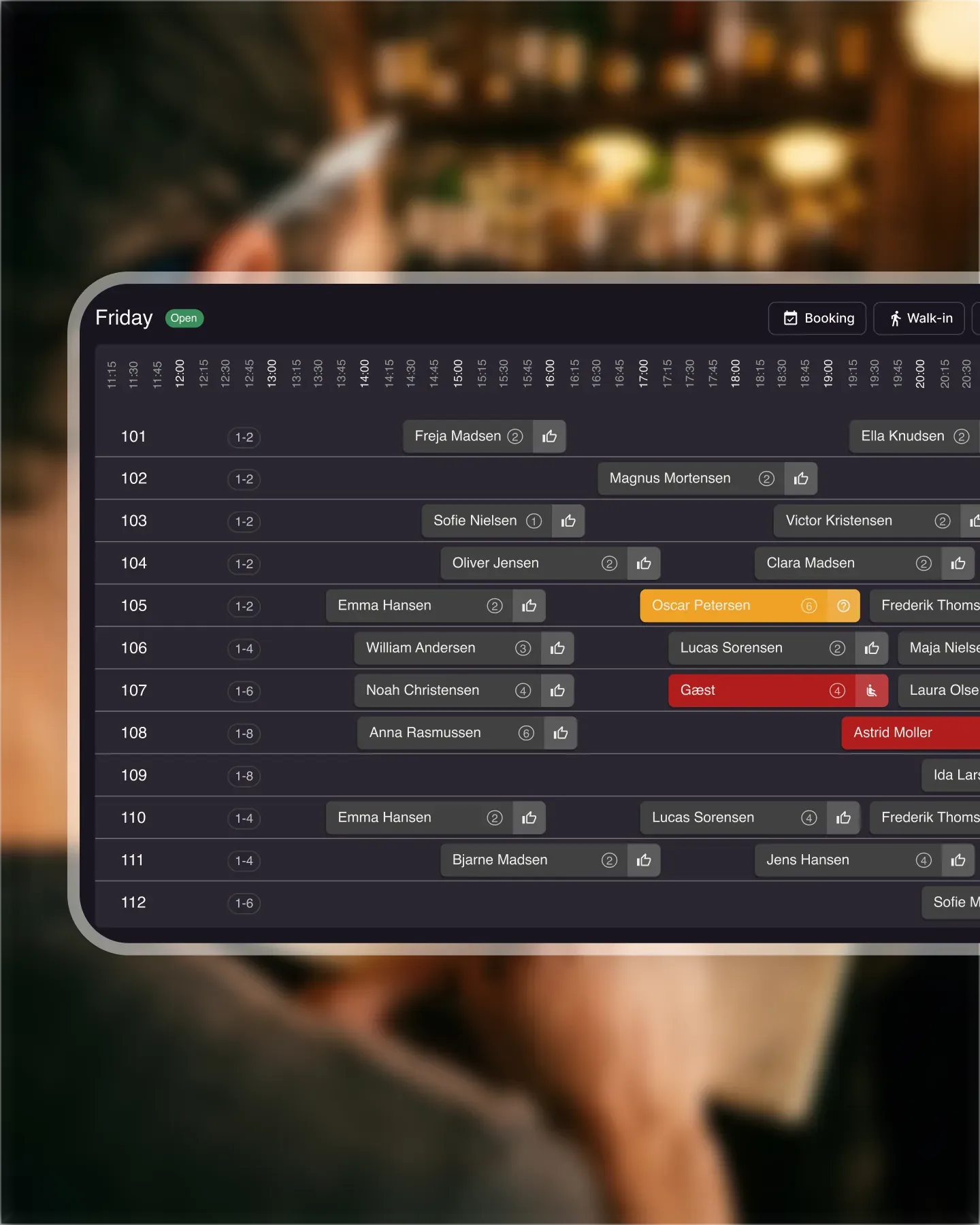
The floor view is working very nicely, you can see everything at the same time. Also, it was a very huge upgrade for us, that the guests can easily cancel their booking – it saved us from a lot of no-shows.

Easy integration into our website and Google page.

Resos makes reservations so much easier. It's straightforward, flexible, and perfect for small businesses like ours. We're so happy with it!

What sets Resos.com apart is not just its ease of use, but also the proactive approach of the Resos team. They continuously work hard to introduce new features and add value to their product.
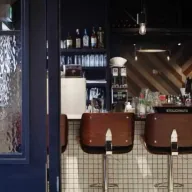
Simplicity when booking for the customer and easily accessible through our website, Facebook and Google.

When we started our search for a booking system, Resos was the obvious choice. Not only is it affordable for us as a small business, but also offers so many features that make our jobs easier.

Being able to make a reservation without too much hassle goes a long way! Resos keeps the process intuitive and simple.

Fast, free and friendly support from real people who take the time to understand your restaurant.