


Since we started using Resos, we have found the flexibility of the product and customer support incredible. It's very user friendly and easy to manage in-house which is a huge plus!

Connect Resos to Stripe once, then take prepayments, secure a card for no-show fees, and sell paid experiences without moving bookings into another system.
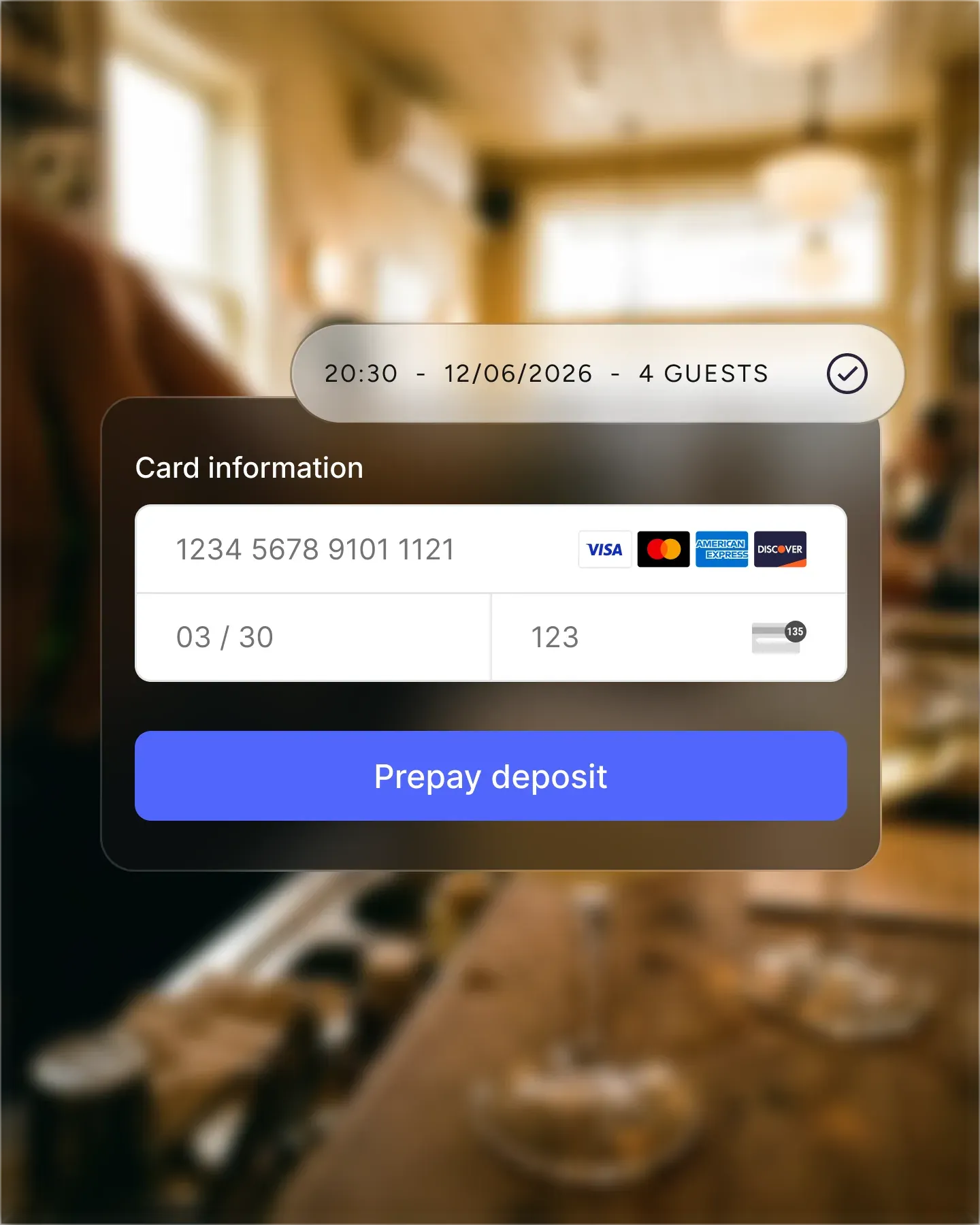












Link a new or existing Stripe account to Resos. Stripe handles card details, payment methods, payouts, and account verification while each payment stays connected to its booking.
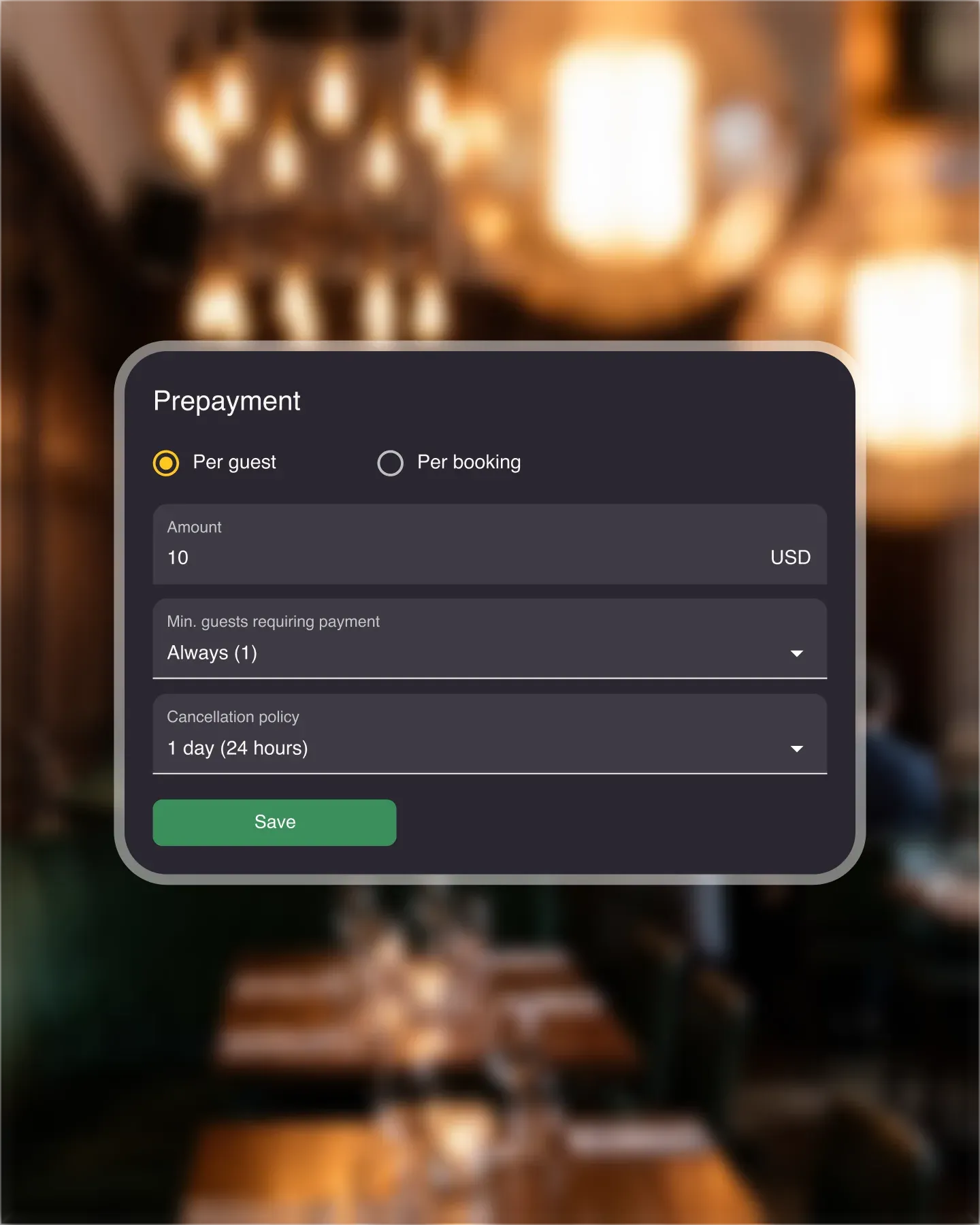
Require a fixed amount per booking or per guest for selected services, areas, booking types, or party sizes. Set the cancellation window that controls when a prepayment can be refunded.
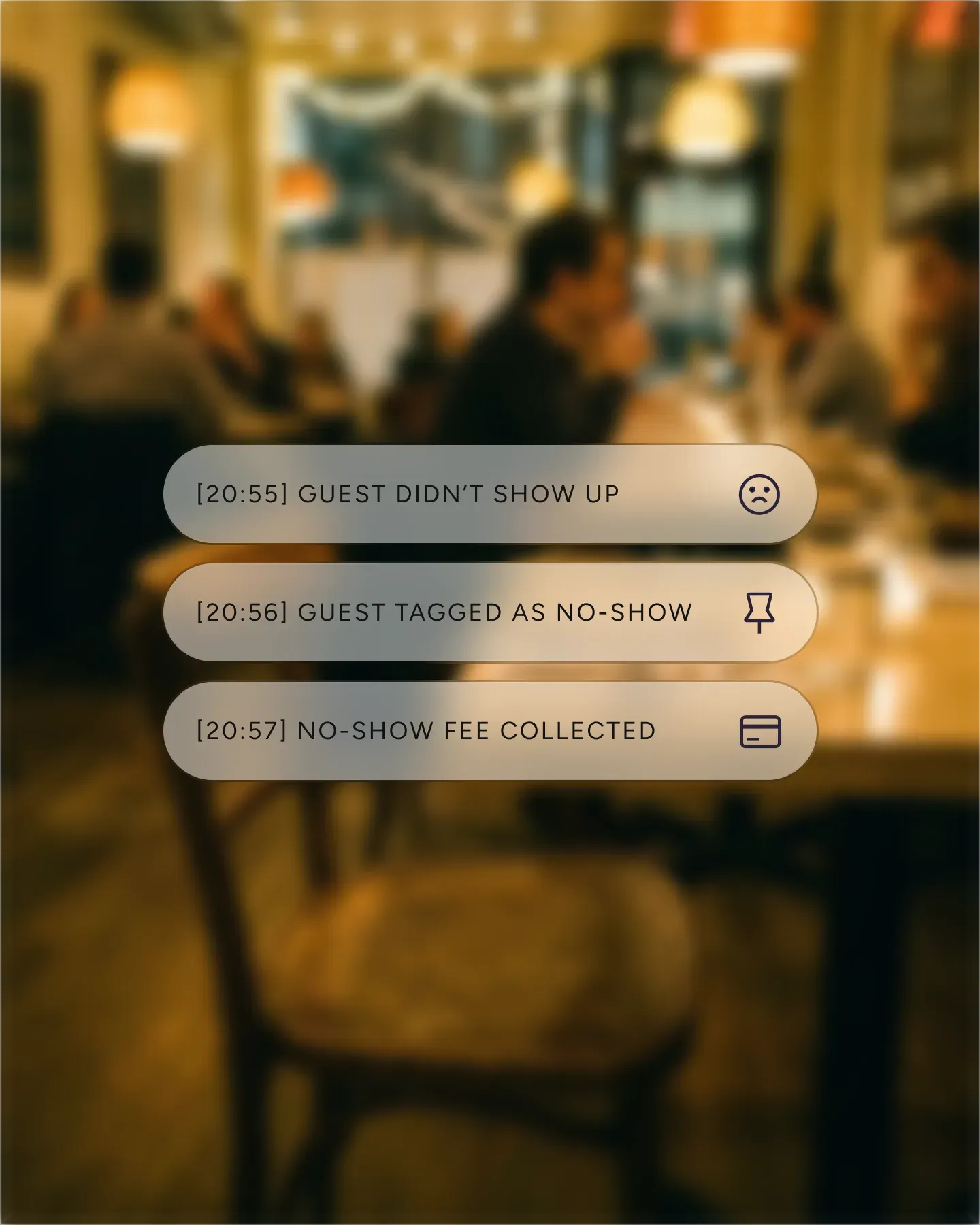
Ask guests to authorize a card when they book. If a guest does not arrive, mark the booking as a no-show and collect the fee according to the policy configured for that service.

Check payment status on the booking, refund a guest from the booking itself, and review prepayment and no-show fee totals in reports. The connected Stripe account covers payouts, payment details, and account verification.
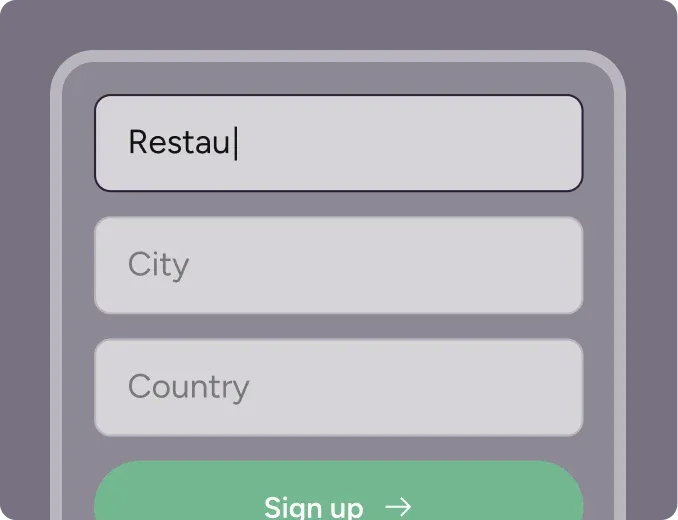
Create your account in seconds. No credit card required.
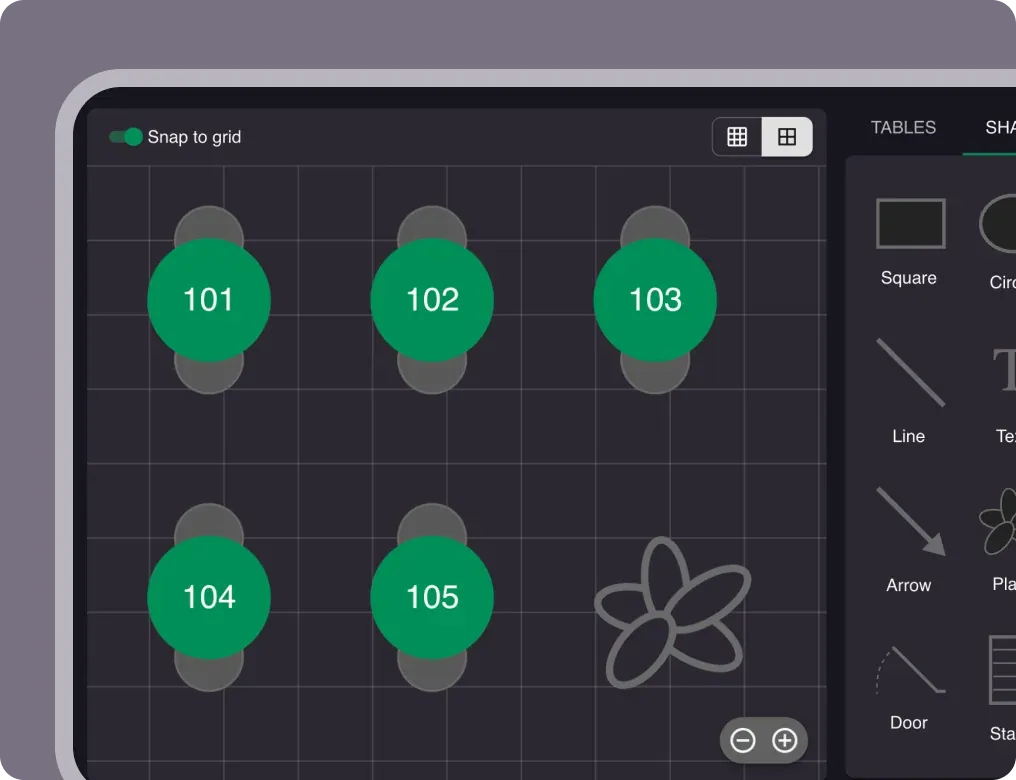
Add your opening hours, areas, and floor plan using our easy drag-and-drop editor.
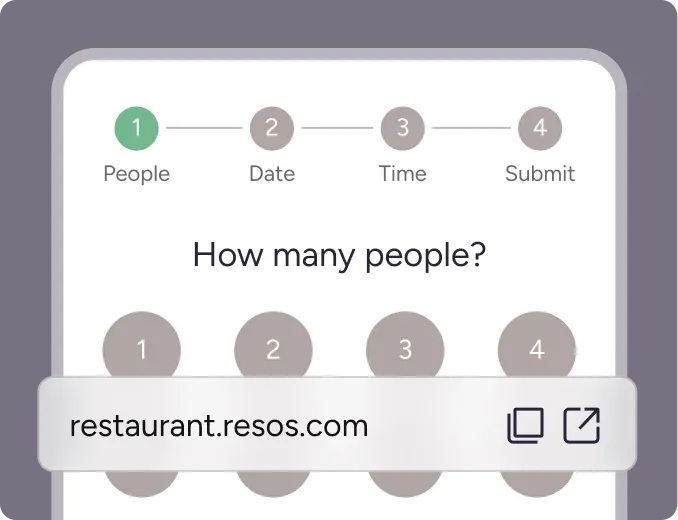
Add your booking link to your website and social media. No coding required.
Online payments brings the payment step into the restaurant booking flow. You connect Resos to Stripe, choose the payment policy that fits each service, and keep the booking and payment status together.
Online payments is the shared setup behind several payment features. Each supporting page has a separate job:
This separation lets the Online payments page explain the shared payment setup while each feature page covers its own policy in detail.
Restaurants use these policies to protect their most exposed services: in the Resos No-Show Index, no-shows run 43% higher at dinner than at lunch, and a large-party booking carries roughly three times the expected lost covers of a table for two. The index benchmarks recorded no-show rates by country, day, party size, and lead time, so you can see where your own risk concentrates.
Enable Online payment under Menu → Settings & add-ons → Payment, then connect a new or existing Stripe account. Stripe handles the sensitive card details and provides the dashboard for payouts, payment methods, and account verification. Resos keeps the payment request, status, and restaurant booking connected.
You can also set the VAT percentage and the time a guest has to complete a required payment or card authorization. If the guest does not finish within that window, the pending online booking is removed so the table can be offered again.
Follow the Online payment setup guide for the current steps. The Stripe integration page explains how the two systems work together.
Payment status appears on the booking, so the team can see whether a required prepayment is pending or complete. The prepayment and no-show fee report summarizes payment count, collected amount, refunds, and the split between the two policies for a selected period.
Refund a guest from the booking in Resos; use the connected Stripe account for payouts, payment details, and account verification. This keeps the operational booking view in Resos while Stripe remains the payment account and transaction record.
Online payments is an optional paid add-on for paid Resos plans. Resos charges a 2% transaction fee on every payment processed through Online payments. This fee is separate from the add-on price and Stripe’s processing fees. The 2% Resos transaction fee is not returned when a payment is refunded. See current Resos pricing before enabling the add-on.
Stripe sets separate processing fees based on the business location, payment method, and Stripe account. Review Stripe’s current pricing and the Resos transaction fees guide for the charges that apply to your setup.
 For Restaurants
  For Cafés
  For Bars
  For Pubs
 Since we started using Resos, we have found the flexibility of the product and customer support incredible. It's very user friendly and easy to manage in-house which is a huge plus!
We have been using Resos as the booking platform for our cheese & wine bar in Helsinki, Finland, for over six months, and we are really impressed by it!

Once set up properly, Resos will run the whole booking seamlessly. Been trying many softwares and none has reached the level of customization and speed as Resos. And great support too!

The floor view is working very nicely, you can see everything at the same time. Also, it was a very huge upgrade for us, that the guests can easily cancel their booking – it saved us from a lot of no-shows.

Easy integration into our website and Google page.

Resos makes reservations so much easier. It's straightforward, flexible, and perfect for small businesses like ours. We're so happy with it!

What sets Resos.com apart is not just its ease of use, but also the proactive approach of the Resos team. They continuously work hard to introduce new features and add value to their product.

Simplicity when booking for the customer and easily accessible through our website, Facebook and Google.

When we started our search for a booking system, Resos was the obvious choice. Not only is it affordable for us as a small business, but also offers so many features that make our jobs easier.

Being able to make a reservation without too much hassle goes a long way! Resos keeps the process intuitive and simple.

No. Resos connects the booking to your Stripe account. Stripe handles card details, payment methods, account verification, payouts, and its own processing fees.
A prepayment charges the guest during booking. A no-show fee authorizes a card during booking and is collected later only when the booking is marked as a no-show and the configured policy applies.
Yes. Paid Experiences can use the same online payment setup, so guests pay for tickets while booking and the event remains connected to the Resos calendar and guest profile.
Resos charges a 2% transaction fee on every payment processed through Online payments. This is separate from the add-on price and Stripe's processing fees. Check the Resos pricing page and transaction fee guide for details.
Fast, free and friendly support from real people who take the time to understand your restaurant.


