


How to enable the online payment add-on
In this article
- Video walkthrough
- Stripe actions
- Steps to enable the online payment add-on
- Disabling the add-on
- FAQ
- Why is there no Payment section in Settings & add-ons?
- What payment methods can my guests use?
- How do I delete a guest’s saved payment method?
- What if Resos suddenly stops collecting fees?
- What happens if a guest doesn’t complete payment in time?
- Should I contact Stripe support directly for account issues?
The purpose of this support article is to explain what the Online payments add-on does and the steps to enable it. This feature is used as a first step in requiring payments from the guests for bookings, both for prepayments (deposits) and no-show fees. Read more to find out how to enable it and a few other vital details about the add-on.
Before you start
Online payment needs an active paid plan. It cannot be activated on the Free plan, so prepayments and no-show fees cannot be taken on it either. Which paid tier you are on does not matter, any of them will do. On the pricing page this add-on is listed as Online payments, and its subscription is included in the Annual All-Access bundle. On other paid plans, it costs extra. Resos transaction fees and Stripe processing fees also apply, including on All-Access. See transaction fees explained.

Video walkthrough
Prefer to watch instead of read? This short video covers connecting Stripe and switching on prepayments and no-show fees:
Stripe actions
Once online payment is enabled, you can create a Stripe account and connect it to your Resos profile so that you can handle and manage all the fees collected from your customers. On your Stripe account, you can do the following:
- pay out the collected fees.
- refund a payment that Resos can no longer refund itself, such as one on a booking whose date is more than 30 days in the past.
- create new invoices for your customers.
- customize the available payment methods for collecting the fees.
- delete your customers’ payment information.
Everyday refunds do not happen in Stripe. You refund a guest from the booking in Resos, and partial refunds are supported. See refunds and payment problems on a booking.
Steps to enable the online payment add-on
There are four simple steps to start collecting fees for your bookings right away:
- Go to Menu → Settings & add-ons → Payment → Online payment and enable the add-on.
- Create a Stripe account by following the onboarding steps provided by Stripe. This sets up a new Stripe account for your restaurant; you cannot connect an existing Stripe account. If you already use Stripe elsewhere, you still complete this onboarding once for your Resos profile.
- In the “Payment” section, you can enable Prepayments and/or No-show fees as well and set them up in “Opening hours”.
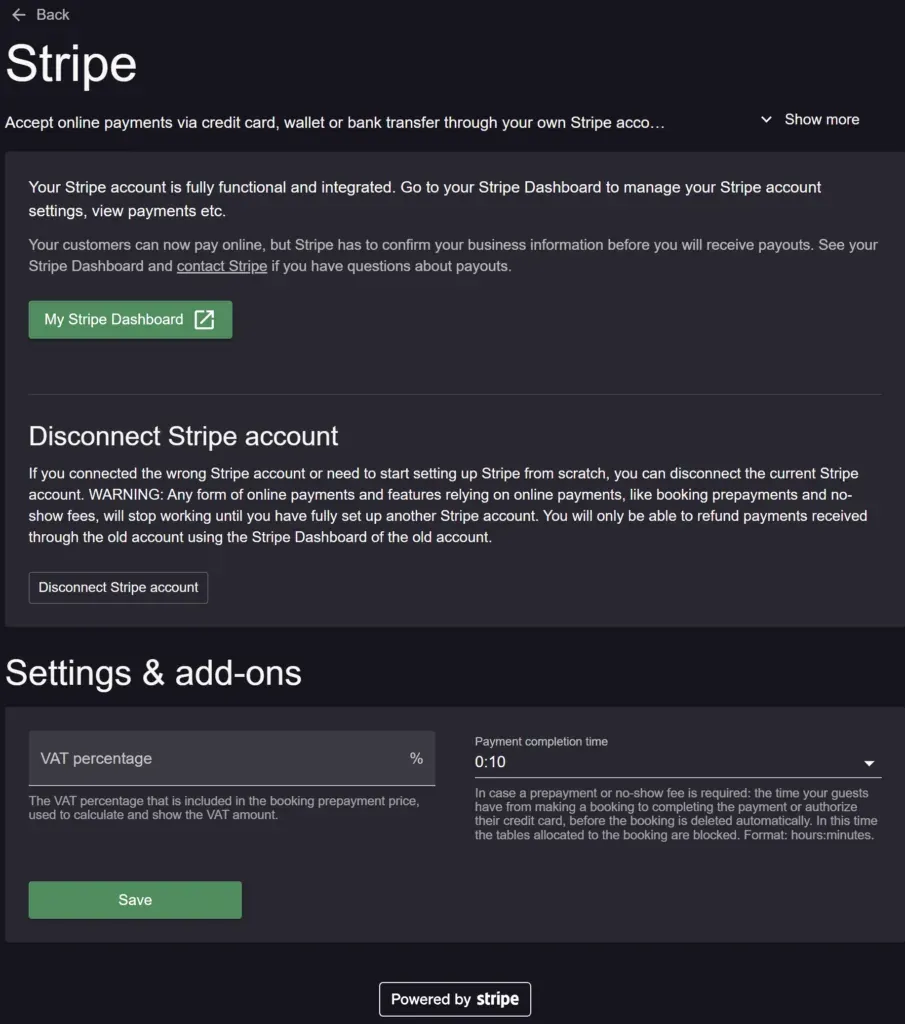
- Go back to “Online payment” and set the VAT percentage and Payment completion time for your future transactions. The VAT percentage does not add tax on top of what guests pay: guests always pay exactly the amount you set, and the percentage only records the VAT share contained in that amount against the booking, for your own accounting. If you charge VAT, build it into your prepayment and no-show fee amounts.
Note: Online payment pricing and plan availability can change. Check the current Resos pricing and the transaction fees FAQ before enabling the add-on. Stripe processing and refund terms depend on the connected Stripe account.
Disabling the add-on
Go to Menu → Settings & add-ons → Payment → Online payment, click More, then Disable.
Disabling the online payment add-on also switches off Prepayment and No-show fees, because both depend on it.
Turning online payment back on does not bring their settings back. The payment settings on your opening hours are cleared, not paused, and bookings still waiting for a guest to pay lose their pending payment request. Write down your amounts, minimum guest counts, and cancellation policies before you disable, so you can set them up again. Your Stripe connection is kept, so you do not have to redo the Stripe setup.
See how to connect, disable, or disconnect Stripe for the full picture.
FAQ
Here are a few common questions that our customers have regarding the integration between Resos and Stripe:
Why is there no Payment section in Settings & add-ons?
There are two reasons the Payment section, with Online payment, Experiences, Prepayment and No-show fees, does not show under Menu → Settings & add-ons:
- Your restaurant’s country. Online payment runs on Stripe, and the Payment section only appears for restaurants whose address is in a country where Resos offers it. Elsewhere, the section is hidden for every user and plan, so online payment, Experiences, prepayments and no-show fees cannot be set up there. Check the Country under Menu → Settings & add-ons → Account → Name & contact is your restaurant’s real country. If it is right and you still see no Payment section, write to us at hi@resos.com.
- Your user rights. Owners and admins see the section. A user with Custom rights needs the General settings or Apps right to see it, and the Apps right to open Online payment. Ask the account owner to update your user if you need it.
What payment methods can my guests use?
That depends on your restaurant’s country and currency and on what is enabled on your connected Stripe account, so there is no single list that applies to every restaurant. The common card brands, VISA, Mastercard and American Express, plus Apple Pay and Google Pay, are available to most restaurants. For your own list, open Menu → Settings & add-ons → Payment → Online payment: the add-on describes what Stripe supports, and you switch the individual methods on and off from your Stripe account. See Stripe’s payment methods for what is available where.
How do I delete a guest’s saved payment method?
This is done in Stripe, not in Resos:
- Go to https://dashboard.stripe.com/customers.
- Search for the guest’s name or email address.
- Go to “Payment Methods” at the bottom part of the screen.
- Click the three dots and then “Delete”.
What if Resos suddenly stops collecting fees?
Sometimes Stripe temporarily disables your account. If Resos doesn’t take fees anymore, check your Stripe account and update your details/take additional security steps, and once you’re cleared, you can collect fees again.
What happens if a guest doesn’t complete payment in time?
A booking made through your booking page has a deadline, the Payment completion time you set under Online payment. If the guest has not paid by then, the booking is deleted automatically and the guest has to book again. Until the deadline passes, the guest can return to the payment step and finish it.
A booking you add yourself in the dashboard has no such deadline. It stays in your calendar with the payment pending until the guest pays, or until you change or delete the booking. See prepayments and no-show fees on manual bookings.
Should I contact Stripe support directly for account issues?
Yes, we actually recommend reaching out to Stripe support in case you have any issues with your Stripe profile or questions about some of its processes. You can reach Stripe support by going to the upper right side of your account → Help → Support articles → Contact support.


