How to set up the Resos' deposit feature
In this article
The Resos’ deposit feature will help reduce no-shows, and can also be used as a pre-payment for fixed menus, events, or other occasions. This article will show you how to set up Resos restaurant deposit feature on your account.
A deposit is the Prepayment add-on, and it is not the same as a no-show fee: a prepayment is charged when the guest books, while a no-show fee only saves the guest’s card and is charged afterwards if they do not turn up or cancel too late. An opening hour holds one of the two, never both, so pick the one that matches what you are trying to do.
Before you start
Deposits need an active paid plan and the Online payment add-on connected to Stripe. Online payment cannot be activated on the Free plan, so deposits cannot be taken on it either. Which paid tier you are on does not matter, any of them will do. On the pricing page, prepayments and no-show fees both sit in the Online payments add-on, and its subscription is included in the Annual All-Access bundle. On other paid plans, it costs extra. Resos transaction fees and Stripe processing fees also apply, including on All-Access. See transaction fees explained.
Step 2 below is where you switch Prepayment on if it is not already active.
How to enable the booking deposit feature
There might be some (or all) of your opening hours where you require a deposit to be paid before the table is reserved. That is not a problem at all, since you can choose what opening hours needs a pre-payment.
- Go to Menu → Settings & add-ons → General → Opening hours and choose an opening hour to edit.
- Prepayment must be active first. If Require prepayment is greyed out, activate it at Menu → Settings & add-ons → Payment → Prepayment. Prepayment only becomes available once Online payment is active and connected to Stripe.
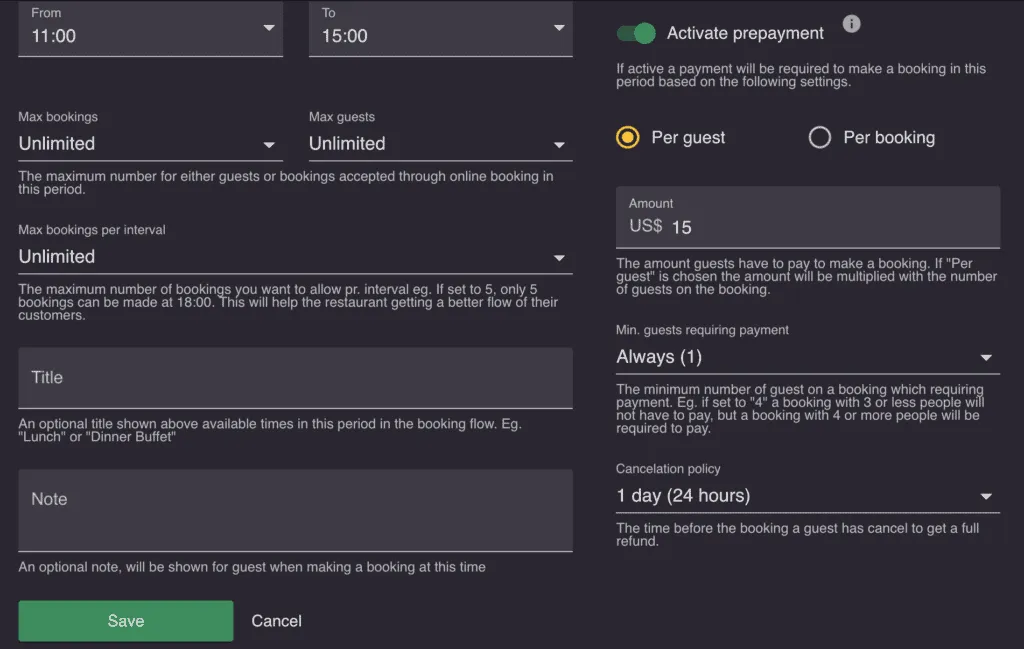
- Open the Payment tab and turn on Require prepayment. The prepayment fields below it become editable.
- Choose if you want to require a pre-payment amount from a booking made or charge the amount for each guest on the booking.
- The minimum number of guests before requiring payment can also be set.
- At last, the cancellation policy can be adjusted to what suits your restaurant best.
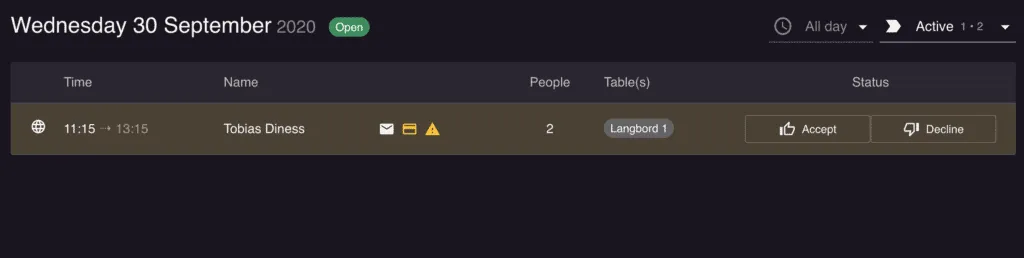
You are ready to go, once activated, and saved! Now the guests will have to pay that amount when booking a table during that opening hour. Sometimes a guest might reconsider their booking during the prepayment process and interrupt the payment. The yellow credit card sign on the booking shows that the prepayment hasn’t been made and the status is pending. Online bookings will automatically be deleted if the guest has not paid the deposit amount within 10 minutes by default. While that time is running, the guest can leave the payment step and come back to it: Resos reopens the same payment instead of starting a second booking, and the guest sees a countdown on their booking page. When the time runs out the booking is removed automatically and a note on the booking tells the guest to book again; the guest is not emailed or texted about the deadline. You adjust that window under Menu → Settings & add-ons → Payment → Online payment → Payment completion time, not in the opening hour itself. See refunds and payment problems on a booking for what to do when a payment needs fixing or refunding afterwards.
Running more than one service with its own deposit
Each opening hour carries its own payment settings, so a fixed-menu service can require a deposit while regular dining requires nothing. See set a different deposit for each service.
Charge a deposit on a booking you add yourself
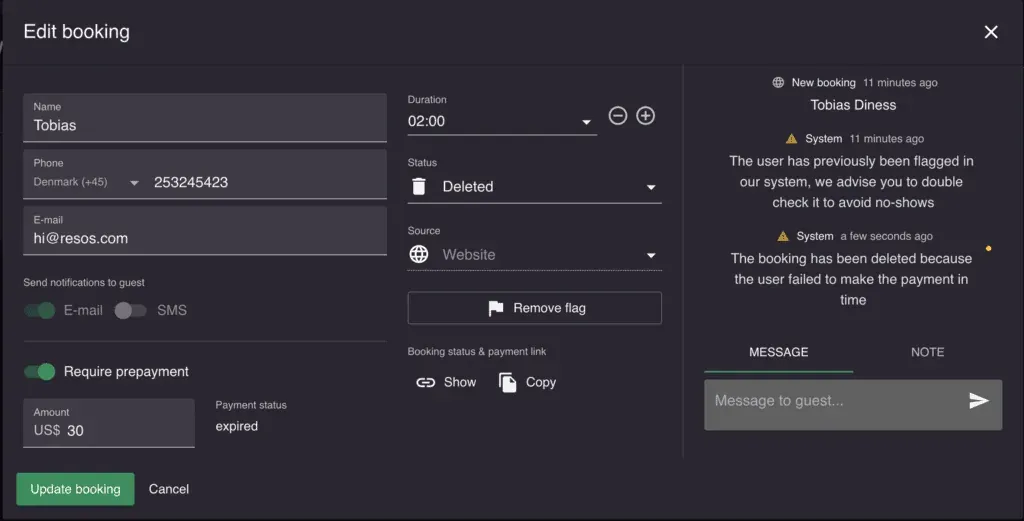
You can also ask for a deposit on a booking taken over the phone or in person. On the booking form, turn on Require prepayment, type the Amount, and turn on E-mail or SMS under Notifications so the guest is sent the payment link. That flow has no payment deadline, so the booking waits for the guest rather than being deleted. See prepayments and no-show fees on manual bookings.