


Since we started using Resos, we have found the flexibility of the product and customer support incredible. It's very user friendly and easy to manage in-house which is a huge plus!

Run reservations and walk-ins from a single, clean schedule that the team can learn in an afternoon. Calendar, list, timetable, floor plan – pick the view that matches the moment, see the night at a glance, and keep service moving without a stack of spreadsheets at the host stand.













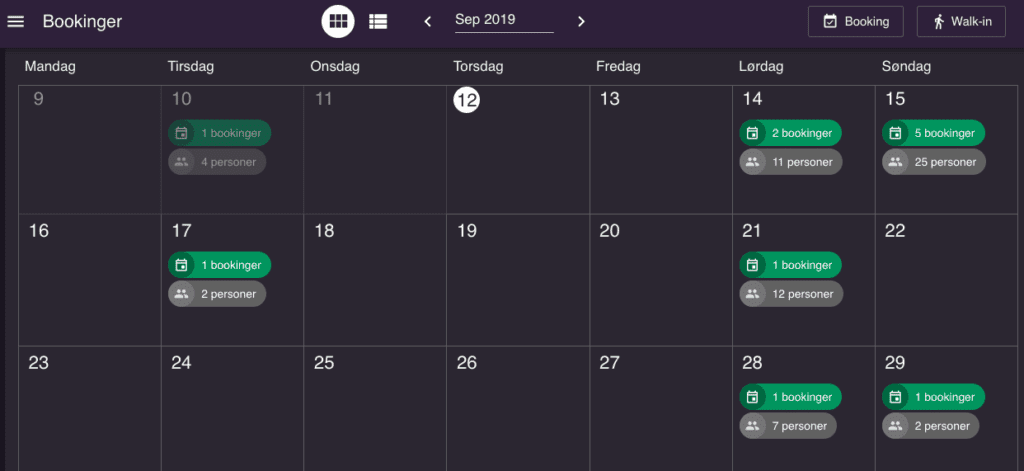
The calendar view rolls up bookings and guest counts day by day so you can spot a quiet Tuesday or a packed Saturday without opening anything. Useful for planning rosters, ordering produce, and deciding when to push a campaign.
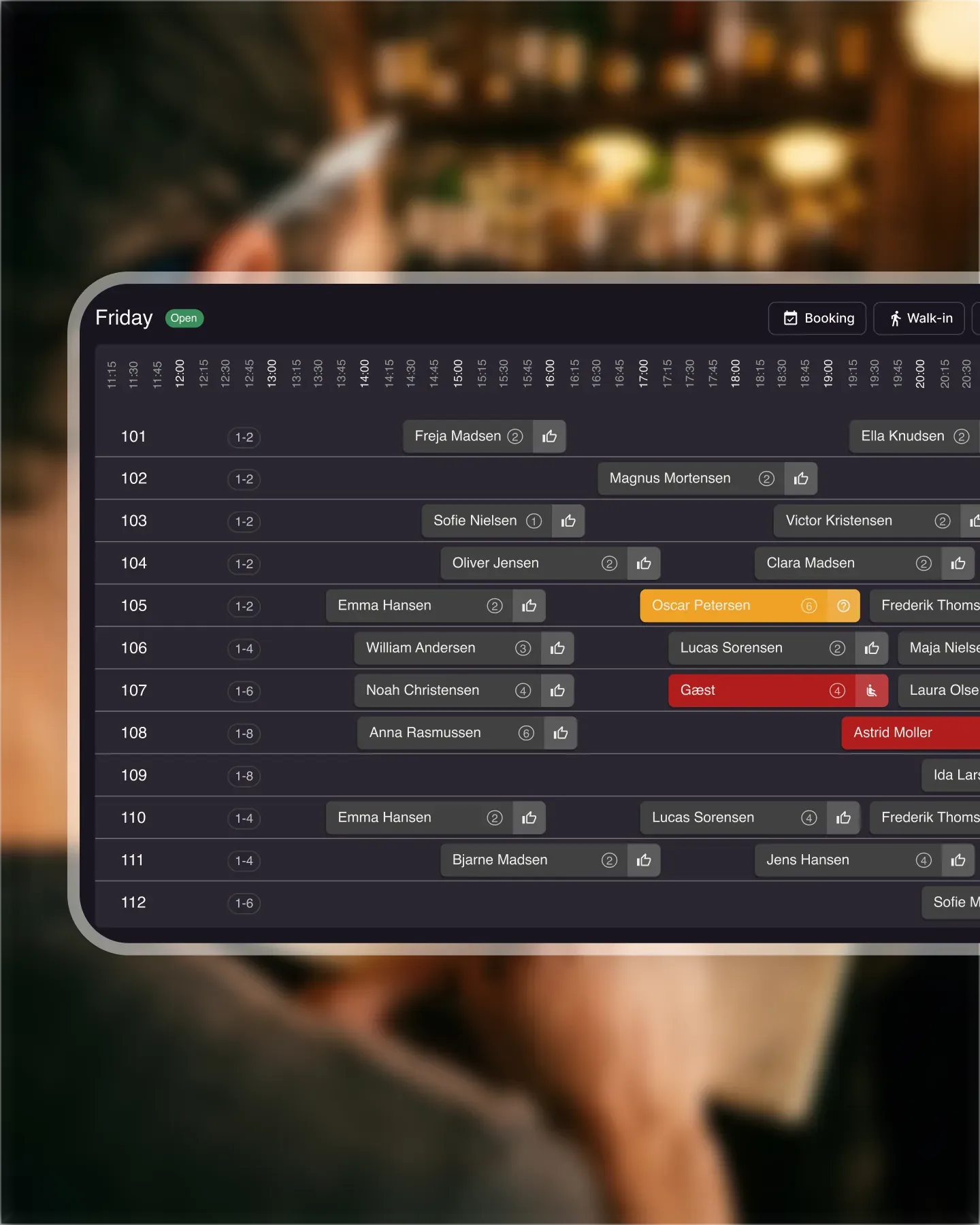
The timetable view runs chronologically through the day so the host can pace seatings and the kitchen can read the rush. Bookings are color-coded by status – grey for added, green once the guest is seated – so anyone walking up to the screen reads the room in a second.
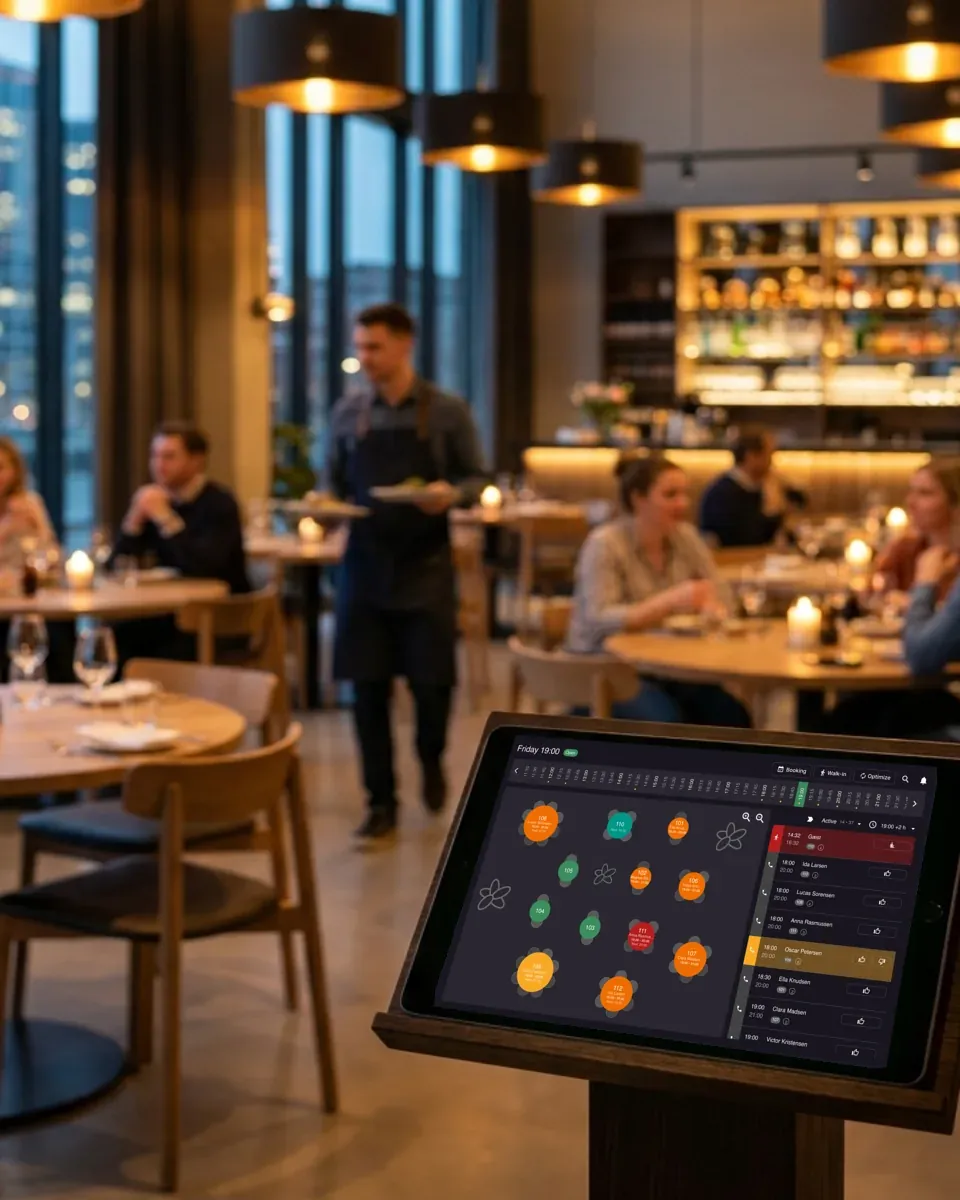
Flip to the visual floor plan and the schedule becomes the actual room. Drag a booking to a different table, see which sections are filling up first, spot the four-top that can take a walk-in. The host stand stays calm because the answer is right there.

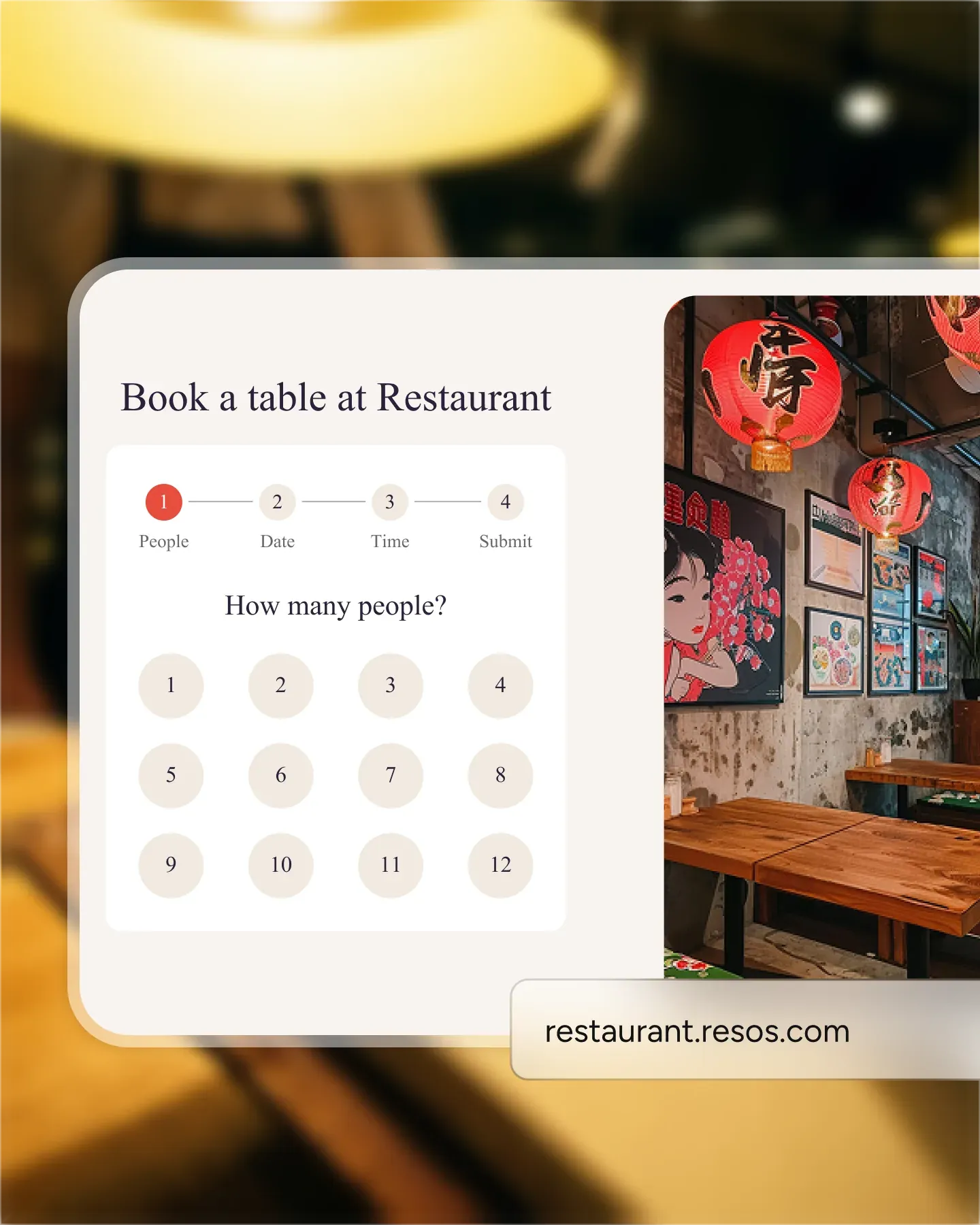
Resos works without technical setup. Drop the widget onto your website, your Google Business Profile, and your Facebook page in a few clicks. Bookings from every channel land in the same schedule, so the team is not switching tabs to know what is coming through the door.
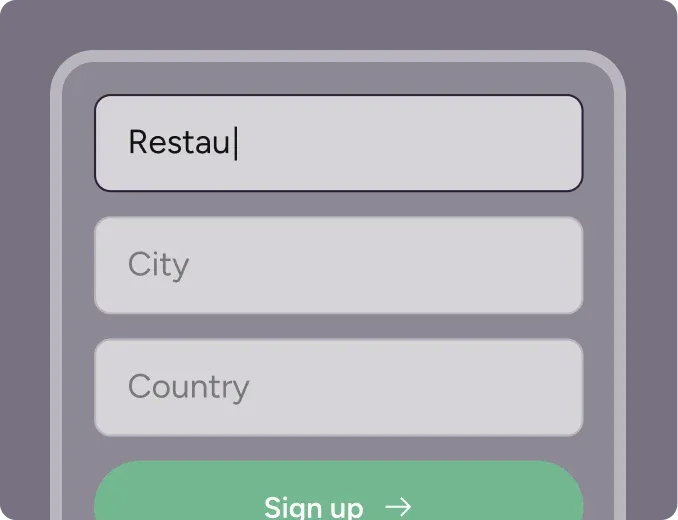
Create your account in seconds. No credit card required.
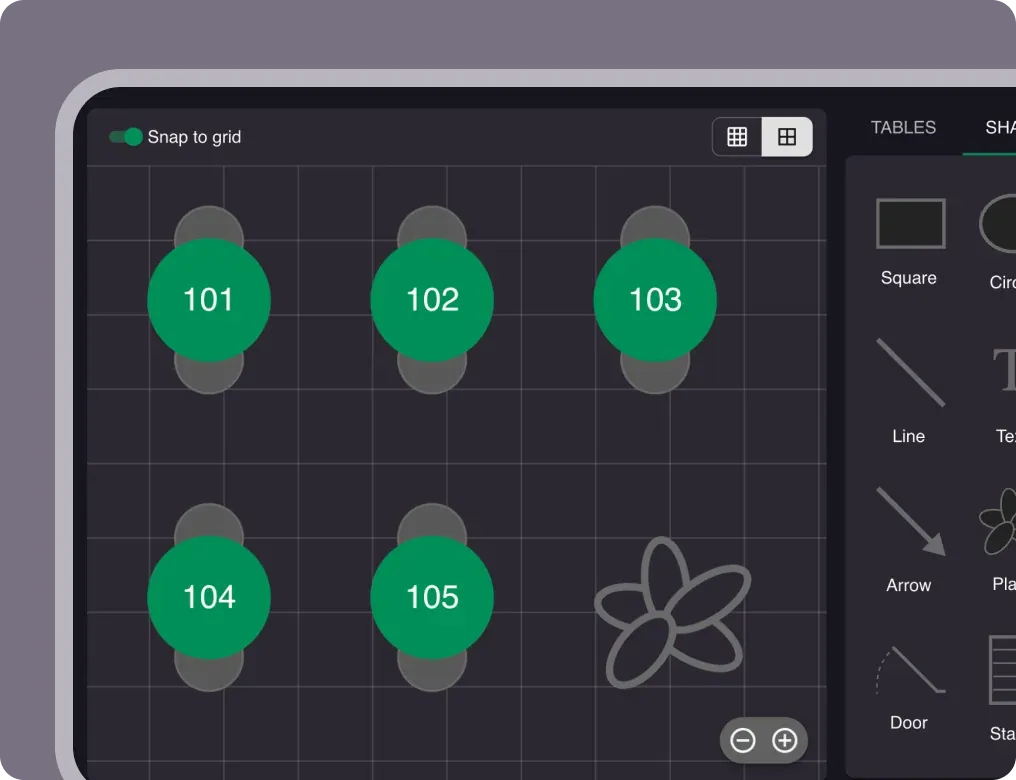
Add your opening hours, areas, and floor plan using our easy drag-and-drop editor.
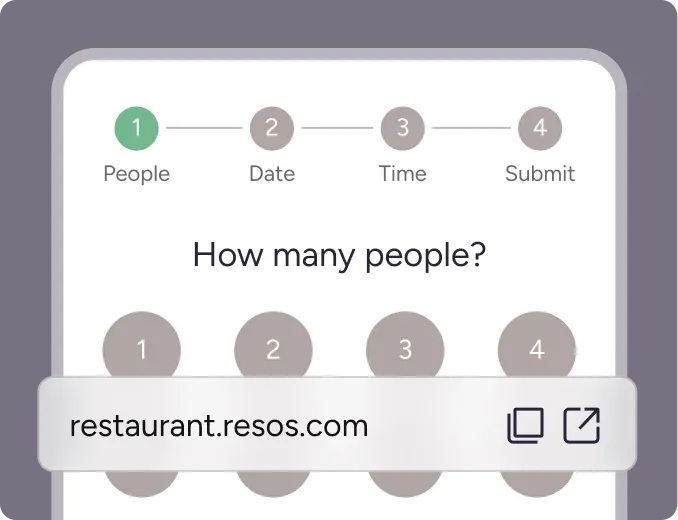
Add your booking link to your website and social media. No coding required.
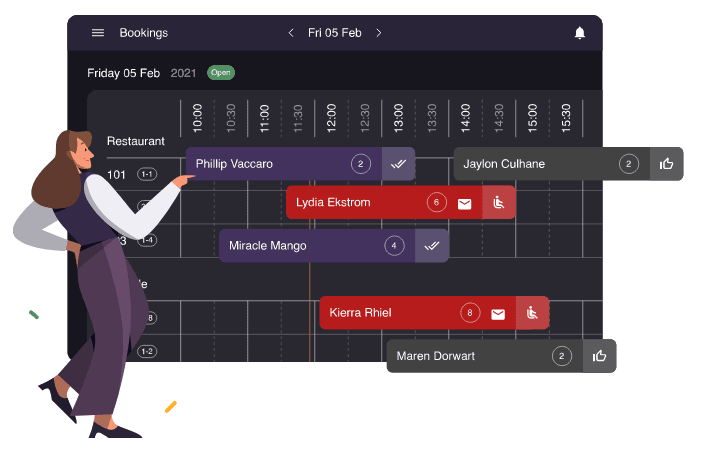
One of the most important things for restaurants is that the staff can easily have an overview of all bookings, and where the guests should be seated. It does not require a crazy amount of time for the staff to learn how to use Resos’ online booking system. We made the system easy to navigate with a clean and simple setup. Easily manage reservations online with the booking schedule and ensure high customer satisfaction.
Read also about how you can send your guests booking reminders via SMS and Email.
We made it extremely easy for you to manage your online reservations and walk-ins. The calendar overview makes it easy to keep track of the number of bookings and guests, you have for each day of the month. We’ve also made it simple for you to communicate with your guests. You can communicate directly with guests in the booking system before and after their visit - making it easy to avoid miscommunication and no-shows.
You can also use the scheduling system that allows you to follow a chronological order of reservations you have on a particular day. The timetable will give you a visual overview of the reservations and the important criteria for each booking.
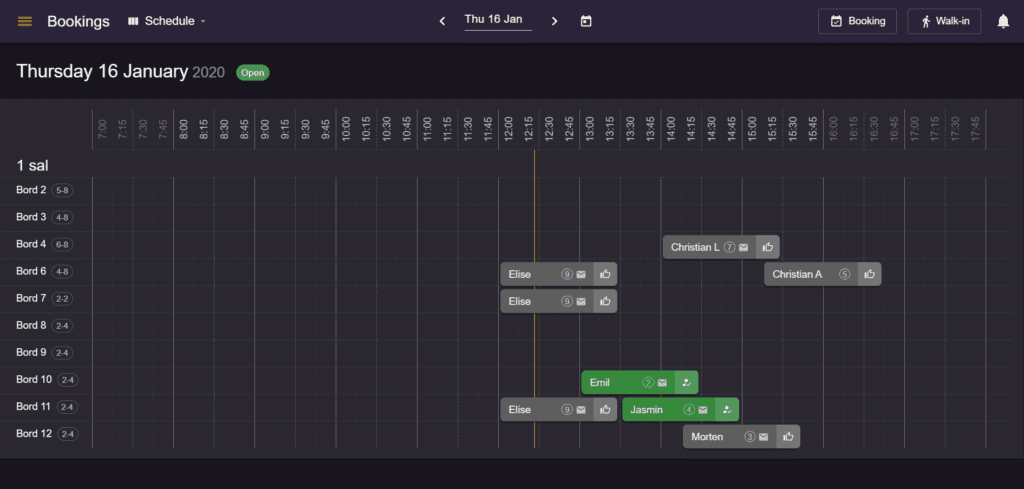
The schedule follows a system of colors in the relation to the status of the reservation, the name of the reservation will appear in grey when the reservation is added to the system but it has no status. The reservation will automatically turn green once the guest is seated at the table.
Resos has spent a lot of time in the developing process to ensure that the booking system suits any kind of restaurant. It does not matter if you have an à la carte restaurant, a sandwich bar, a café, a high-end restaurant, or any other type for that matter. Resos is a great system for any of them.
If you are unsure if the booking system fits your type of eatery, you can find our list with all types of eateries and restaurants that the booking system is a great fit for.
Resos’ online table booking system does not require any technical skills to use and integrate. With a few clicks, the booking system can, therefore, be added to your website, Google Profile, and Facebook page.
Do you have any questions? Do not hesitate to contact us at hi@resos.com, and we will get back to you as fast as possible.
 For Restaurants
  For Cafés
  For Bars
  For Pubs
 Since we started using Resos, we have found the flexibility of the product and customer support incredible. It's very user friendly and easy to manage in-house which is a huge plus!
We have been using Resos as the booking platform for our cheese & wine bar in Helsinki, Finland, for over six months, and we are really impressed by it!
Once set up properly, Resos will run the whole booking seamlessly. Been trying many softwares and none has reached the level of customization and speed as Resos. And great support too!

The floor view is working very nicely, you can see everything at the same time. Also, it was a very huge upgrade for us, that the guests can easily cancel their booking – it saved us from a lot of no-shows.

Easy integration into our website and Google page.
Resos makes reservations so much easier. It's straightforward, flexible, and perfect for small businesses like ours. We're so happy with it!

What sets Resos.com apart is not just its ease of use, but also the proactive approach of the Resos team. They continuously work hard to introduce new features and add value to their product.
Simplicity when booking for the customer and easily accessible through our website, Facebook and Google.

When we started our search for a booking system, Resos was the obvious choice. Not only is it affordable for us as a small business, but also offers so many features that make our jobs easier.

Being able to make a reservation without too much hassle goes a long way! Resos keeps the process intuitive and simple.

We take pride in offering industry leading fast, free and friendly customer service that takes the time needed to understand and help you.