


Since we started using Resos, we have found the flexibility of the product and customer support incredible. It's very user friendly and easy to manage in-house which is a huge plus!

Pull bookings, guests, and feedback out of Resos as a clean CSV whenever you need it. Open it in Excel or Google Sheets, share it with your accountant, hand it to your marketing team, or print a guest list for tonight's service. Set a date range, pick a status, and the file is ready in seconds. Your data stays portable, the way it should be.
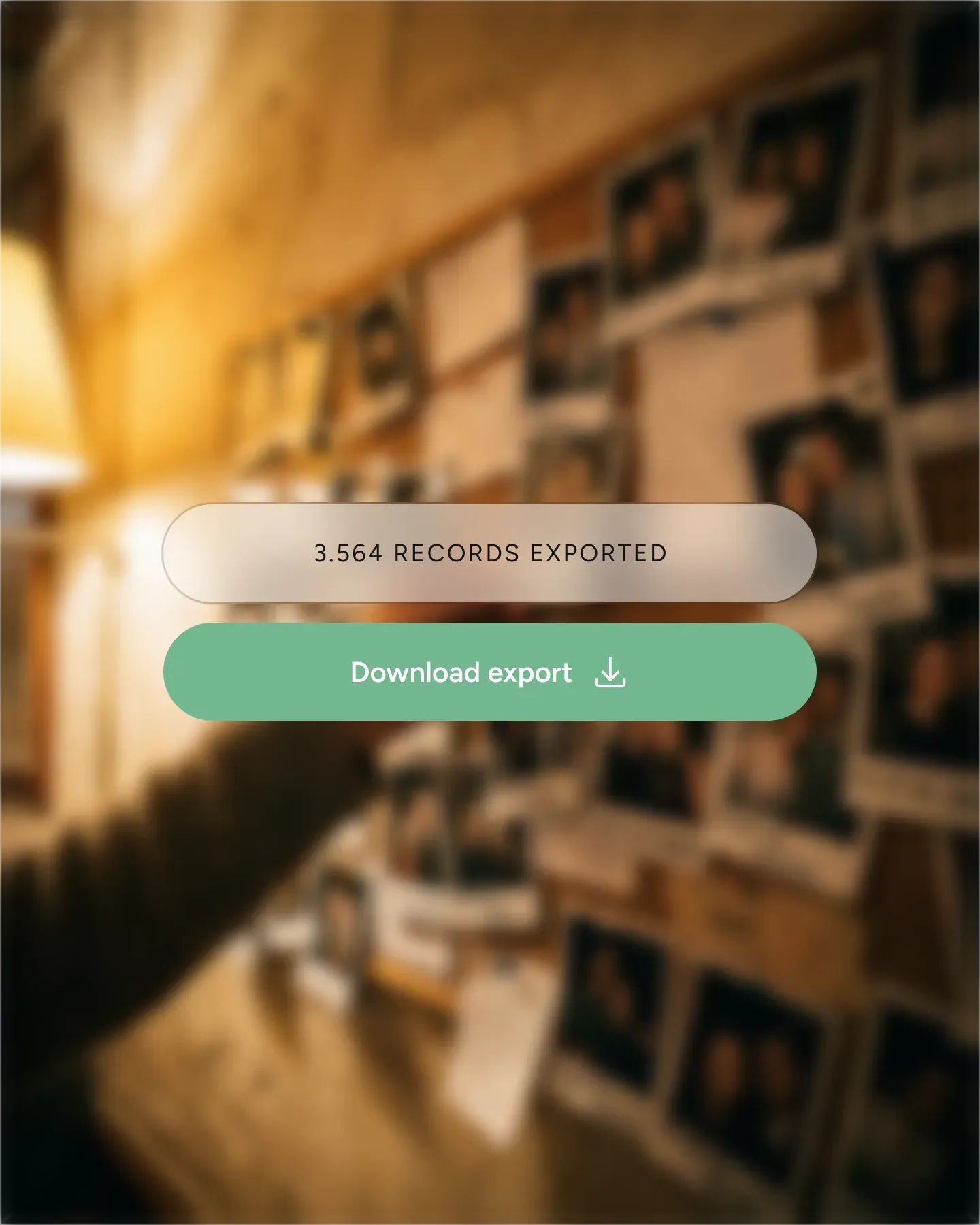












Choose any date range and the booking statuses you care about. Last quarter for the accountant, last weekend for the floor manager, the past year for a marketing audit. The export only includes the rows you need, sorted from oldest to newest, up to 1,000 records at a time.
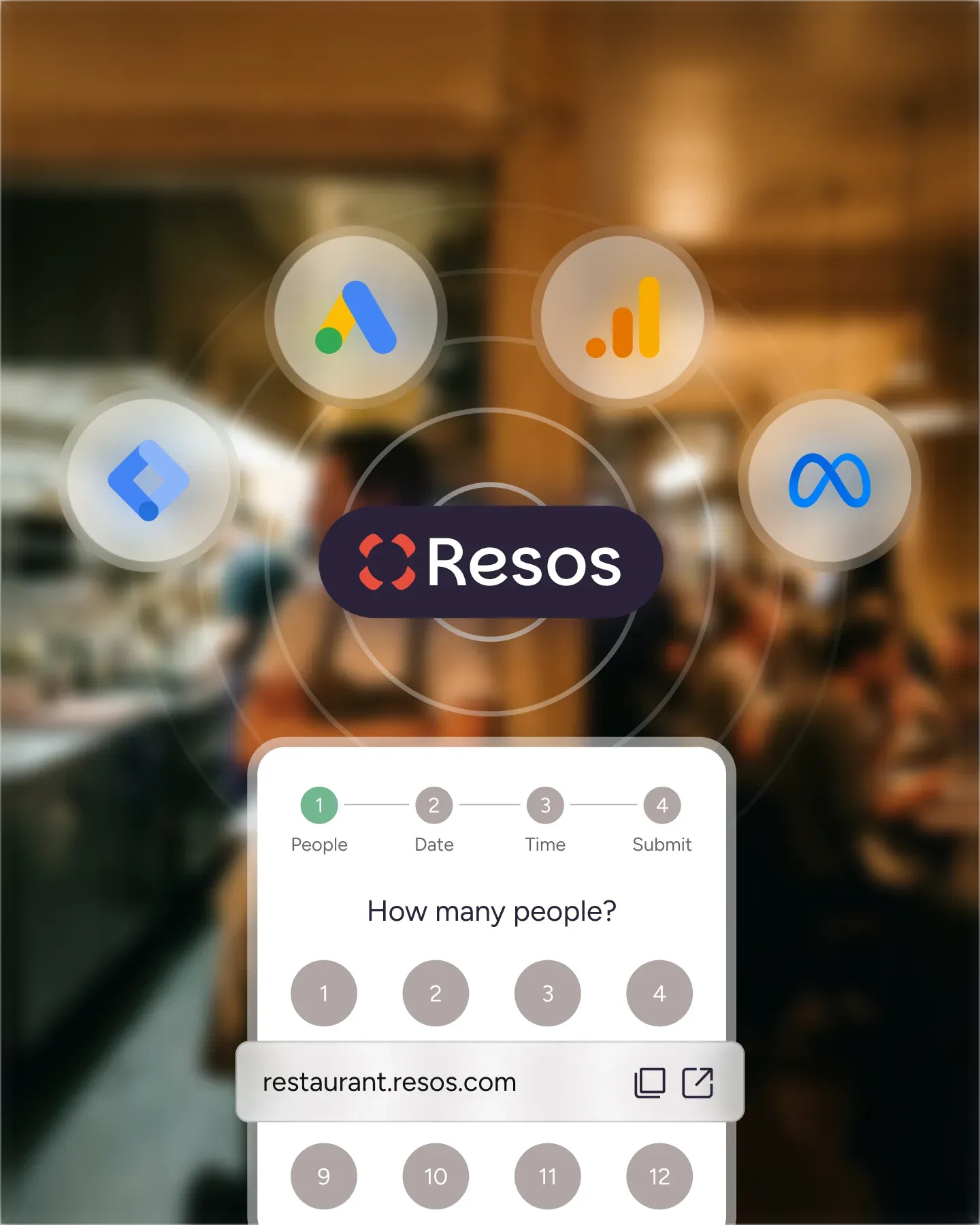
The CSV drops straight into Microsoft Excel, Google Sheets, or any tool that handles spreadsheets. Columns are labeled, rows are sorted, and the formatting carries across. No reshaping the file, no fighting with delimiters, no manual cleanup before you can use it.
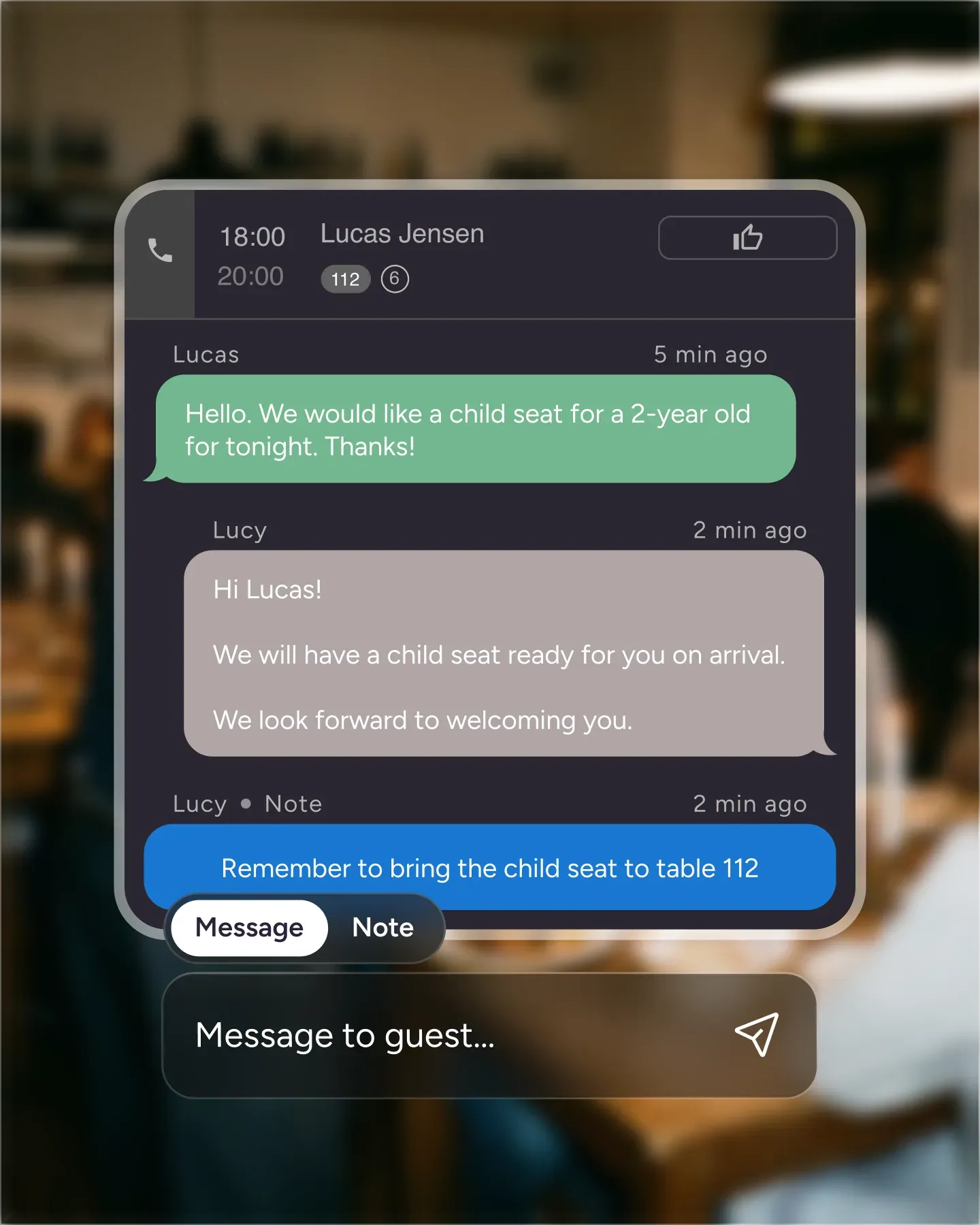
Use the export as the source list for a seasonal menu update, a special event invite, or a quiet check-in with regulars. Names, emails, and visit history come over together so segmentation is straightforward and your team can write to the right people from the start.
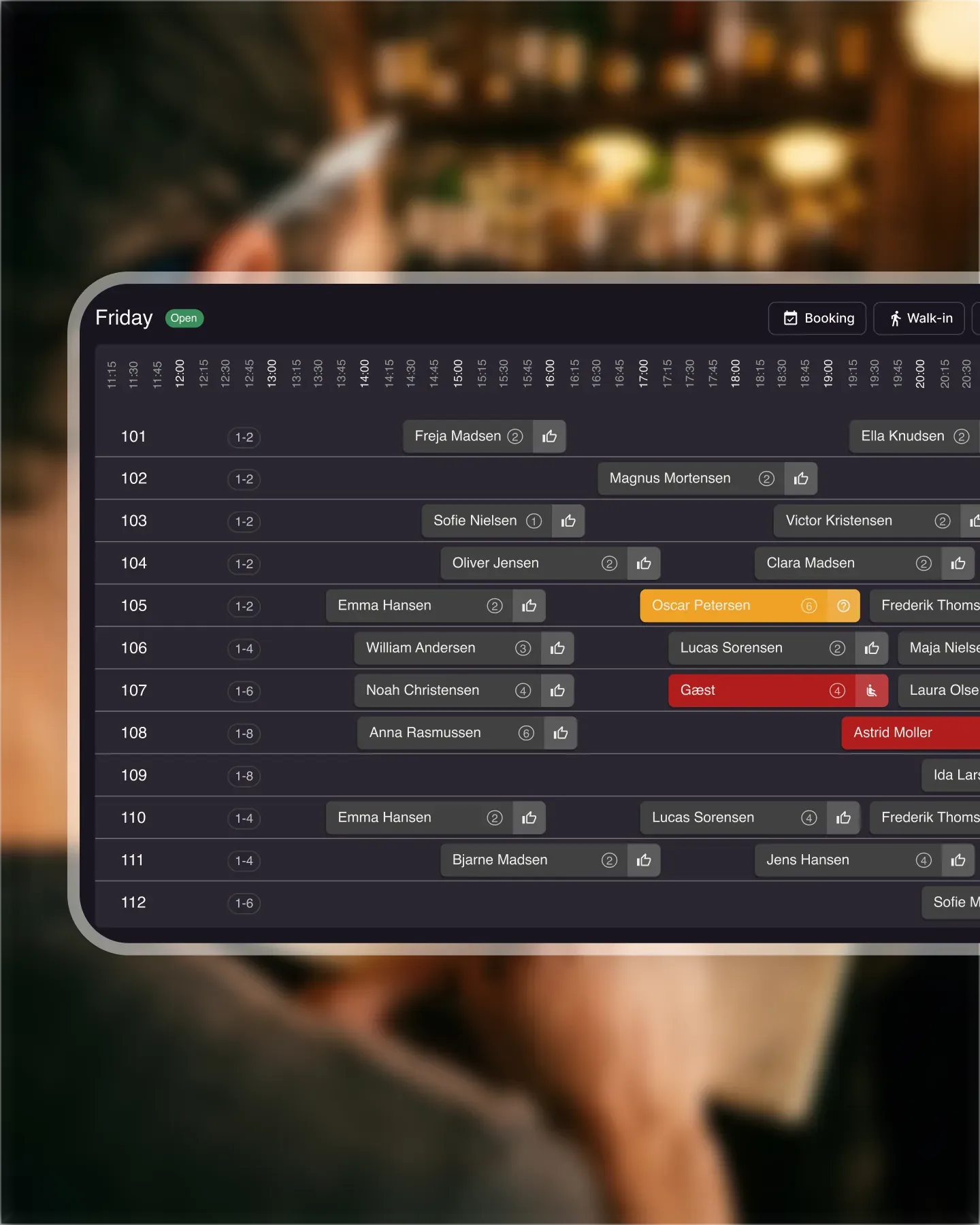
Export tomorrow's bookings to a paper list your hosts can mark up at the door. Party size, time, table, allergies, and notes all on one sheet. A backup when the internet is patchy and a faster reference than scrolling on a tablet during a rush.
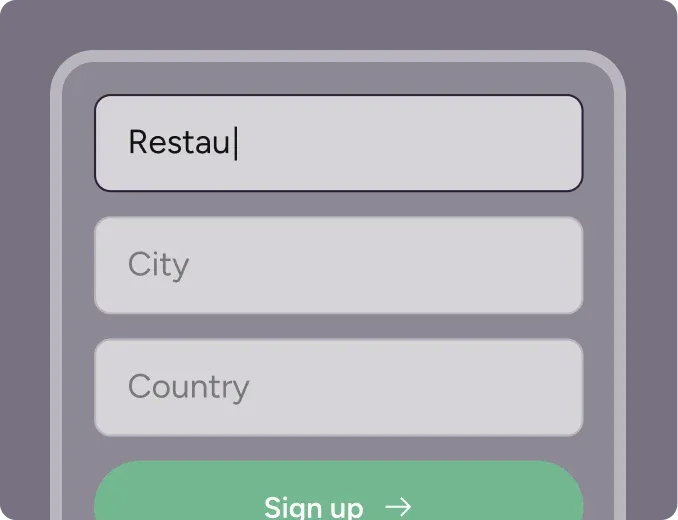
Create your account in seconds. No credit card required.
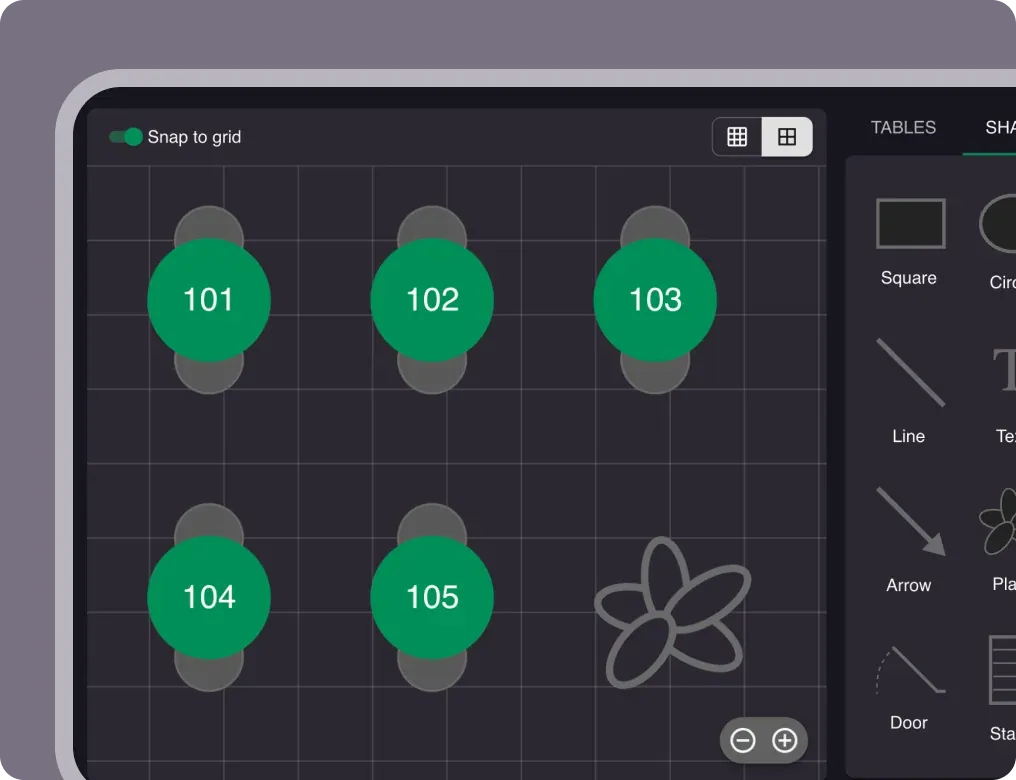
Add your opening hours, areas, and floor plan using our easy drag-and-drop editor.
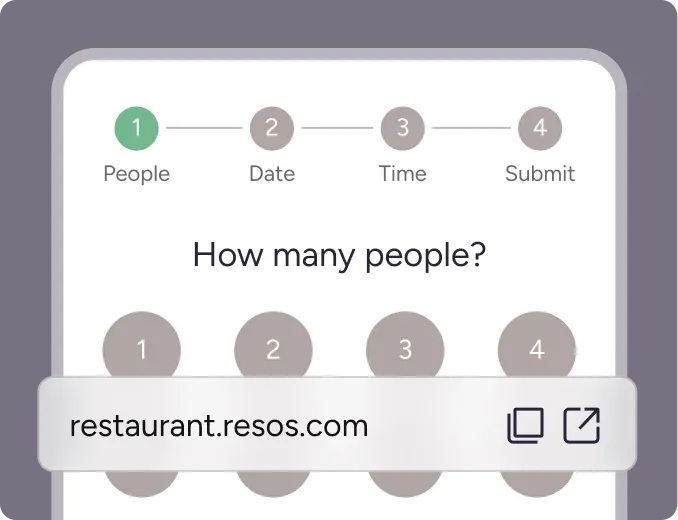
Add your booking link to your website and social media. No coding required.
Sometimes it can be a hard task to manage and control all of your data. Using this function, you can download a manageable overview of your bookings, guest feedback, and the guest information saved on guest profiles. All in the same place and easily accessed.
Now you are able to export your data or store it to CSV files, which then can easily be opened in applications such as Microsoft Excel, Google Sheets, etc. A maximum of 1.000 records can be exported at a time and they are all sorted from the oldest to the newest.
Read more about our automatic guest profiles here.

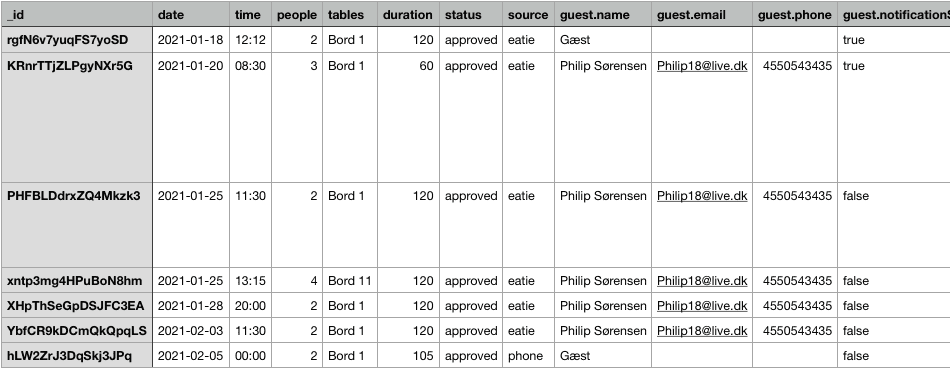
When you export your data, you get a full overview of your guests and bookings. The chart includes contact information for each guest (phone number, email, full name), the table assigned to each booking, and any feedback they’ve given. Use it to print a list of incoming guests so your team can prepare for service, or to follow up with guests directly on the feedback they’ve shared.
In the picture below, you can see an example of what a data export could look like.
You can also use the export to send emails to your existing guests - a new campaign, a seasonal menu update, or just staying in touch and learning more about their preferences. The export is an easy way to keep your guest data portable, so it lives wherever you need it.
It’s very simple to get started with exporting your booking data. Here is all you have to do:
That is it. If you don’t already have a Resos account, you can create one in just a few minutes in the link below. Get started for free and with no binding.
Get started with Resos’ restaurant booking system for free 
Do you want to try out the Resos system? You can see our plans on the pricing page. If you have any questions, feel free to contact the Resos team and we’ll get back to you as soon as possible.
 For Restaurants
  For Cafés
  For Bars
  For Pubs
 Since we started using Resos, we have found the flexibility of the product and customer support incredible. It's very user friendly and easy to manage in-house which is a huge plus!
We have been using Resos as the booking platform for our cheese & wine bar in Helsinki, Finland, for over six months, and we are really impressed by it!

Once set up properly, Resos will run the whole booking seamlessly. Been trying many softwares and none has reached the level of customization and speed as Resos. And great support too!

The floor view is working very nicely, you can see everything at the same time. Also, it was a very huge upgrade for us, that the guests can easily cancel their booking – it saved us from a lot of no-shows.

Easy integration into our website and Google page.

Resos makes reservations so much easier. It's straightforward, flexible, and perfect for small businesses like ours. We're so happy with it!

What sets Resos.com apart is not just its ease of use, but also the proactive approach of the Resos team. They continuously work hard to introduce new features and add value to their product.

Simplicity when booking for the customer and easily accessible through our website, Facebook and Google.

When we started our search for a booking system, Resos was the obvious choice. Not only is it affordable for us as a small business, but also offers so many features that make our jobs easier.

Being able to make a reservation without too much hassle goes a long way! Resos keeps the process intuitive and simple.

Fast, free and friendly support from real people who take the time to understand your restaurant.