


How to upgrade or downgrade your Resos plan
In this article
Resos charges on the number of bookings a restaurant receives in the system. Limiting plans by bookings keeps pricing fair for small and large restaurants alike. This guide covers upgrading, downgrading and canceling your subscription.
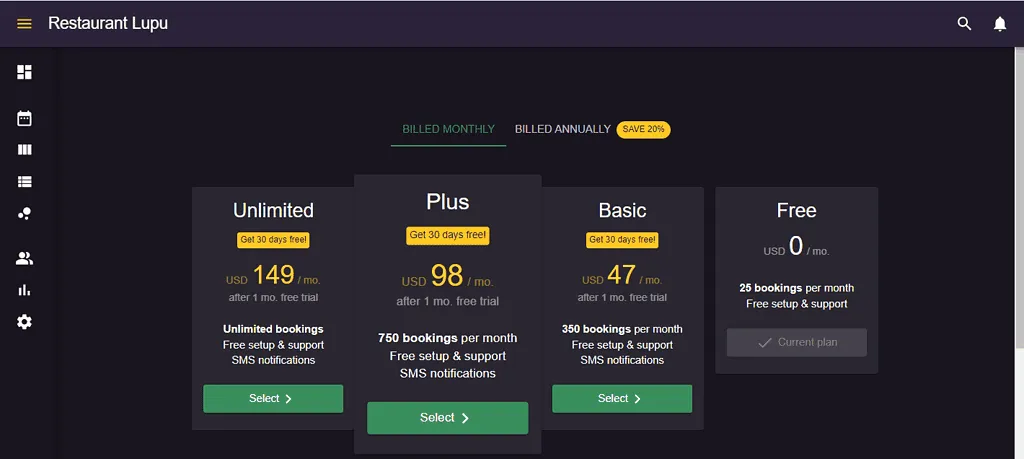
Here are the different plans and their limits:
- Free: 25 bookings in a rolling month
- Basic: 350 bookings in a rolling 30-day period
- Plus: 750 bookings in a rolling 30-day period
- Unlimited: unlimited bookings in a rolling 30-day period
See what counts towards your booking limit.
See the prices for the different plans here.
Upgrading from the Free plan
- Log in to your dashboard.
- Open the plan picker. Click Select plan in the Menu on the left. If you have paid for Resos before, you will also find it under Menu → Settings & add-ons → Account → Billing. On the Free plan the Billing page shows a Select plan button where your plan would be, so either route works.
- Choose your billing cycle. Pick monthly or yearly billing for the plan you want.
- Select the plan that suits your booking volume, and review what it includes.
- Confirm. Follow the on-screen instructions to complete the payment.
Your new plan becomes available after checkout is completed. With a bank debit, the plan can be active while the payment is still processing. See payment methods and pending bank debits.
Here is an example of what the subscription options might look like:
Upgrading from a paid plan
If you exceed the number of bookings allowed on your plan, the system upgrades you to the plan that fits your volume, usually within a few hours. You do not have to do anything.
When that happens we email you to tell you which plan you moved to and why. The email goes out as the change is made, not in advance. On monthly billing the difference appears on your next invoice; on annual billing the difference is charged when the upgrade is applied.
Downgrading your plan
To downgrade, write to us at hi@resos.com. You may also be offered a smaller plan directly on screen if you start the cancellation flow. A downgrade takes effect at the start of your next billing period, with no refund for the period you are in. The one exception is our 90-day money-back guarantee: if you are still within 90 days of your first payment, write to us and we refund the full amount.
Note: If you want to cancel instead, you can do that yourself with the steps below.
Canceling your Resos subscription
- Go to Menu → Settings & add-ons → Account → Billing.
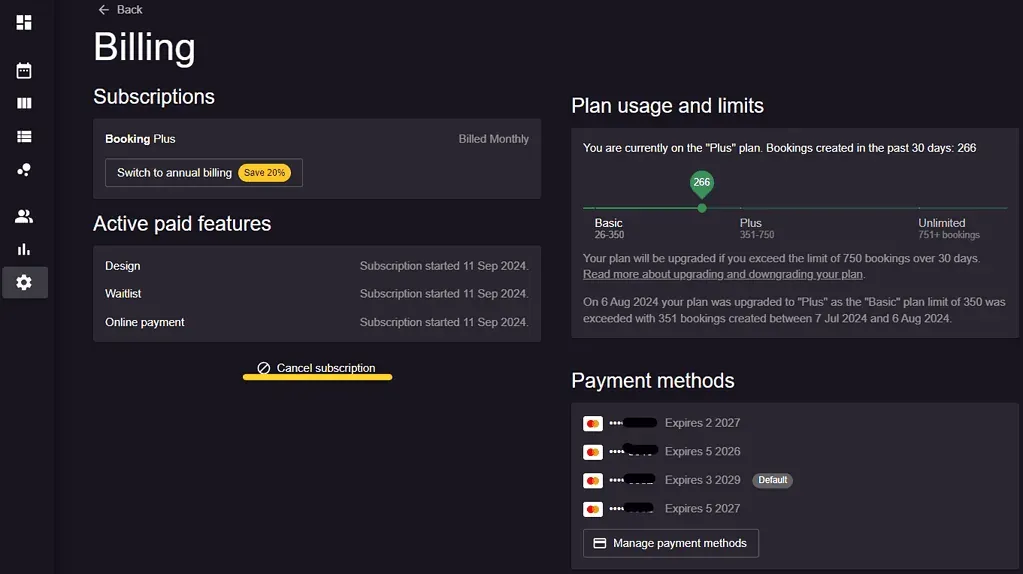
- Under Subscriptions, click Cancel subscription.
- Resos will ask why you are leaving and may offer you a pause or a cheaper plan. Decline those to reach the final confirmation step.
Only the account owner can cancel, so an admin or staff user will not get through this step.
The cancellation button looks like this:
Your subscription renews automatically at the end of every billing period until you cancel it. A subscription period that has already started is not refunded, and that applies to yearly billing too: unused months inside an annual period are not paid back. The one exception is our 90-day money-back guarantee: if you are still within 90 days of your first payment, write to us and we refund the full amount.
Note: If you think you have been billed in error, write to us from the account’s registered email address and we will look into the invoice.
Changed your mind? Until the period ends, the Billing page shows a Reactivate subscription button that puts the subscription back as it was.
Canceling stops the billing but leaves your account in place. Unless you pick Close them now when you cancel, your booking page also keeps taking bookings after you cancel (until the end date if you pick Close them when my subscription ends), so switch it off under Menu → Settings & add-ons → Bookings → Managing bookings → New online bookings → Disable booking page & widget if you want reservations to stop. That switch does not cover the REST API or Reserve with Facebook and Instagram, so turn off any integration you have set up as well.
If you also want your profile and data removed, or you are only closing for a season, see how to close or delete your Resos account.
Questions about your plan? Contact us at hi@resos.com and we will help you pick the right one.


