


How to set up default and special opening hours
In this article
A very important setting of your Resos profile is the opening hours. With Resos, you can select and modify your default and special opening hours. With special opening hours, you ensure that your guests can only book a table for an event, holiday, or special day.
For an overview of how opening hours, seatings, durations, and capacity rules work together, see the Resos seatings and booking limits feature.
Video walkthrough
Prefer to watch instead of read? This short video walks through the whole setup:
Default opening hours
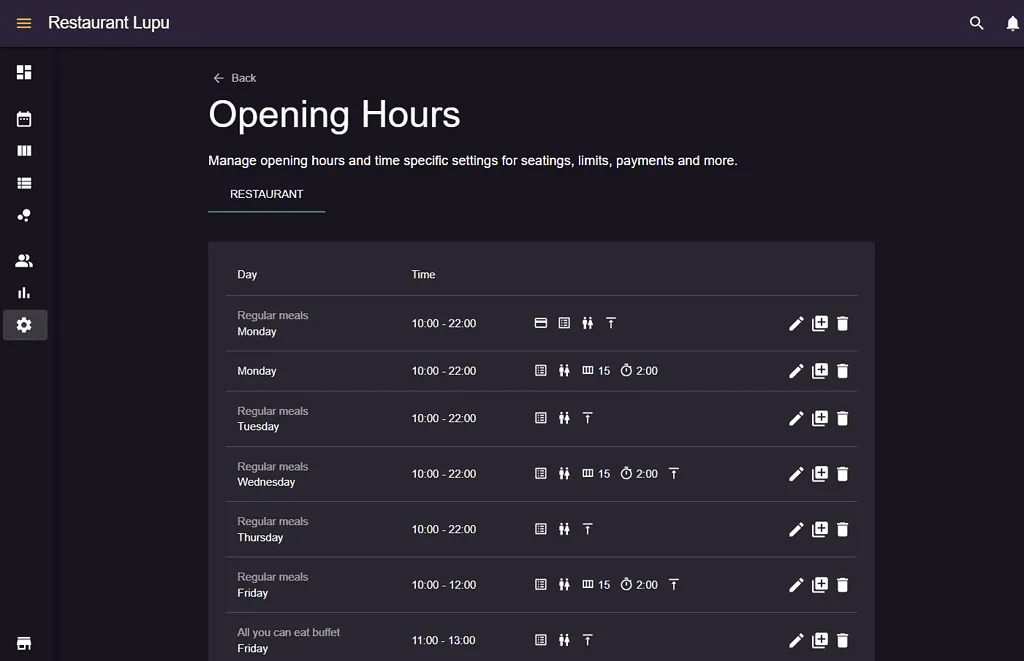
The system allows you to select your opening hours by going to Menu → Settings & add-ons → General → Opening hours. There you will define and select your default opening hours. Once you have added the hours for all the days/some days of the week, the system will allow your guests to book a table only during the opening hours (when the restaurant is “open”). Opening hours have an internal purpose, so your guests are not able to see them, which gives you more flexibility in case you need to add extra time before you open or close the venue.
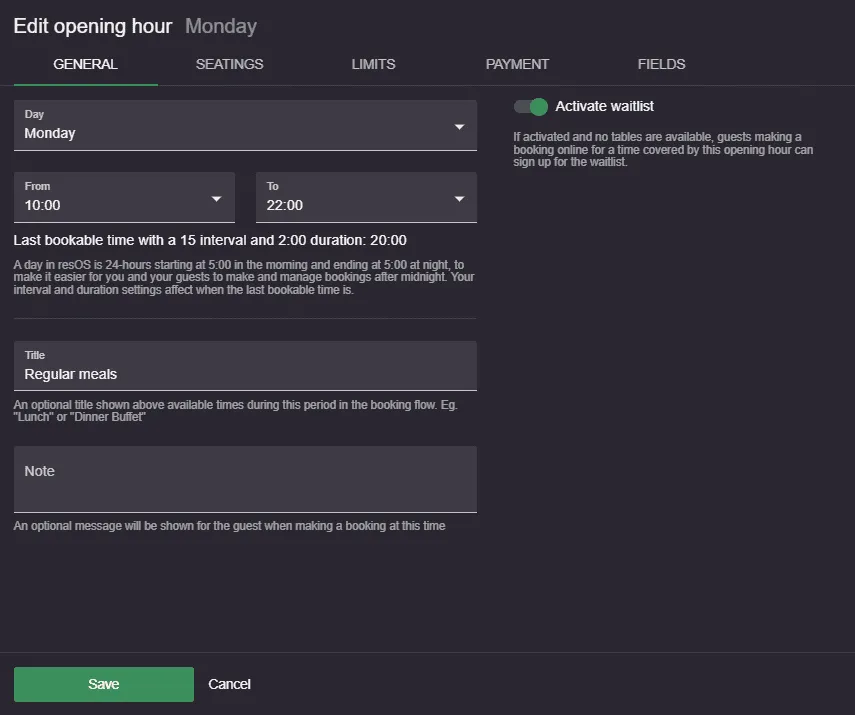
It is also possible to select different opening hours on the same day. If, for instance, you have a lunch break every day at a specific time, you can include it in your opening hours by adding two opening hours for one day. Making a reservation during the staff break will not be possible, which will make your break even more enjoyable.
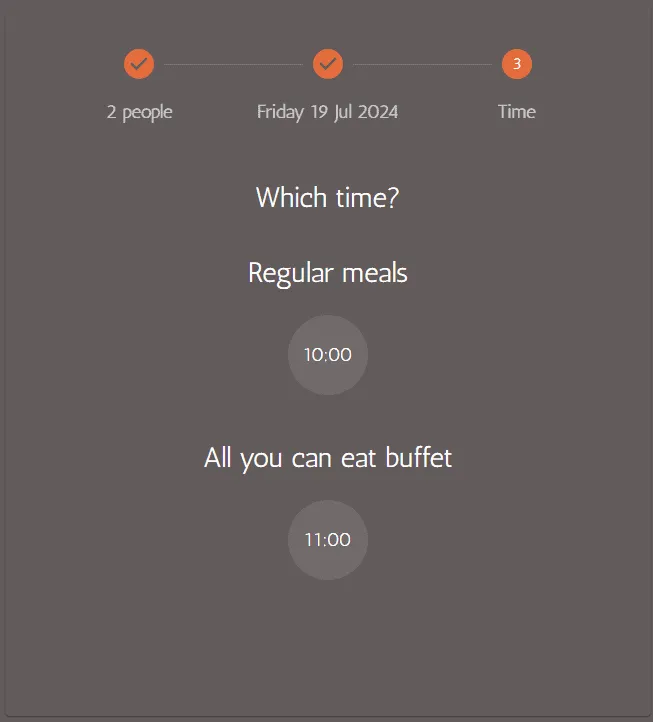
Moreover, if you offer different types of services (for example buffet and à la carte), you can also add an opening hour for each, resulting in multiple opening hours per day. If you set your system up in this way, then your guests are able to pick on the booking page the service they want to book for.
When setting up your opening hours, you can also:
- Customize your seatings - add a customized booking duration and time internal for that specific day.
- Add limits for bookings/guests - choose to limit the number of bookings, guests or both for an entire opening hour or for a time interval.
- Enable payments - activate the prepayment add-on or the no-show fee for specific opening hours.
- Add fields - choose which custom fields to enable for the specific opening hour.
Special opening hours
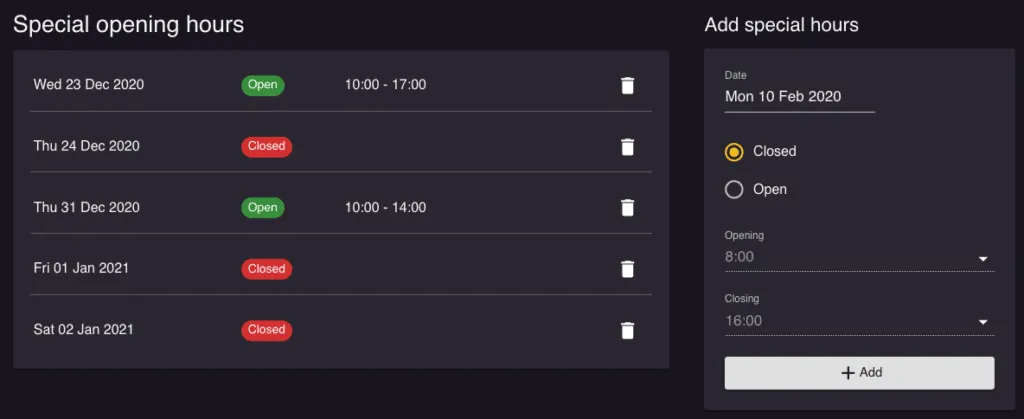
Another option that makes Resos such a flexible restaurant system, is the opportunity to select special opening hours. If the restaurant will be closed for a private party or a national holiday, you let guests know about it, and mark the day as closed for reservations. You can also add extended other opening hours for these events that will override the default opening hours.
Go to Menu → Settings & add-ons → General → Opening hours → Special opening hours to add or manage special opening hours. Here, you can select specific dates when your restaurant has different opening hours, runs an event, or is closed.
This short video shows how to set up special opening hours step by step:
Show guests a message for a specific date
Default opening hours and open special opening hours have a Note field. The note appears above that opening hour’s available booking or waitlist times in the booking flow, so it is useful for guest reminders like “Limited seats” or “Smart casual”. It only appears on the days that opening hour applies to, and only while it has booking or waitlist times to show. Closed special opening hours do not have a Note field.
Choose the message that fits your opening hours:
- Tell guests something for one open date or event. Add or edit an open special opening hour for that date and fill in its Note field. The note appears above that opening hour’s available booking or waitlist times on that date.
- Close online booking for a date but explain why. Create a closed special opening hour for that date and add a Booking notice with the closure dates. A fully closed date cannot normally be selected in the calendar, so use the notice to explain why it is unavailable. Remove the notice when you reopen. See how to add a notice to your booking page for setup.
The Custom fully booked message is a restaurant-wide fallback for guests who reach the time-selection step with nothing available. It is not a message for one specific closed date.
This is not a way to send a message to your whole guest list. Resos does not have a bulk promotional broadcast feature; for that, use an integration such as Mailchimp, or message existing bookings individually.
We hope you found this guide useful. If you have any questions about setting up the booking system or any general questions about Resos, do not hesitate to contact us at hi@resos.com. Our support representatives are excited to offer their help!


