


How to set up limits within opening hours
In this article
- What are booking and guest limits?
- Entire opening hour vs time interval
- Setting up limits
- What counts toward a limit
- Limits across multiple opening hours
- Different limits on a specific date
- Limits are not the same as maximum party size
- Tables and table combinations cap capacity too
- There is no single venue-wide capacity limit
- Booking warnings when limits are overruled
- What does “No opening hours at the chosen date” mean?
- My limit was exceeded: what to check
- See it in action
Keeping control over how many bookings and guests you take in per opening hour is an important part of running a smooth service. With Resos, you can set limits on bookings, guests, or both, either for an entire opening hour or for specific time intervals within it, so you never take in more than your kitchen or floor can comfortably handle.
For the commercial overview, see how Resos seatings and booking limits help pace arrivals and protect capacity for walk-ins.
What are booking and guest limits?
Limits let you cap the number of online bookings, the number of guests, or both, that can be booked within an opening hour. This is useful if you want to control capacity for a specific service, protect seating for walk-ins, or manage demand for a set menu, tasting, or themed evening without having to monitor and close bookings manually.
Limits do not control the spacing between bookings. They cap how many bookings or guests you accept, and nothing else. A limit cannot change how far apart your bookable times sit, or how long a booking holds a table. Those two are Time interval and Default duration, set for the whole restaurant under Menu → Settings & add-ons → Bookings → Seatings, or for one service on that opening hour’s own Seatings tab. See how to set up different seatings.
Entire opening hour vs time interval
You can choose where the limit applies:
Throughout this opening hour - the limit covers the whole opening hour as one pool. Once the cap is reached, no further online bookings are accepted for that opening hour, regardless of the time slot chosen within it.
Per interval - the limit applies to each individual time slot within the opening hour. This gives you finer control, for example allowing 20 guests at 18:00, 20 guests at 18:30, and so on, rather than one shared cap across the whole service. The length of each interval comes from the time interval setting, either the default under Menu → Settings & add-ons → Bookings → Seatings, or a custom one set on that opening hour’s own Seatings tab.
You can use both at the same time. Each group has its own fields: Max bookings and Max guests under Throughout this opening hour, and Max bookings per interval and Max guests per interval under Per interval. Leaving a field on Unlimited means no limit.
Setting up limits
To add a limit, go to Menu → Settings & add-ons → General → Opening hours, select the opening hour you want to edit, and open Limits. From there, you can:
- Choose what to limit - bookings, guests, or both.
- Choose where it applies - under Throughout this opening hour or under Per interval.
- Set the number in the matching fields: Max bookings and/or Max guests under Throughout this opening hour, or Max bookings per interval and/or Max guests per interval under Per interval.
Repeat this for every opening hour you want capped. A limit you set on Friday dinner has no effect on Friday lunch, or on any other opening hour.
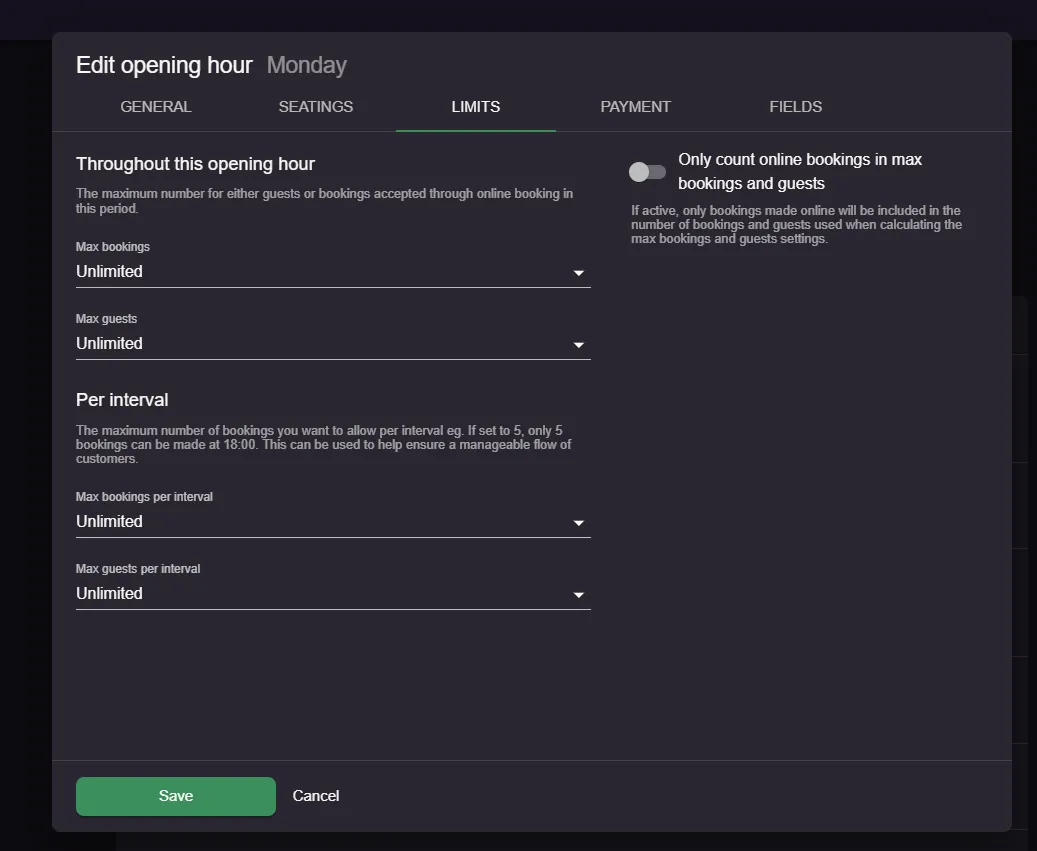
Once saved, the system will stop accepting further online bookings once the limit is reached, either for that opening hour or for that specific time slot, depending on what you have chosen. If Activate waitlist is on for that opening hour, guests still see the times, but only as waitlist sign-ups, not as bookings.
What counts toward a limit
A limit counts the bookings and guests already on that one opening hour, on that date. This is the part that surprises most restaurants, so it is worth reading carefully.
These bookings count: every booking on the opening hour with the status Request, Accepted, Pending confirmation, Arrived, Seated or Has left. A booking that is still waiting for you to accept it (Request) is counted, so it takes up space in the limit before you have accepted it. So does a booking you have accepted and asked the guest to confirm (Pending confirmation): the seat stays held against the limit while you wait for the guest to answer.
These bookings do not count: cancelled, declined, no-show and deleted bookings. Waitlist entries are not counted here. The waitlist has its own separate cap under Menu → Settings & add-ons → Bookings → Waitlist.
Bookings your staff add count too. A booking taken over the phone, added at the door, or created from an integration counts toward the limit exactly like an online booking. If you only want online bookings to count, turn on Only count online bookings in max bookings and guests on the Limits tab. With that switch on, only bookings from your booking page or widget, Reserve with Google, Facebook and Instagram are counted, and phone bookings are ignored.
A booking only counts on the opening hour it was made on. If two opening hours cover the same time of day, they each keep their own count. And if you use areas on your opening hours, only bookings on tables in that opening hour’s areas are counted.
Limits across multiple opening hours
If you run multiple opening hours at the same time, for example two different set menus or services running side by side, keep in mind that each opening hour has its own separate limit. Limits are not automatically shared or combined between opening hours.
This means that if you want a combined capacity across two opening hours, for example a total of 120 guests across two set menu options, you need to split the number between them manually, such as setting a maximum of 60 guests on each. Otherwise, one opening hour could fill up while the other still has unlimited availability, even though your actual capacity is shared.
Different limits on a specific date
You can also cap a single date differently from your normal week. Add a special opening hour for that date, set it to Open, and use its own Limits tab. Special opening hours replace your normal hours for that date, so the limits on your regular hours no longer apply and the special opening hour needs its own numbers, unless you turn on Supplement (add to regular hours), in which case both opening hours apply and each keeps its own limits. See default and special opening hours for how to add one.
Limits are not the same as maximum party size
Limits are enforced differently from a table’s maximum party size - see how limits differ from maximum party size for the difference and where to find the party size setting.
Tables and table combinations cap capacity too
Even with generous limits and a high maximum party size, a booking still needs somewhere to sit. If your Accepting new online bookings setting is Accept booking if a table is available (under Menu → Settings & add-ons → Bookings → Managing bookings), the system only offers a time when a table, or a combination of tables, actually fits the party.
This is why a party of eight can see “Sorry, we are fully booked” while smaller parties still get times. Nothing is wrong with your limits: there is simply no table or combination that seats eight and is available online.
Check this under Menu → Settings & add-ons → General → Tables:
- On Areas & tables, each table has Minimum seats and Maximum seats, plus a Bookable switch (staff can book it) and an Available online switch (guests can book it). A table that is bookable but not available online will never be offered to a guest.
- On Combinations, you can join two or more tables into one bookable unit with its own minimum and maximum seats, and its own Available online switch. This is how you make room for parties larger than your biggest single table.
For more on this, see managing reservations for bigger parties and how to add and manage tables and areas.
There is no single venue-wide capacity limit
Resos does not have one setting for “never more than X guests in the building at any moment”. Limits are always tied to an opening hour, either across the whole opening hour or per time interval, so two overlapping intervals can each fill up to their own number.
Two things get you close:
- Max guests throughout this opening hour. This is one shared pool for the whole service, so it does cap the total number of guests you accept online during that opening hour.
- Your tables. With table management and Accept booking if a table is available, the seats you have made available online are a hard ceiling. The system will not seat more guests at the same time than your online-bookable tables can hold, so trimming your table setup to your real capacity is the closest thing to a venue capacity rule.
Booking warnings when limits are overruled
If a limit is set and a member of staff manually creates a booking that goes beyond it, for example your maximum is 10 guests per opening hour and the new booking would take you over that, the system will show a warning. This appears before the Date, Time, and People section of the booking form, so staff can see they are overruling the settings before confirming the booking.
The warning is a warning, not a block. Limits only stop online bookings, and staff can always save a booking that goes over one. If you want staff to have to acknowledge it first, turn on Require confirmation of warnings under Menu → Settings & add-ons → Bookings → Managing bookings.
What does “No opening hours at the chosen date” mean?
This warning appears in the booking form when you pick a date that has no opening hour, for example a day your regular hours mark as closed, or a special opening hour set to Closed. The Opening hours field then only offers No opening hour.
Like the limit warning, it is a warning and not a block: staff can still save the booking. The booking is then not linked to any opening hour, so no opening hour limit applies to it. To avoid it, pick a date that has opening hours, or add a special opening hour for that date. See default and special opening hours. If the date should be open, check Menu → Settings & add-ons → General → Opening hours for a closed special opening hour on it.
My limit was exceeded: what to check
If more bookings or guests came in than you expected, work through this list.
- Check every opening hour on that day, not just one. Limits are per opening hour and are never shared. If you have a lunch and a dinner opening hour, or two services running side by side, each one needs its own numbers. An opening hour with no limit set accepts bookings without restriction.
- Check the special opening hours for that date. A special opening hour replaces your normal hours for that date, and it carries its own Limits tab. A limit on your regular Tuesday hours does not apply to a special opening hour on a specific Tuesday, unless you turn on Supplement (add to regular hours), in which case both opening hours apply and each keeps its own limits.
- Check the Only count online bookings switch. If it is on, phone bookings and bookings your staff added do not count, so the online total can go past what you see in the system.
- Remember that staff bookings are not blocked. Limits stop online bookings. When a staff member adds a booking that goes past a limit, the system warns them but still lets them save it. To make that harder to miss, turn on Require confirmation of warnings under Menu → Settings & add-ons → Bookings → Managing bookings.
- Check whether you set the limit per interval or across the opening hour. A limit of 15 guests per interval means 15 guests at 18:00 and another 15 at 18:30. If you meant 15 for the whole service, set Max guests under Throughout this opening hour instead.
- Check the booking statuses you are counting by eye. Cancelled, declined and no-show bookings drop out of the count, so a slot can reopen after a cancellation. Bookings waiting on you or on the guest are still in it.
- Check that the limit was in place before the bookings arrived. Changing a limit does not remove bookings that were already accepted under the old number.
If you have worked through all of this and the numbers still do not add up, send us the date, the time and the opening hour and we will look into it.
See it in action
This short video walks through setting up limits on an opening hour:
Limits live inside your opening hours, so if you have not set those up yet, start with the guide on default and special opening hours.
We hope you found this guide useful. If you have any questions about setting up limits on your opening hours or any general questions about Resos, do not hesitate to contact us at hi@resos.com. Our support representatives are excited to offer their help!


