


Manage reservations for bigger parties
In this article
Do you host bigger parties at your restaurant? Or do you arrange events such as weddings or birthday parties? Use Resos’ reservation system for managing bigger parties and keeping track of all the different bookings.
To host bigger parties, it requires something completely different than the daily á la carte. Great planning, a structured calendar, and a good overview are crucial. At Resos, we help you succeed with your bigger events. This means increased customer satisfaction and an opportunity for you to handle larger bookings safely.
Resos can be used by restaurants that are looking for a user-friendly platform where they can keep track of their tables and reservations, as well as by event planners who only host bigger events.

Keep track of your reservations
Many restaurants prefer to receive reservations for bigger parties over the phone, but how are you supposed to keep track of all the details? What is being celebrated, how many guests are coming, which venue they should be in, what time the food should be served, etc.
With Resos’ reservation system for managing bigger parties, you can:
- Get an overview of the reason, date, time, amount of people, venue, duration, and contact information.
- Send a confirmation by SMS and/or email to the guest who made the reservation.
- Communicate directly with the guest in the system.
- Write internal notes that only the staff can see.
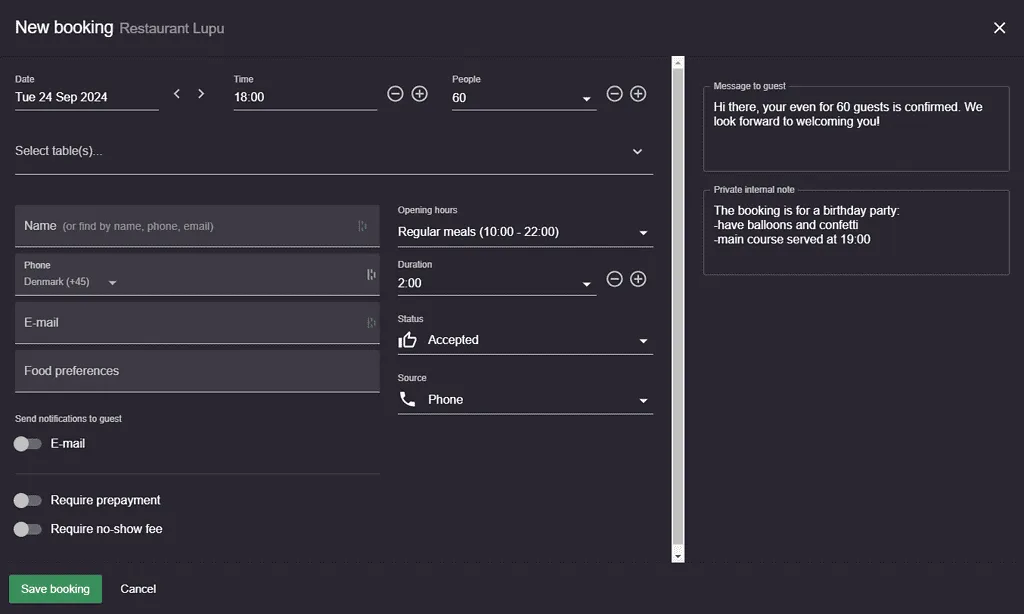
Reservations for bigger parties online
If you usually accept bigger parties at your establishment without confirmation from the staff, you can do that online as well. With Resos, you can customize the maximum number of people on an online booking for your online booking page/widget. If there are bookings that exceed the limits, you can also ask them to reach out to you via email or call you so you discuss the details over the phone.
Here is how you customize the online booking limits: go to Menu → Settings & add-ons → Bookings → Limits.
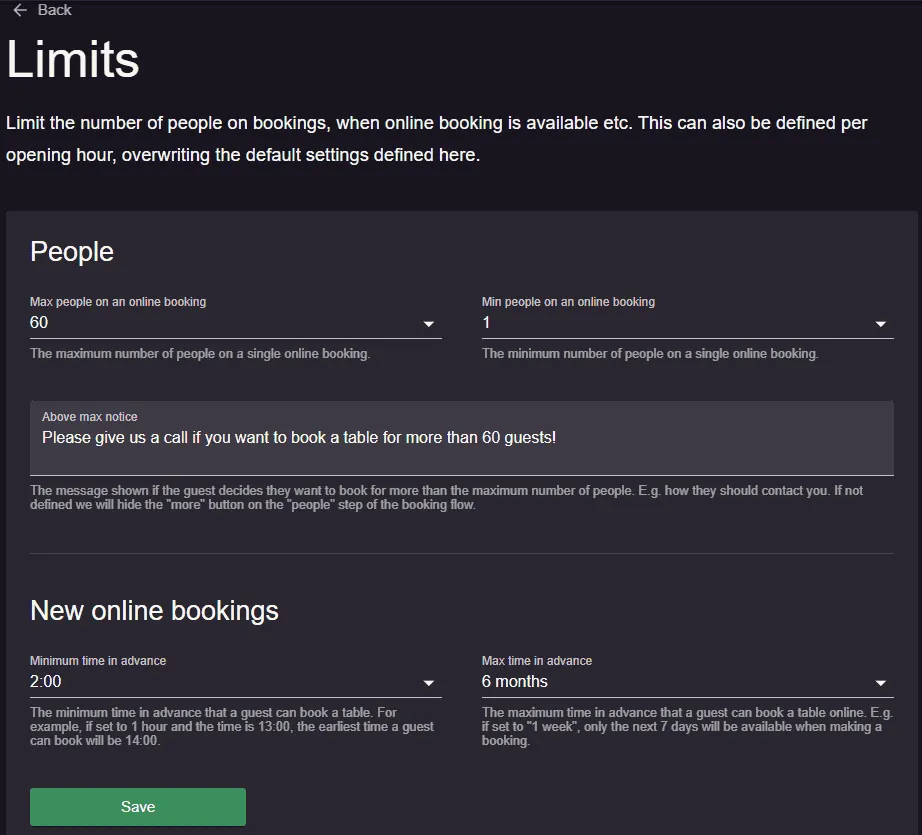
What guests see on the party size step, and how the minimum and maximum work on Reserve with Google, is explained in how limits differ from maximum party size.
Take only private or large-party bookings online
Resos has no “private bookings only” switch. To use your online booking page for large parties or private events only, combine these settings:
- Go to Menu → Settings & add-ons → Bookings → Limits. Set Min people on an online booking to the smallest party you accept online, for example 20, and set Max people on an online booking to your largest. Both go up to 100. Keep the maximum at least as high as the minimum: the page lets you save a minimum above the maximum, and then nobody can book online.
- On the same page, fill in Above max notice to tell bigger groups how to contact you.
- Set the days and times you take these bookings as your opening hours, at Menu → Settings & add-ons → General → Opening hours. See how to set up default and special opening hours.
- Add a Booking notice saying that you take private or group bookings only. See how to add a notice to your booking page.
A smaller party cannot choose its size on your booking page, because the party size choices start at your minimum, and they see no message about it unless your booking notice explains it. With a minimum above 12, guests first see only a More button on the party size step and click it to see the sizes you take. You and your staff can still add a smaller booking in the system yourselves.
Let guests book a private room online
If you hire out a private room or event space, you can make it bookable online as a table of its own.
- Add the room as a table at Menu → Settings & add-ons → General → Tables. Set Minimum seats and Maximum seats to the party sizes the room takes, and turn on Available online for the table and its area. A table is only offered to a party between its minimum and maximum seats.
- Make sure Resos checks for a free table before it offers a time, and gives the room to each booking straight away. At Menu → Settings & add-ons → Bookings → Managing bookings, set Accepting new online bookings to Accept booking if a table is available and Managing tables to Add table(s) to bookings automatically. With Manually if a table is available, a booking holds the room only once you accept it, so two guests can request the same time. With Manually add table(s) to bookings, a booking holds the room only once you add the room to it. With Manually accept or decline each booking or Automatically accept all bookings, times are offered without checking whether the room is free.
- Give the booking a long enough duration. A booking holds its table from its start time for the length of its duration, so nobody can book the room online for a time that overlaps another booking on it, but the room is free again as soon as that duration ends. If the room is hired for longer than your normal sitting, open the opening hour at Menu → Settings & add-ons → General → Opening hours, go to the Seatings tab, turn on Overwrite default seating settings and set Default duration, up to 9 hours. The last time guests can book is your Guests leave by time minus the duration, so a 5-hour duration on an opening hour where guests leave by 23:00 offers 18:00 as the last time. Make the opening hour long enough to cover the whole hire.
The duration on an opening hour applies to every booking in it, not only to the room. If the same opening hour also takes regular tables, use Set duration based on number of people on that tab instead, so only large parties get the long duration. See define booking duration based on people.
Charge a fixed fee for the room
To charge one fixed amount for the booking, whatever the number of guests, use prepayment. Open the opening hour, go to the Payment tab, turn on Require prepayment, choose Per booking and enter the Amount. With Per guest instead, the amount is multiplied by the number of guests. The Payment tab settings need the prepayment feature to be active and Stripe connected, see how to set up the prepayment feature.
Prepayment is set per opening hour, not per table, so it applies to every online booking in that opening hour. If the opening hour also takes regular tables, Min. guests requiring payment lets you charge only parties from a certain size.
Set up tables for reservations with bigger parties
We also got you covered when it comes to table management for bigger parties. You can add your regular tables into table combinations so that you can take reservations with bigger parties. Just make sure you add your tables and areas of the restaurant first, and then set up the table combinations by going to Menu → Settings & add-ons → General → Tables → Combinations.
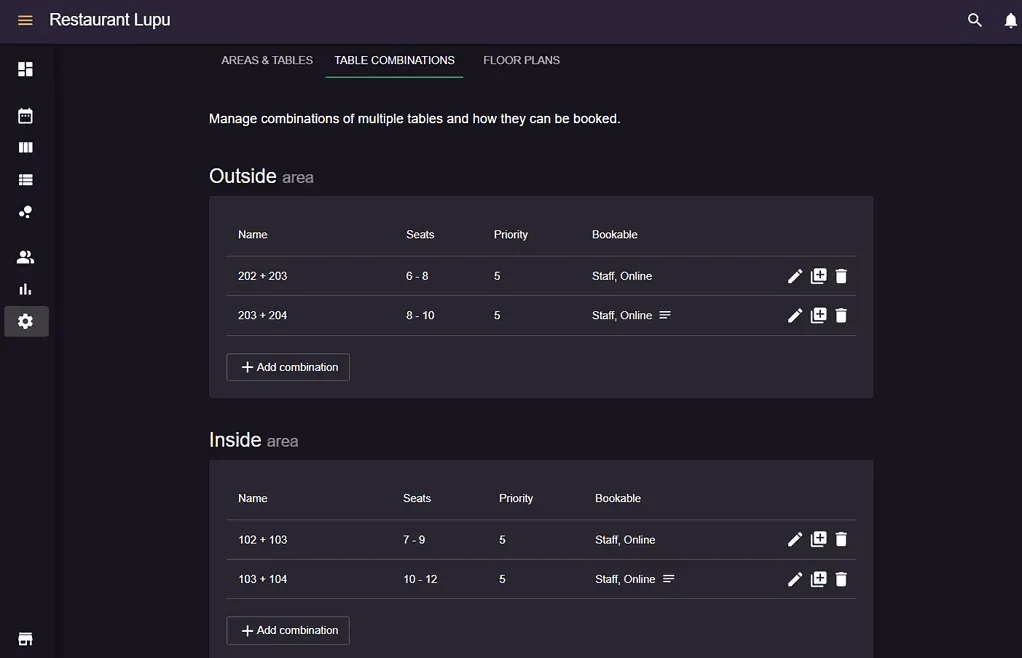
You can also benefit from Resos’ visual restaurant table planner that helps you get a clear overview of your tables and their occupancy. Read about the feature here.
Do you host bigger parties and need a system that helps you succeed? Contact us today at hi@resos.com. Our fantastic support team is ready to help you. Read more about Resos and what we offer here.


