


Close online bookings for the rest of the day
In this article
- How to close online bookings for the day
- How to close a time interval for the day
- Close a future date or a date range
- Close one service instead of the whole day
- Close bookings for one area only
- Closures that repeat every week
- How to reopen bookings and time intervals
- Closing for a long or indefinite period
- See it in action
We all know the feeling. You’re handling all bookings by manually accepting or declining whenever a booking gets into the system. All of a sudden, the restaurant is full of guests because there have been a lot of walk-ins on top of the online bookings. Now it’s going to take a lot of work to decline all the bookings you receive for the rest of the day. But don’t worry, with Resos, it is possible to close online bookings for the rest of the day - with just one simple click in the system.
How to close online bookings for the day
There are two ways to close online bookings, so continue reading and choose our preferred method.
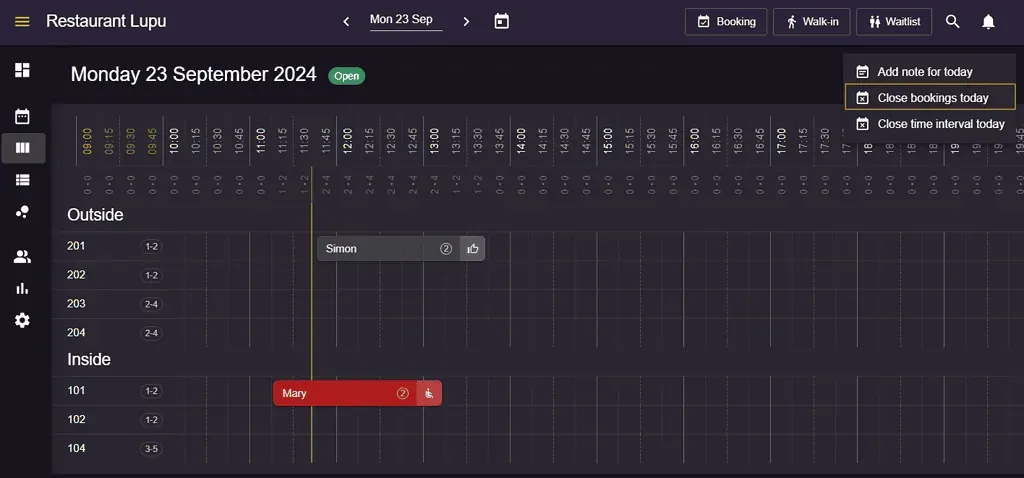
- Go to Menu → Schedule/List/Floor plan → Click on the 3 dots from the upper right side of the screen → Close bookings today.
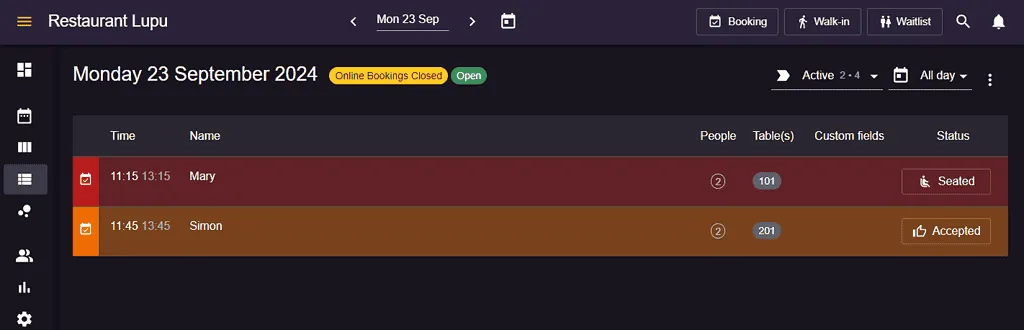
With just a single click you can close online bookings for the rest of the day. We have introduced the Close bookings today button on your overview so it’s fast to close for online bookings for the rest of the day.
This shortcut works on whichever date you are looking at, not only today, so you can also use it to close a single day in the future. Once a day is closed, the same menu shows Open bookings today to switch it back on. Past dates cannot be closed or reopened.
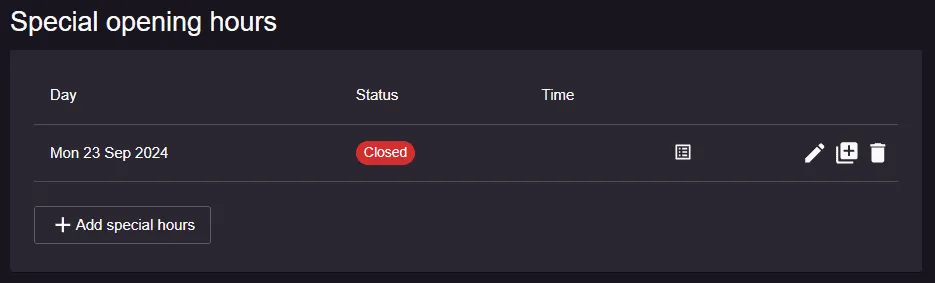
2. Go to Menu → Settings & add-ons → General → Opening hours → Special opening hours → Add special hours, choose the date and set it to Closed.
How to close a time interval for the day
Do you get too many bookings at a specific time? If all your guests want to book only at a certain time and you wish to fill out more booking slots, you can close a single time interval instead of the whole day.
Go to Menu → Schedule/List/Floor plan → Click on the 3 dots → Close time interval today, then set the time the closure starts and the time bookings open again.
Behind the scenes this creates a closed special opening hour for that date, so you can also edit or remove it later under Menu → Settings & add-ons → General → Opening hours → Special opening hours.
Close a future date or a date range
Closing a day in advance, for a holiday, a private party or an annual closure, is done with special opening hours.
- Go to Menu → Settings & add-ons → General → Opening hours → Special opening hours.
- Click Add special hours.
- Set it to Closed.
- Choose Single date for one day, or Date range and pick a From date and a To date for a longer closure.
- Save.
Guests will no longer be offered any times on those dates. This is also how you keep the booking page open while blocking everything before a reopening date: close the range that runs up to the day you open again.
To close several dates the same way, duplicate an existing special opening hour and change the date instead of building each one from scratch.
If you use the Experiences add-on, you will also see What should this close? By default a closed date only blocks regular bookings and leaves your experiences bookable. Choose Both regular opening hours and experiences if the venue is closed entirely.
Close one service instead of the whole day
If you want to stop taking bookings for breakfast or lunch but keep the evening open, close a time interval rather than the date.
- Go to Menu → Settings & add-ons → General → Opening hours → Special opening hours → Add special hours.
- Set it to Closed, then choose Time interval. This option only appears once Closed is selected.
- Set the date and the hours you want to close.
For a change that should last, it is usually cleaner to edit your regular opening hours instead, so the service simply no longer exists on the days it has stopped running.
Close bookings for one area only
To stop online bookings for a single seating area, such as the terrace, while the rest of the restaurant stays open, use the opening hour’s Areas selection together with that area’s Available online switch, rather than closing the whole opening hour.
Closures that repeat every week
A closed special opening hour applies to the date or the date range you gave it. It does not repeat weekly. The Recurrence option, with Weekly and Every other week, is only available on special opening hours that are set to Open on a single date.
So if you have stopped opening on Mondays altogether, do not close every Monday one at a time. Remove or shorten the Monday opening hour under Menu → Settings & add-ons → General → Opening hours instead. Your regular opening hours are per weekday, so removing the day closes it every week.
How to reopen bookings and time intervals
You can easily switch between closing and opening your availability for online bookings or time intervals.
- If you used the 3 dots shortcut, open the same menu on that date and choose Open bookings today.
- If you used special opening hours, go to Menu → Settings & add-ons → General → Opening hours → Special opening hours and delete the closed entry with the bin icon.
One thing to watch for: it is easy to end up with more than one closed special opening hour on the same date, for example one closed day plus one closed time interval. If the date is still unavailable after you deleted one entry, look for the others on that date and delete them too. The date is only open again when nothing closed is left on it.
To open a date that is closed because it falls outside your normal hours, add a special opening hour set to Open for that date instead.
Closing for a long or indefinite period
Closing individual dates is the wrong tool if you are shutting down for weeks or months, or you do not know yet when you will reopen. Take the whole booking page offline instead - see take your booking page offline for an extended closure.
See it in action
Closing a day through Settings uses special opening hours behind the scenes. This short video walks through setting them up:
Make sure to check out all our cool features in the booking system!
If you have any questions about closing online bookings for the day, closing time intervals, or other questions about your profile, just reach out to us at hi@resos.com. Our wonderful support team will then help you right away!


