


How to customize booking notifications
In this article
- Steps to customize the text
- What you cannot change in the email
- Why is my custom confirmation text not being sent?
- Layout of the booking notifications
- Why does the guest’s SMS only say “New message” with a link?
- Why is there no “Message to guest” box on my booking?
- Contact details on no-show and payment receipts
- Type of notifications
- How SMS messages are billed
- Turning SMS off for guests
- Choosing email or SMS for one booking
- Using your own SMS provider
One major benefit that Resos brings is the option to personalize the text of the booking notifications that are automatically sent to your guests via email (or SMS notifications if you enabled this) so that you maintain the communication in your preferred tone. This doesn’t only enhance your customers’ experience, but it also keeps your communication consistent on all the channels, and gives you the opportunity to upsell and let your guests know about different events or promotions that you’re offering during a certain period.
If a guest says a notification never arrived, start with why your guest did not get a confirmation email.
If you are deciding when to use text messages, first review the restaurant SMS messages add-on and its relationship to confirmations, reminders, staff alerts, and usage pricing.
If you’d like to read more about the types of booking notifications that you can enable with Resos, check out this support article!
For the commercial overview, see how custom design and guest-facing text keep the booking flow consistent with your restaurant.
For wording you can adapt, use the restaurant booking confirmation templates. Choose the extra sentences you need rather than repeating the default booking details.
Steps to customize the text
In order to customize the text for booking notifications that your guests receive, you’ll have to follow these steps:
- Log into your Resos profile.
- Go to Menu → Settings & add-ons → Communication → Texts.
- Choose the type of notification you’d like to edit: Booking confirmation, Booking status changed, New message on booking or Booking reminder.
- Choose the language in which you’d like to edit the text for (Resos gives your guests multiple languages to choose from when booking): English, Spanish, French, Italian, Portuguese, Dutch, Danish, German, Norwegian, Polish, Finnish, Albanian, Swedish, Greek, Ukrainian.
- Add top text, bottom text or both.
- Optional: if SMS messages add-on is enabled, you have the option not to include the extra text in these or to create a shorter version for these.
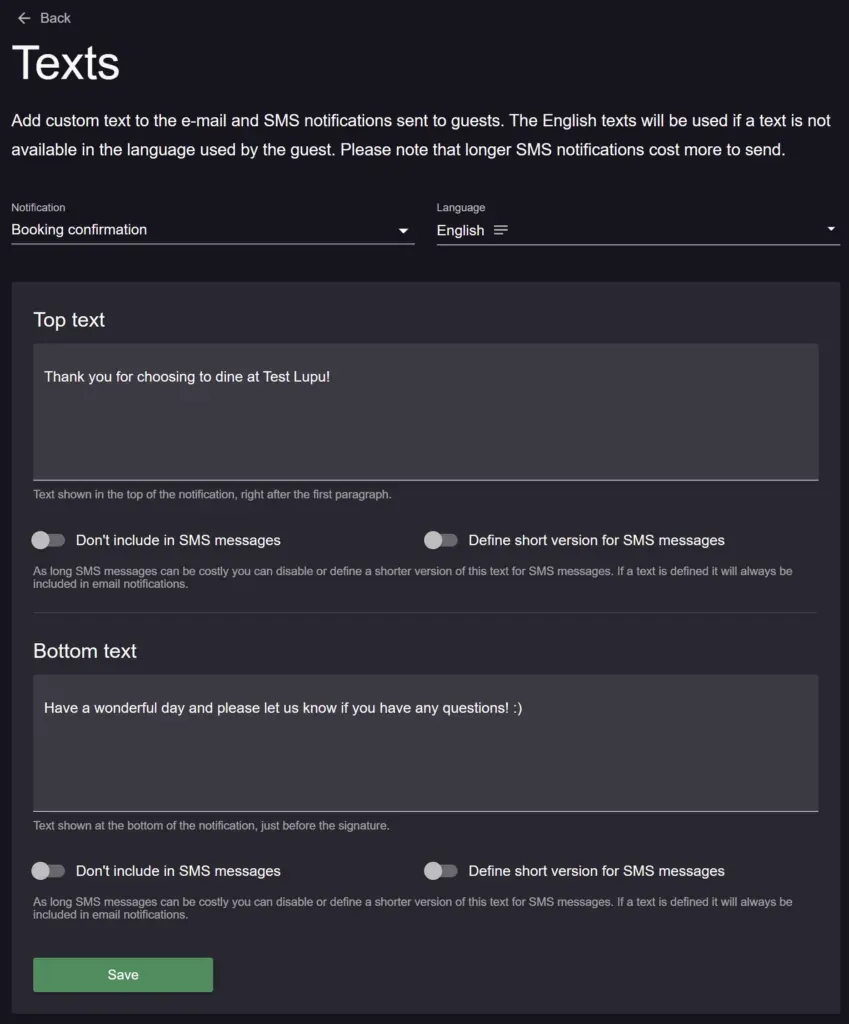
Note: The system only adds extra text to the top and/or bottom part of the default text that is super simple and used by all the restaurants out there. You can add different texts in different languages, it’s all up to you. The image at the top of your booking emails is your Booking page image (Menu → Settings & add-ons → Bookings → Managing bookings → Booking page & widget), so there is no separate logo upload for notifications: change that image and the emails follow. If the Custom design add-on is active, the emails also pick up its colors, font and corner rounding. The default text itself is not customizable yet.
What you cannot change in the email
The note above covers what you can change. These parts are the same for every restaurant, so it is worth knowing before you go looking for a setting:
- Your restaurant name is always printed over the header image. It sits in the middle of the image, and the image carries a dark overlay so white letters stay readable on top of a photo. Neither the name nor the overlay can be switched off. If the name is hard to read, choose a Booking page image with a calmer area in the middle.
- The layout cannot be edited. Every restaurant shares one email template. You cannot rearrange the blocks, supply your own HTML, or move where your branding sits.
If the top and bottom text fields cannot say what you need, write to hi@resos.com and describe what the email should tell your guests.
Why is my custom confirmation text not being sent?
The text you save under Menu → Settings & add-ons → Communication → Texts is attached to specific messages only, and the language setting can hide it. Check these in order.
1. Is this a message that carries the text? Each of the four notification types is added to particular guest messages:
| Text you edited | Added to |
|---|---|
| Booking confirmation | The confirmation a guest gets when a booking is made, the confirmation sent after a payment or card step you asked for is completed, and the approval message when you accept a booking request |
| Booking status changed | The cancellation message only |
| New message on booking | The message a guest gets when a comment is added to their booking |
| Booking reminder | The reminder, when its Receiver is Guest |
Every other guest message goes out without your text. That includes the “request received” message for a booking request, the request to confirm a booking, feedback requests, payment reminders and warnings, messages about a changed date or time, a declined request, and waitlist messages. On a restaurant that approves bookings manually, the guest sees the Booking confirmation text for the first time in the approval message, not when the request comes in. The Booking status changed text is not used for pending, declined or time-change messages, despite the name.
2. Did you write the text in the guest’s language? Resos looks for your Top text and your Bottom text in the language the guest used when booking. If nothing is saved for that language, it uses the English text. If there is no English text either, the message goes out without it. So a text written only in Danish is missing for a guest who booked in English, and a text written only in English is shown to guests of every language. Save the text in each language your guests use, plus English as the fallback. The top and bottom text are checked separately.
3. Is the SMS set to leave the text out? On the same page, the top text and the bottom text each have two SMS options: Don’t include in SMS messages and Define short version for SMS messages. The second one opens a Short version field for the SMS text. With Don’t include in SMS messages chosen for the top text in the guest’s language, the SMS leaves out that top text even though the email has it. The bottom text has its own choice, so set both if you want neither in the SMS. If you never chose either option for that language, the SMS uses the same text as the email.
A saved text applies to messages built after you save it. Messages already sent do not change.
If the message is one that should carry the text, the language matches and the text is still missing, write to hi@resos.com with the booking’s date and the message you expected.
Layout of the booking notifications
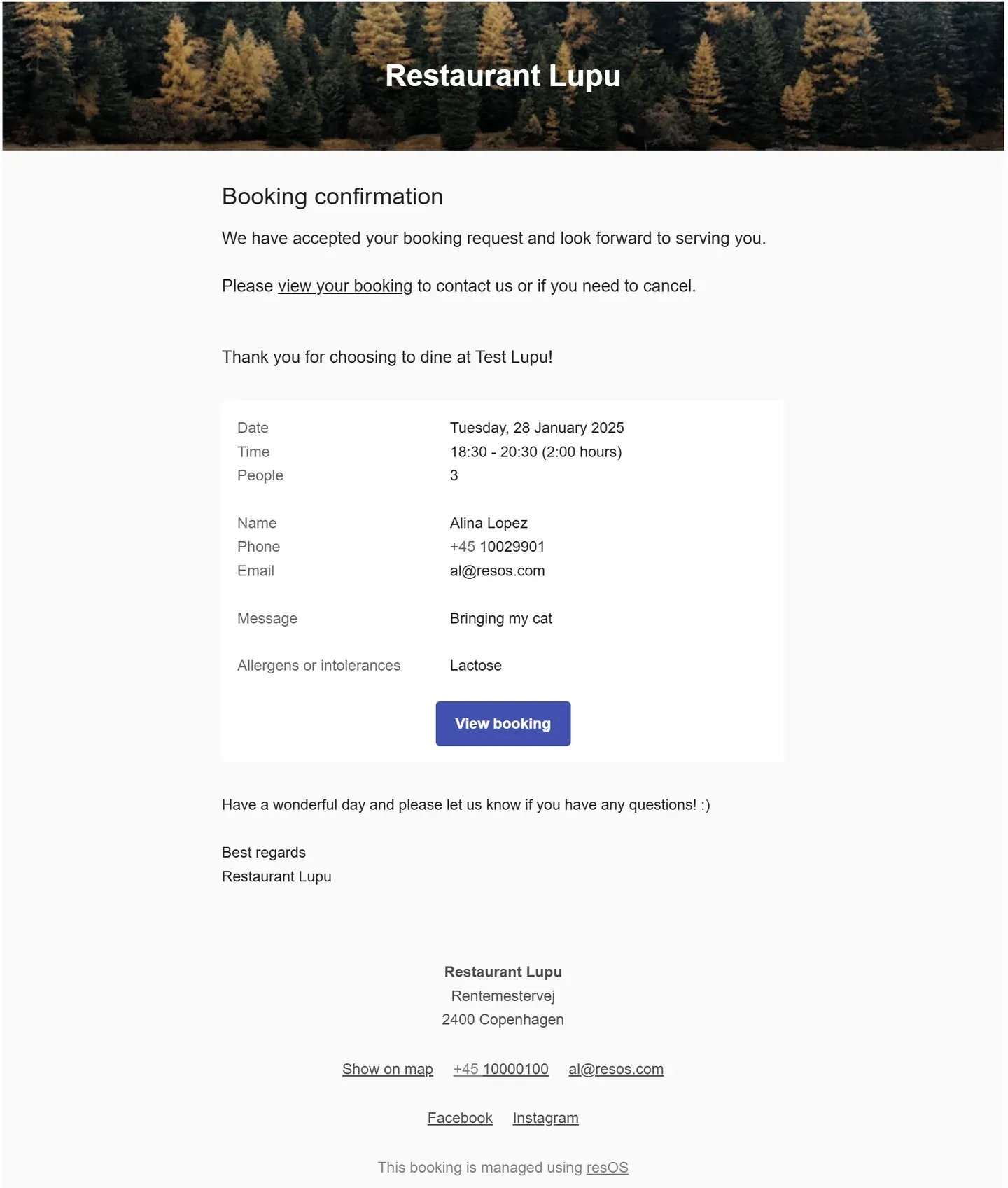
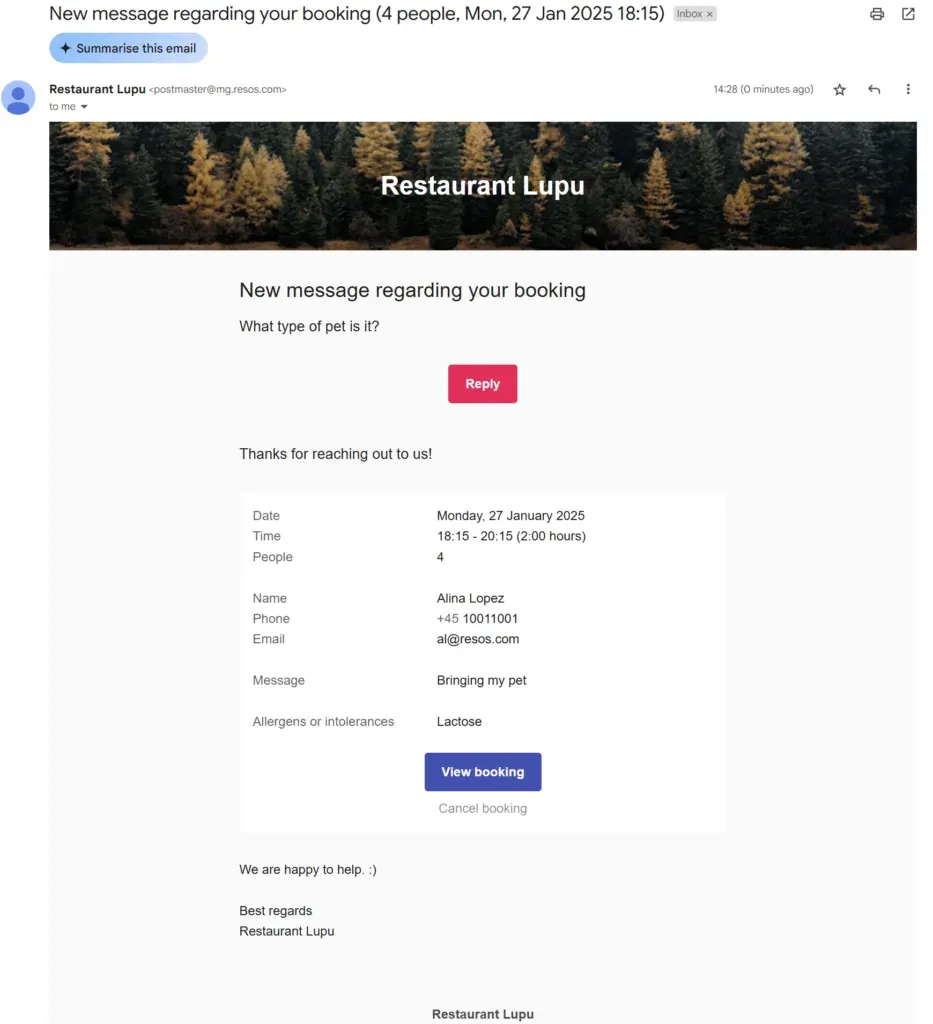
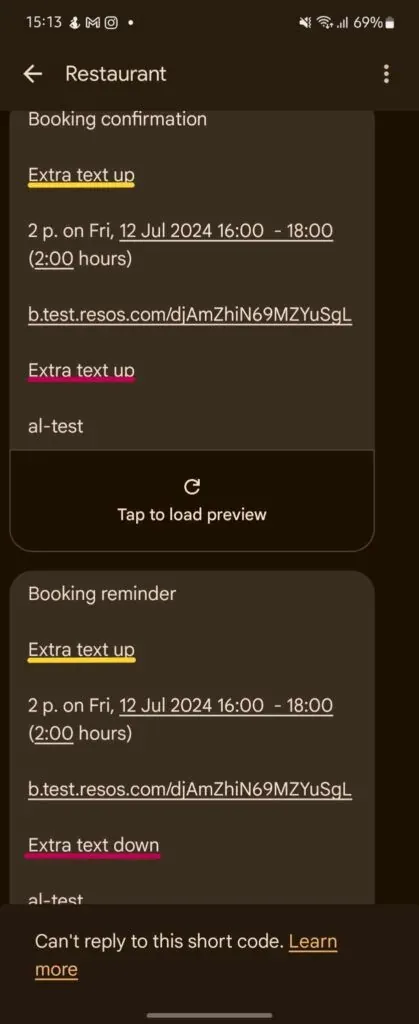
Perhaps you’re wondering what the default together with the extra text looks like on your customer’s side. The information that is crossed with a black line represents personal information. Here are a few examples with extra text added before and after the default one:
- Booking confirmation
- New message on booking
SMS Booking confirmation & Reminder, as well as SMS Reminder with the short version: the yellow line is the extra top text and the red line is the extra bottom text.
Why does the guest’s SMS only say “New message” with a link?
When you write a message to a guest, the email carries the full text of your message. The SMS is kept short on purpose, because every text is billed: it says New message, the booking details and a link. The guest taps the link to read your message and reply. This is how the SMS is built for every restaurant, and the length of your message does not change it.
The one exception is a guest whose phone number is in a country where mobile operators block text messages containing links. For those guests the SMS leaves out the link and shows your message text instead.
If you want the guest to see specific wording in the SMS itself, put it in the Booking confirmation or New message on booking top or bottom text with a short SMS version, as described above.
Why is there no “Message to guest” box on my booking?
Open the booking and look at the column down its right-hand side (on a phone, or in a narrow browser window, tap the Messages, Notes tab first). At the bottom there are two tabs: Message, whose box reads “Message to guest…”, and Note, whose box reads “Private internal note…”. A note is only for your team and is never sent. If you only see the Note tab, one of these applies:
- Disable guest messages is on. Go to Menu → Settings & add-ons → Bookings → Managing bookings, find the Disable guest messages switch in the Booking page & widget group and turn it off. It hides the guests’ message form on the booking page and your own Message tab.
- The booking is a closed table. A table you closed has no guest, so it has no Message tab.
The box is also greyed out for a booking that is more than a month past its date. A message reaches the guest by email or SMS only if the booking has an email address with E-mail switched on, or a phone number with SMS switched on. See why a guest did not get a confirmation email for how to check that.
Contact details on no-show and payment receipts
Receipts for no-show fees, deposits and prepayments are sent by Stripe, not by Resos. The support email and phone number printed on them come from your own Stripe account, so you change them in your Stripe Dashboard rather than anywhere in Resos. Your restaurant name, email and phone number were copied across once when the Stripe connection was first made, and editing them in Resos afterwards does not update the receipts.
Which email address does what explains where each of your addresses is set, including this one.
Type of notifications
The system sends two types of notifications: email and SMS notifications. Here’s some information about these:
- Email notifications: Resos sends email notifications automatically, as long as the customer provides their email address for online bookings or the staff member asks for it for manual bookings.
- SMS notifications: in order to send SMS messages, you need to enable this add-on. The SMS sender name can be changed by going to Menu → Settings & add-ons → Communication → SMS messages, and over there, you can also notice that SMS notifications are charged extra (depending on your currency).
How SMS messages are billed
Switching the SMS messages add-on on costs nothing by itself, and it is available on a paid plan. You pay only for the messages that go out, on top of your subscription.
A text message holds a fixed number of characters, and a longer one is sent and charged as several messages, so length is what drives the bill. Emoji and special characters shorten the limit further. The maximum length of a single text message has the character counts and the tips for staying inside one message. Two things help from this page: keep any extra top and bottom text short, and use the shorter SMS version described in step 6 above.
The rate depends on the country of the number the message goes to, so there is no single figure. It is invoiced in your own subscription currency. Go to Menu → Settings & add-ons → Communication → Notifications and follow the SMS pricing link on that page to see the rates per country.
Turning SMS off for guests
Go to Menu → Settings & add-ons → Communication → Notifications. The To guests section is only on that page while the SMS messages add-on is active. Under To guests there is one SMS switch.
That single switch covers every SMS your guests receive: booking confirmations, status changes, new messages on a booking, reminders, confirmation requests and feedback requests. There is no separate switch per message type.
Turning it off does not move existing bookings over to email. An email only goes out when the booking holds an email address and email notifications are enabled on that booking. A booking that was set to SMS only keeps no guest channel once the switch is off, so that guest stops receiving notifications entirely, even if an email address is on the booking. For a booking that arrived from your booking page or your widget, the channel is locked and cannot be corrected from the dashboard; check any SMS-only bookings you already have before you turn the switch off. Bookings from other sources, such as Reserve with Google, keep an editable channel.
Your own alerts are controlled separately. The To you section has its own SMS switch for new-booking alerts, so you can keep staff alerts arriving by SMS after you have turned guest SMS off, or the other way round.
Reminders you build yourself are the one place with a channel choice of their own. A reminder addressed to a Custom recipient has its own SMS and Email switches, while a reminder sent to the guest follows whatever that guest chose on their booking.
Choosing email or SMS for one booking
The channel is decided per booking, by whoever created it.
- Online bookings: the guest chooses. When SMS is active, the booking page shows Keep me updated via: with an E-mail and an SMS checkbox, and the guest ticks the ones they want. The block is hidden when Required contact information (under Menu → Settings & add-ons → Bookings) is set to E-mail (hide phone field) or Phone (hide e-mail field), and that setting then decides the channel. For a booking made on your booking page or in your widget, the choice cannot be changed afterwards from the dashboard; bookings from other sources, such as Reserve with Google, stay editable.
- Manual bookings: you choose. When you add or edit a booking yourself, the booking form has E-mail and SMS switches for the guest. The SMS switch is only shown while guest SMS is on in your notification settings.
Using your own SMS provider
You cannot connect an outside SMS provider or your own gateway account to Resos. All messages are sent through the Resos gateway.
The one sender setting you control is the SMS sender name at Menu → Settings & add-ons → Communication → SMS messages. It is what guests see as the sender, it has to be between 3 and 11 characters, and if you leave it empty the messages show “Restaurant” as the sender.
Your sender name is not used everywhere. Some countries do not allow a name as the sender, or require it to be registered with the mobile networks first. Guests on a number in one of those countries see a Resos number or the Resos sender name instead. There is nothing to configure for this, and it does not change what the message says.
Still unsure which notifications your guests should receive, or what a change will cost you? Write to hi@resos.com and we will look at your setup with you.


