


How to set up the guest feedback feature
In this article
- What is the feedback feature?
- How to activate the feedback feature
- Step 1: Activate the feedback feature
- Step 2: Add your review links
- Step 3: Decide where satisfied guests are sent
- How does feedback work?
- When is the feedback request sent?
- Do guests get a feedback request after a cancellation?
- Can I edit the feedback request’s wording?
- Can I change the rating categories on the feedback form?
- Can Resos send guests a follow-up email after their visit, for example to invite them to book again?
- Why didn’t a guest receive a feedback request?
- Encourage more positive online reviews
- View your feedback reports
- Deleting a feedback entry
What is the feedback feature?
The feedback feature helps you automatically collect feedback after a guest has visited your restaurant. By sending a short follow-up email or SMS, you can learn more about your guests’ experience, identify areas for improvement, and encourage satisfied guests to leave positive online reviews.
The feedback collected is available directly in Resos, making it easy to monitor guest satisfaction and improve your service over time.
How to activate the feedback feature
Step 1: Activate the feedback feature
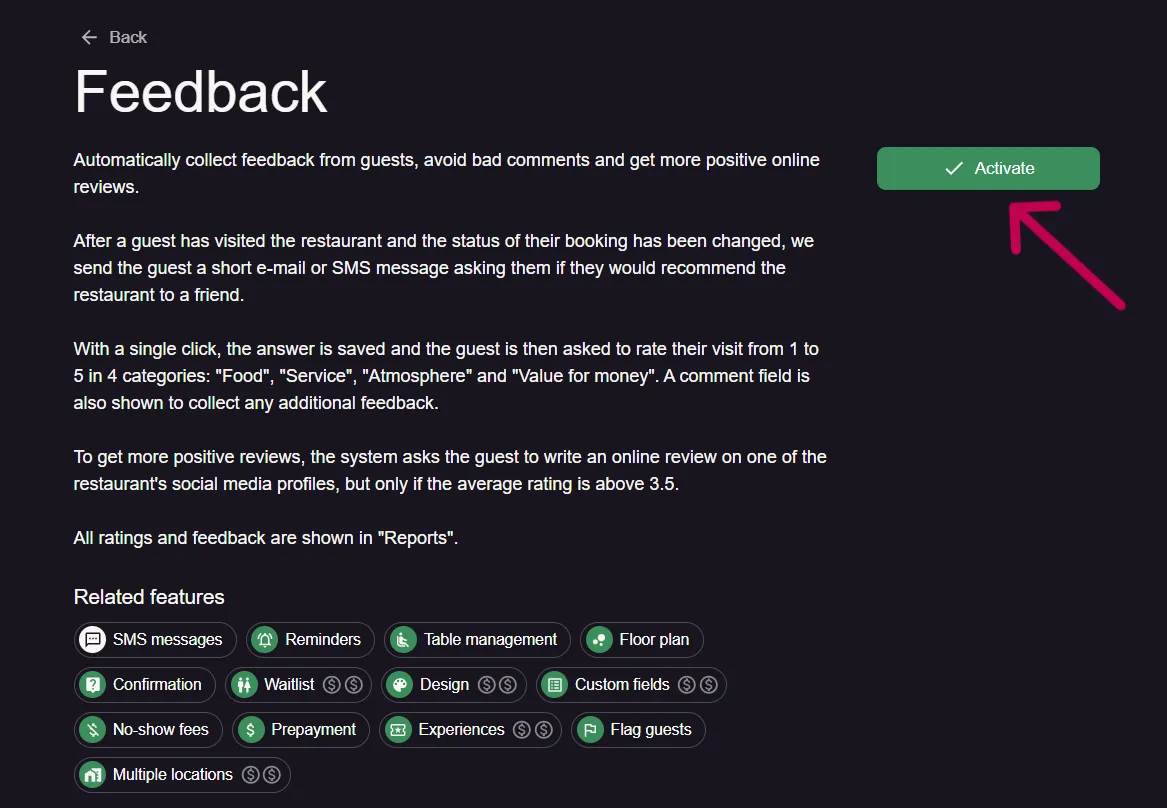
To activate feedback, go to Menu → Settings & add-ons → Communication → Feedback.
Click Activate to enable the feature.
Step 2: Add your review links
Guests with an average rating above 3.5 are invited to leave a public review, but only if your restaurant profile holds a review link. Set one under Menu → Settings & add-ons → Integrations → Social media: Google, Facebook, TripAdvisor and Yelp are all supported.
Not sure which link to use? Here is how to get direct review form links for your preferred platform.
Step 3: Decide where satisfied guests are sent
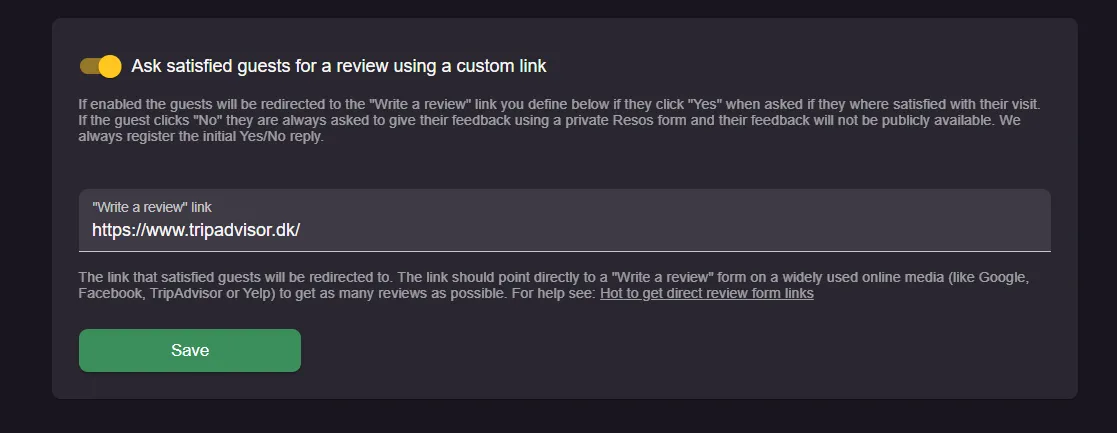
Back on the feedback settings page, turn on Ask satisfied guests for a review using a custom link if you want a guest who answers Yes to go straight to the “Write a review” link you enter under it. Leave it off and every guest is asked to rate their visit in Resos first.
How does feedback work?
Once a guest has visited your restaurant, Resos automatically sends them a short feedback request. See When is the feedback request sent? below for the exact timing.
The guest is first asked a simple question: Are you satisfied with your visit?
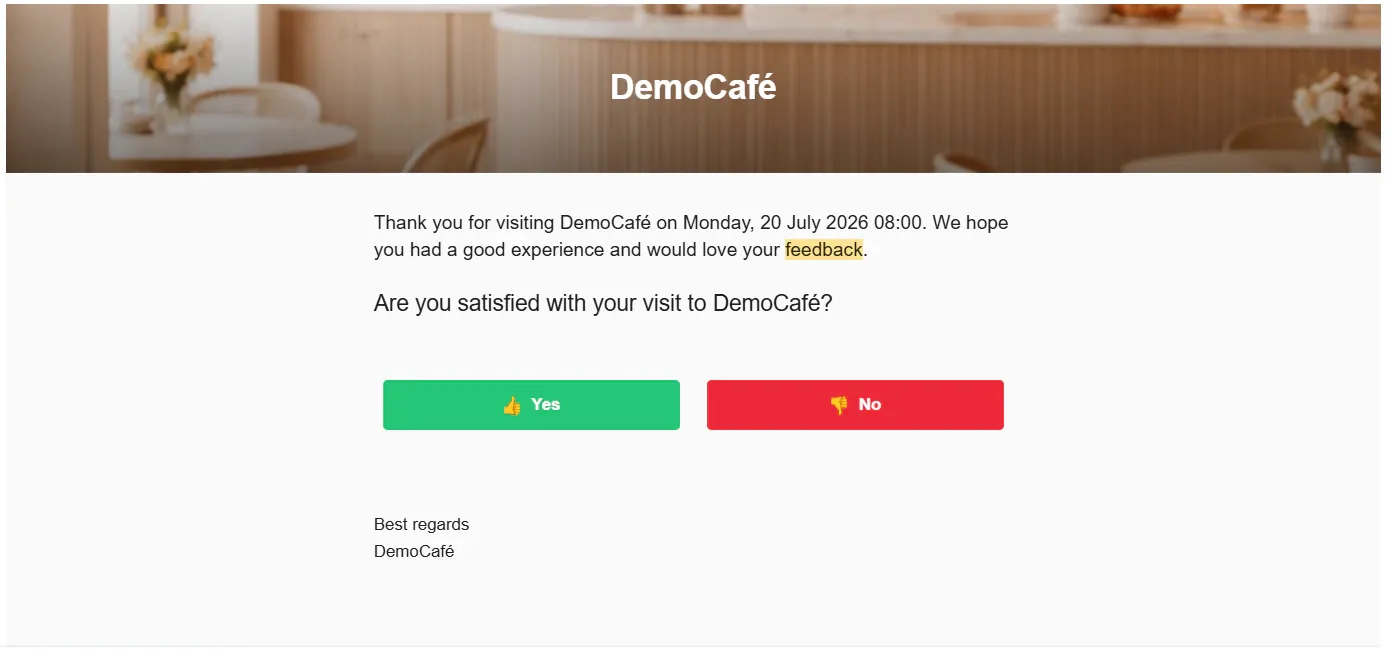
Depending on their response, guests either go straight to your review link (if they choose “Yes” and you have set one up) or are first asked to rate their experience and leave feedback. Guests whose average rating is above 3.5 are then invited to leave a public review, if your restaurant profile holds a review link we can send them to.
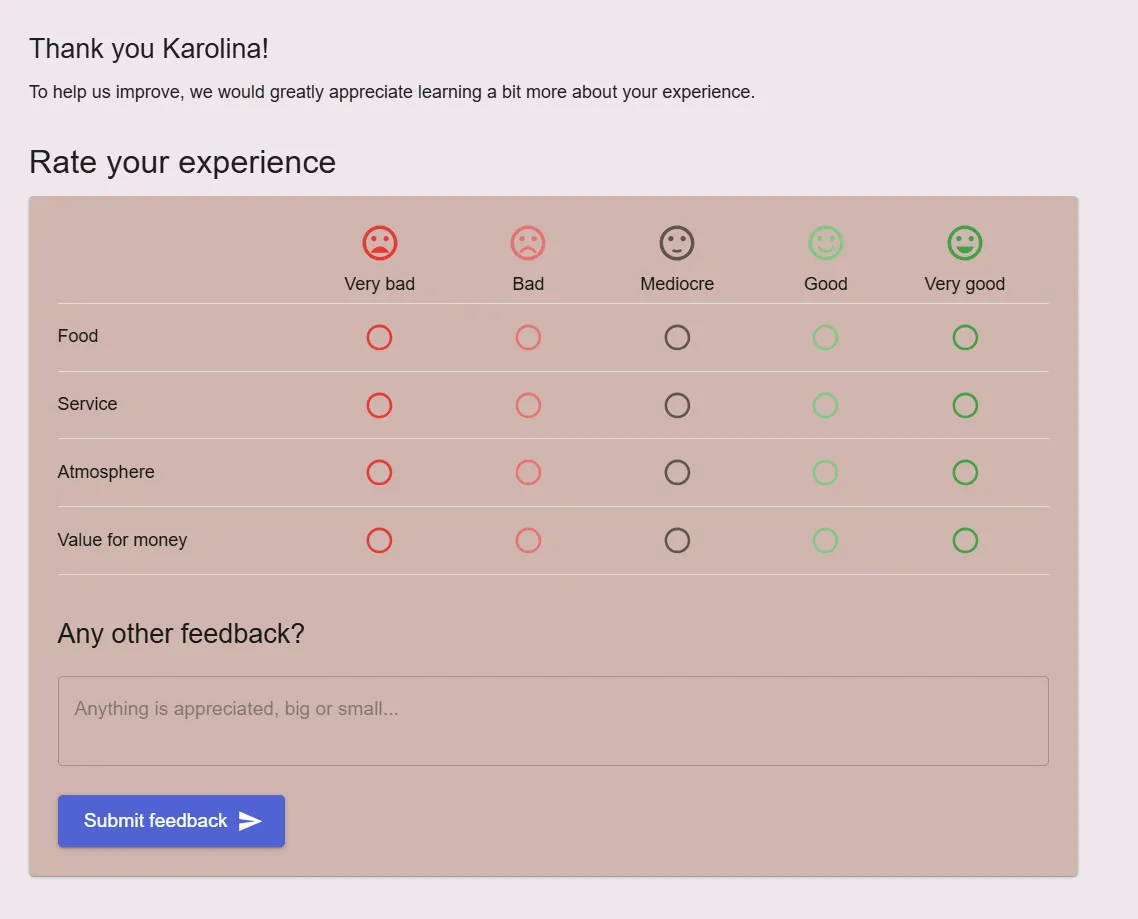
Guests can rate:
- Food
- Service
- Atmosphere
- Value for money
They can also leave an optional written comment.
When is the feedback request sent?
The feedback request is sent automatically 1 hour after the booking’s estimated end time. If the booking has no duration set, it is sent 3 hours after the booking time instead.
The send time is fixed when the request is queued, at the moment the booking is created or accepted. Marking a booking Has left afterwards does not move it, and neither does changing the booking’s duration. Changing the booking’s date or time does move it. Marking a booking Has left is optional and is not required for the feedback request to be sent.
The request will not be sent for a booking that is on the waitlist, still pending approval, declined, canceled, deleted, or marked no-show at the time it is due to go out, or if the feedback feature has since been deactivated.
Do guests get a feedback request after a cancellation?
No. When a booking is canceled, its queued feedback request is removed, so a guest who cancels is never asked how their visit was. Resos has no separate cancellation survey either, and no automated message that asks a guest why they canceled. The feedback request only goes to guests whose booking went ahead.
Can I edit the feedback request’s wording?
No. The subject and message text of the feedback request are fixed and cannot be edited.
The only parts you can configure are whether satisfied guests are redirected straight to a review link (Ask satisfied guests for a review using a custom link), and which link they are sent to.
Resos supports custom header and footer text for some notifications, but this does not apply to the feedback request.
Can I change the rating categories on the feedback form?
No. The feedback form always asks guests to rate the same four categories: Food, Service, Atmosphere and Value for money, each on a five-step scale from Very bad to Very good. You cannot rename, remove or add categories, and the Any other feedback? comment box cannot be changed either. This applies to every type of venue, not only restaurants.
Can Resos send guests a follow-up email after their visit, for example to invite them to book again?
Not automatically. The feedback request is the only automated message Resos sends after a visit, and its text cannot be edited. Booking reminders are sent before the booking time, never after it. To contact one guest after their visit, open the booking within a month of the booking time and write in its Message tab, and the guest gets it as a notification. The tab is not there if Disable guest messages is switched on. To invite many guests back, use the Mailchimp integration.
Why didn’t a guest receive a feedback request?
If a guest reports they never received a feedback request, check the following:
- The feedback feature must have been active at the moment the booking was created or accepted. Turning it on does not queue requests for bookings that are already confirmed, so most first requests go out for bookings taken after you activated it. A booking still waiting as a request is the exception: accept it after activating feedback and the request is queued then.
- The booking must hold contact details and have at least one notification channel enabled on it, email or SMS. Without a channel, no request is queued for that booking at all.
- On the booking page, the guest sets this with the Keep me updated via: checkboxes. That block is not always shown, and its absence is not a problem. It is hidden when the SMS messages add-on is inactive, when the guest SMS switch under Communication → Notifications is off, or when Required contact information (Menu → Settings & add-ons → Bookings) is set to E-mail (hide phone field) or Phone (hide e-mail field). Those bookings can still carry a channel and still receive a feedback request.
- For a booking you add yourself, the E-mail and SMS switches on the booking form decide it. Leave both off and that guest is never sent a feedback request.
- SMS delivery also requires the SMS messages add-on to be active, and guest SMS enabled in your notification settings.
- The booking must not be on the waitlist, still pending approval, declined, canceled, deleted, or marked no-show at the time the request is due to go out.
- If you changed the booking’s date or time after it was made, the send time is recalculated. If that new send time has already passed, the request is not sent for that booking.
- The feedback feature must still be active on your account; requests queued before it was deactivated are not sent.
- Feedback requests are never sent more than one month after the booking’s date and time, even if every other condition is met.
If the guest rated their visit but saw no invitation to leave a public review, two things decide that: their average rating must be above 3.5, and your restaurant profile must hold a Google, Facebook, TripAdvisor or Yelp link for us to send them to. The “Write a review” link you set under Ask satisfied guests for a review using a custom link is a different path: it is used only for a guest who answers Yes to the first question.
Encourage more positive online reviews
If the guest’s average rating is above 3.5, Resos will invite them to leave a public review, provided your restaurant profile holds a Google, Facebook, TripAdvisor or Yelp review link (Menu → Settings & add-ons → Integrations → Social media).
This helps increase positive online reviews while giving guests with lower ratings the opportunity to share their feedback privately instead.
View your feedback reports
All guest ratings and comments are automatically saved in Resos.
To view your feedback, go to Menu → Reports → Feedback. Here you can:
- review guest ratings
- read guest comments
- identify trends over time
- discover areas that need improvement
Read more about feedback and feedback replies reports.
Deleting a feedback entry
It is not possible to delete or hide an individual feedback entry yourself from the dashboard. If you need an entry removed, for example a no-show or a fraudulent entry, contact us at hi@resos.com and our support team can help.
We hope you found this guide useful. If you have any questions about setting up the feedback feature or any general questions about Resos, do not hesitate to contact us at hi@resos.com. Our support representatives are excited to offer their help!


