


Choosing how you receive booking notifications
In this article
- Choose between booking notifications by email, SMS or both in your restaurant
- SMS
- What the notification tells you
- Which booking events alert you, and which do not
- Not receiving booking notifications
- SMS notifications will not switch on or do not arrive
- What replies and messages show up in the dashboard
- The Activity drawer
- How to send email and SMS notifications to your guests
The beauty of Resos is that you can choose to get notifications for new bookings exactly the way that suits you. In this guide, we show you how to choose your preferred way of receiving and sending booking notifications. For an overview of what automated SMS and email booking notifications can do for your restaurant, see the feature page.
Choose between booking notifications by email, SMS or both in your restaurant
Email and SMS are the two channels Resos sends booking notifications on. WhatsApp notifications, phone or desktop push notifications, a daily summary of the day’s bookings, and email or SMS settings that notify you only for some new bookings, by party size, time of day, or booking type, are not available. If you only want to be alerted about larger parties, the nearest thing is a reminder with a Min. guests value and Receiver set to Restaurant, covered in booking reminders. That fires before the booking, not when it comes in.
If you like to get notified about new bookings by email, choose this option. This option can be activated in Settings & add-ons → Communication → Notifications. This is very efficient as you can quickly read about your new bookings on your phone, tablet or computer. Getting notified via email is completely free!
SMS
If you choose to get notifications by SMS, you will receive texts on your phone about new bookings. This option needs to be activated in Settings & add-ons → Communication → SMS messages. Then, in the same section of the settings, go to Notifications → To you, and set up the SMS notifications there.
It is also a paid feature, you can read more about its fees here. Check the maximum length of a text message here.
There are 3 simple steps to follow in order to choose how you would like to be notified about your bookings:
- Go to Dashboard on your Resos profile → Menu (on the upper left corner) → Settings & add-ons → Communication.
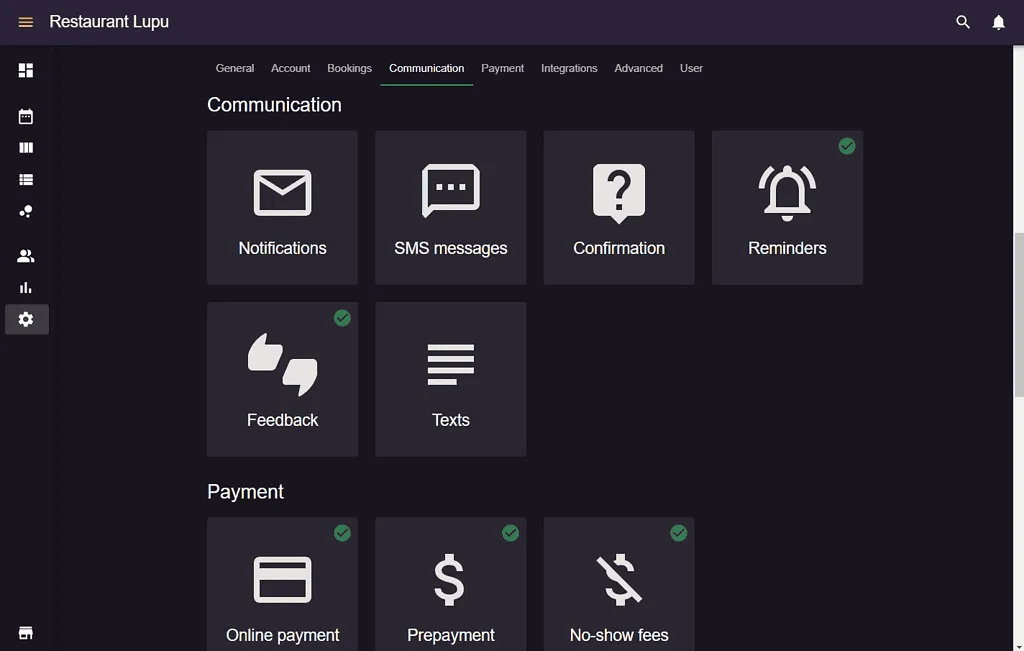
2. Find Notifications → To you → Enable the option(s) that you like:
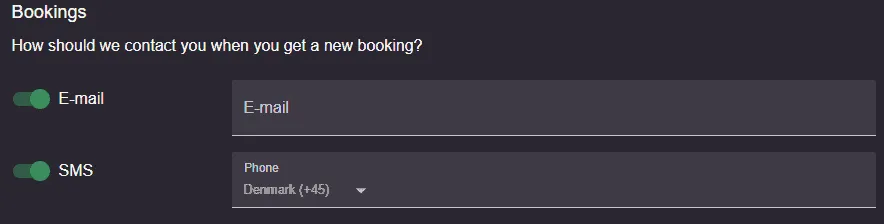
3. Add your email address/phone number and start receiving notifications about your new bookings. You are not limited to one recipient: use Add email to add another address, and do the same for phone numbers, so a manager and a head waiter can both be notified.
Further down the same To you section you can also have new bookings announced inside the dashboard itself, with Play sound for new bookings (you pick the sound, the volume, and whether it covers Today’s bookings or All bookings) and Highlight new bookings visually. Both only work while Resos is open on screen, whether that is a browser tab or the Resos app, so they sit alongside email and SMS rather than replacing them.
You are notified about bookings guests make themselves: on your booking page, in your widget, through Reserve with Google, and through Reserve with Facebook and Instagram. Bookings you or your staff enter in the dashboard, walk-ins, and imported bookings do not trigger a notification to you when they are created. Bookings that arrive over the API usually do, but bookings from some partner integrations are not announced, so check with the partner rather than relying on the alert.
What the notification tells you
A new-booking email lists the date, the time, the number of guests, the guest’s name, and whichever of the guest’s phone number and email address the booking captured. It also carries the guest’s message and the answers to your custom fields, including the internal ones guests never see. The booking duration is added if Show booking duration to guests is on, the area if Allow guests to choose area is on and the booking has a table in a named area, and the name of the opening hour or experience the guest picked if Show opening hour name on booking is on. Which contact details a guest has to give is decided by Required contact information, covered further down this guide.
The new-booking SMS is deliberately short, because you pay per message: the number of guests, the date and time, with the duration and the area if you show those, and a link to the booking. Open the link for the guest’s name and contact details.
Which booking events alert you, and which do not
Your To you settings decide the channel for every alert below. If email is off there and SMS is off or not shown (the SMS option appears only while the SMS messages add-on is active), none of them reach you. These kinds of guest activity alert you:
- A new booking from a guest, as described above. A guest who joins the waitlist online alerts you too.
- A guest cancelling their booking from the link in their confirmation.
- A message a guest sends from the same page.
- A guest completing the payment or card step on a booking you entered yourself, for example from a payment link.
A change to the number of guests does not alert you, and neither does a change to the date or time. This holds whoever makes the change. Guests cannot change these themselves (see what guests can do from their confirmation link), so such a change comes from you, your staff, or a partner such as Reserve with Google. A change to the date or time sends the guest a message, if the booking has their contact details, but nothing goes to you. A change to the party size sends no message to anyone. To be reminded about a booking with a larger party ahead of time, use a reminder as described in booking reminders.
Not receiving booking notifications
Work through these checks in order. Most missing alerts come from the first three.
- Is the booking one that alerts you? Bookings you or your staff enter in the dashboard, walk-ins and imports do not alert you when they are created, as described above. Only bookings that arrive from a guest or a connected partner do.
- Is a channel switched on? Open Menu → Settings & add-ons → Communication → Notifications and look at To you. E-mail must be switched on and have at least one address listed. If you have not added an address of your own, alerts go to your restaurant’s contact email instead (see which email address does what), which may not be a mailbox you read. If you type an address in Add email and do not click the plus, it is still added when you save, so click Save after entering it.
- Is the right address on the list? The list belongs to the restaurant, not to each user, so a colleague who expects alerts needs their own address added. Check each address for typos.
- Check the spam or junk folder of every address on the list, and search for the subject New booking. If alerts land there, mark one as not spam or add the sending address to the safe-senders list.
- Texts only: the SMS switch only appears while the SMS messages add-on is active, see the next section.
If all of this looks right and a guest booking still did not reach you, look up the booking in the dashboard: if it is there, the booking itself worked and the alert is the only thing missing. Contact us at hi@resos.com with the booking’s date, time and guest name so we can check what was sent.
SMS notifications will not switch on or do not arrive
- The add-on must be active first. Go to Menu → Settings & add-ons → Communication → SMS messages and enable it. The add-on needs a paid plan, so it cannot be switched on during a free plan. Until it is active, SMS does not appear under Notifications → To you.
- Then switch on SMS in To you. Enable SMS and add a phone number with the plus button (or enter it and save). A number that is too short is not accepted.
- Some numbers cannot receive texts. Resos does not send SMS to a UK landline (a number starting +441 or +442), and it does not send SMS to countries where text messages are not supported. If your restaurant is in a country where SMS is not supported, the add-on cannot be activated at all. Use a mobile number in a supported country, or choose email.
- Only the same bookings alert you by text as by email. A booking you enter yourself sends no text, just as it sends no email.
What replies and messages show up in the dashboard
When you send a guest a message from a booking, the guest gets an email or SMS with the subject New message regarding your booking. The email contains your message; the SMS normally only says New message with a link (in some countries that restrict links in texts, it carries your message instead). To answer, the guest uses the message box on their booking page, and the answer appears in the booking’s messages and in the Activity drawer, and alerts you through your To you settings.
If the guest instead hits reply on the email, that reply goes by normal email to your restaurant’s contact email (the one set under Menu → Settings & add-ons → Account → Name & contact → Contact → E-mail). An emailed reply is not added to the booking’s message thread. If one person’s inbox is the contact email and others need to see replies, point the contact email at a shared mailbox, and ask guests to answer from the link in the email. Messages can be turned off with Disable guest messages, covered in what guests can do from their confirmation link.
The Activity drawer
The bell icon in the top right of the dashboard opens the Activity drawer. It collects messages guests send from their booking link and notes your team writes, with an Unread and a Latest tab. The number on the bell updates about every 30 seconds. The drawer is only shown to users with access to bookings, and it shows nothing that arrived only as a plain email, such as a guest’s reply to a notification email. If a message is missing from the drawer, check that Disable guest messages is off and that the guest wrote it in the message box on their booking page.
How to send email and SMS notifications to your guests
The same applies to your guests, they can be notified via email, SMS, or both. The restaurant SMS messages overview explains which booking events can be sent by text and how SMS works alongside email. In order to decide how you would like to notify guests about their bookings (confirmations, changes, cancellations, etc.), you need to choose what type of information you want from them. You can do that by going to Menu → Settings & add-ons → Bookings → Managing bookings → New online bookings → Required contact information.
Each option is explained in Require a phone number or e-mail on your booking page.
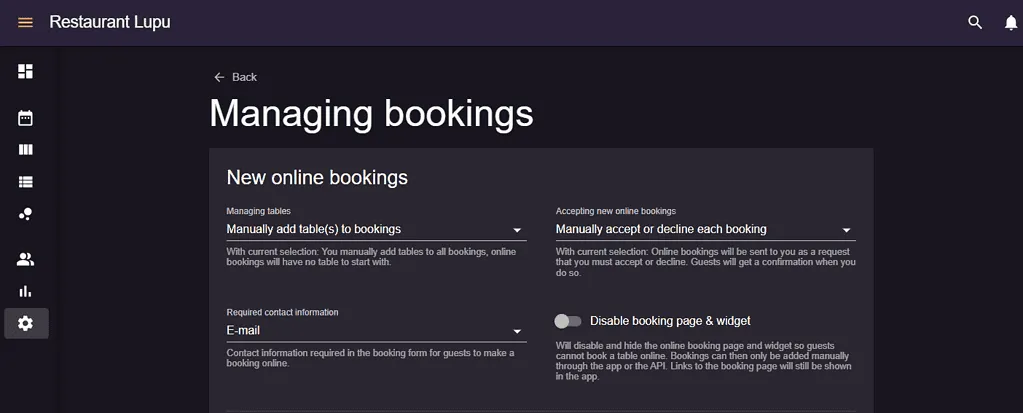
Depending on your choice, your guests can be automatically notified via email about their bookings. If you enable SMS notifications, then they can be notified via text too. Finally, if you enable both, then they will be notified via email and text message.
This is where Resos stands out from its competitors. We do not want to change what already works for you, so we offer everything that you want to use.
Resos also uses several different email addresses for different jobs, the one guests reply to, the one that receives new-booking alerts, and the one on your Stripe receipts, and they do not update each other. See which email address does what if an address keeps showing up somewhere you did not expect.
Now that you know how to set up notifications for yourself and your guests, you should be all set to manage bookings your way. If you have any questions about setting up the booking system or any general questions about Resos, do not hesitate to contact us on hi@resos.com, and we would love to help!


