


How to set up the custom design add-on
In this article
- What is the custom design feature?
- Video walkthrough
- How to activate the custom design add-on
- Preview, publish, and undo your changes
- Which image shows when I share my booking link?
- Example of a new customized booking page
- Exactly what part of the system design can you customize?
- Can I add my logo, change the step order, or remove “Powered by Resos”?
- How to disable the custom design add-on
What is the custom design feature?
The custom design feature allows you to customize many aspects of your booking page and widget to make the page match your restaurant’s identity. With custom design, it is possible to set up your own colors, fonts, and a few other settings for your booking page and widget. By using this add-on, you can make sure that your booking flow fits with the colors and fonts that you already use on your website.
Read more about the custom design add-on here.
Video walkthrough
Prefer to watch instead of read? This short video shows how to activate the add-on and style your booking flow to match your restaurant:
How to activate the custom design add-on
Just like all other Resos features, you have to activate the add-on in the Settings section directly on your profile. The feature is a paid add-on with a paid plan. Check out its pricing here.
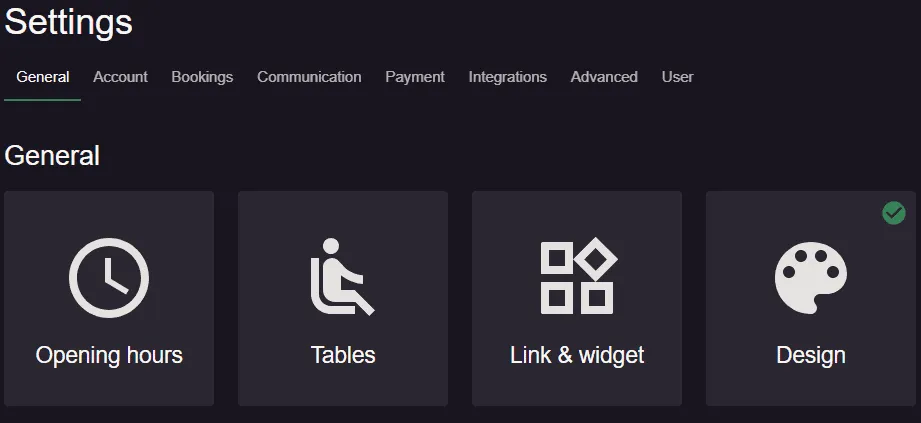
Activate the custom design app by going to Menu → Settings & add-ons → General → Design.
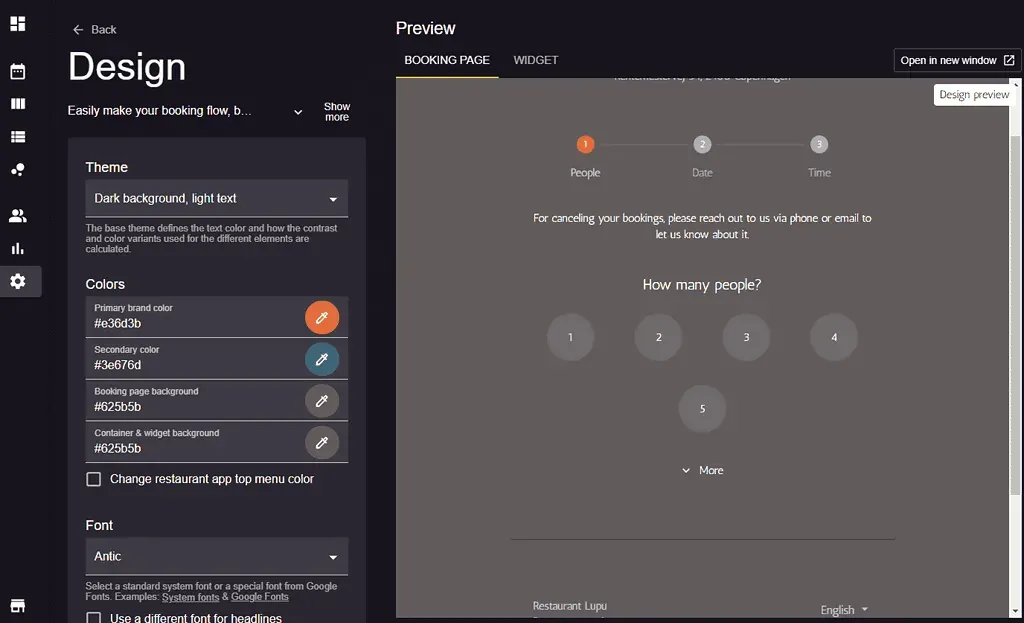
As soon as you click on Activate add-on, you can choose your custom design settings. Here you can play around with different color schemes, font styles, and round corners. You can also preview the design before releasing it on your website.
-
Theme: Choose the base theme that defines the text color and how the contrast and color variants used for the different elements are calculated.
-
Colors: We support all kinds of colors that exist. You can set the Primary brand color, a Secondary color, the Booking page background and the Container & widget background. You can also tick Change restaurant app top menu color and pick a Top menu color.
-
Fonts: You can select up to two different font styles and font sizes that will be used for headlines and the other text that appears on the page. You can see all the fonts that we support here.
-
Layout: Choose between a rounded corner size and a container shadow size.
-
Booking Page Image: Upload a custom image that appears at the top of the booking form. The button reads Upload image until an image is set, then Change image to replace it. This is the same image you can set under Menu → Settings & add-ons → Bookings → Managing bookings → Booking page & widget.
-
Texts: Customize the texts shown on your booking page to better match your restaurant’s tone and branding. You can edit headlines, button labels, payment messages, and other guest-facing text. Preview your changes before publishing. Any fields left blank will automatically use the default translations.
Preview, publish, and undo your changes
Your changes are not live while you edit. Follow these steps to check a design and then release it:
- Change the settings in the Design tab (or the Texts tab).
- Click Save & Update Preview to see the result in the Preview panel. Use Open in new window to see it full size.
- When you are happy, click Save & Publish. Design changes are only visible to your guests and customers once they have been published.
To go back, click Revert or reset. You then choose between two options that behave differently:
- Revert changes only drops what you changed in the preview. The design that is currently published stays as it is.
- Reset to default does not wait for Save & Publish. It takes effect immediately on the published design and removes your saved theme, colors (including the top menu color), fonts, corner and shadow settings, and custom texts, so guests see the standard design straight away. Your booking page image is kept.
Which image shows when I share my booking link?
When you share your booking page link in a message, an SMS or a social post, the messaging app may show a preview card. The card uses the Booking Page Image from this page and a title of the form “Book a table at” followed by your restaurant name. If you have not uploaded a Booking Page Image, another image is used instead, such as a profile photo or a default background image, so upload one to control what the card shows.
Only the preview card comes from this image. Resos supplies the card to the apps that read it when they open the link, and each messaging app decides whether it shows a preview at all and how it displays it. The card is built for your booking page address, not for the pages of your own website, where the preview comes from your website. To change the image, upload a new one under Booking Page Image above.
Example of a new customized booking page
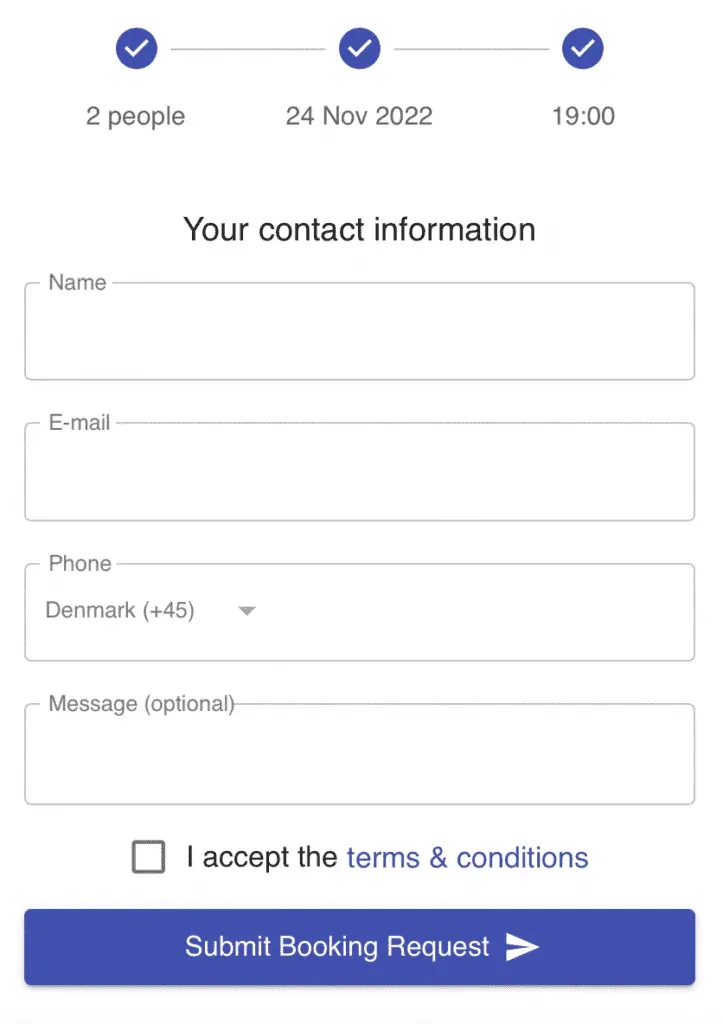
This is the standard-looking booking widget without any customized design.
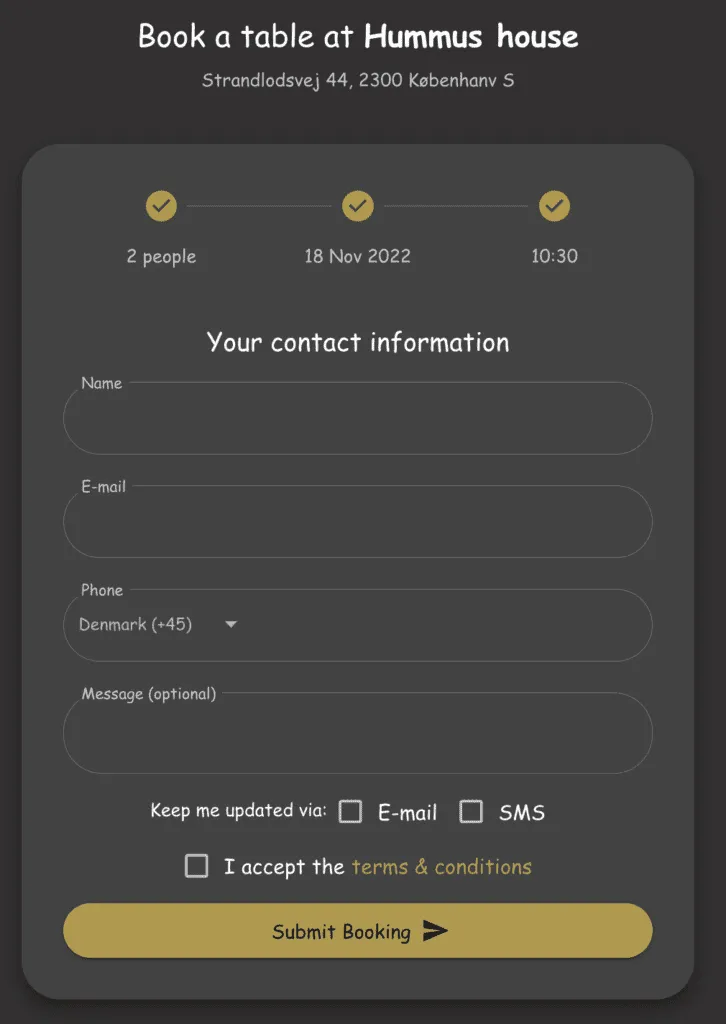
The image below shows an example of how you can customize the design to make it fit better with the colors and style of your restaurant and website.
This booking widget has some new colors, both for the background and buttons. The font of the page has also been changed.
Lastly, the corners of all the elements have been changed to be more rounded, which gives it more of a smoother feeling compared to the standard-looking booking form in the image above.
Exactly what part of the system design can you customize?
We want to give you the flexibility to customize the booking form and widget more so that your guests get the same experience when they book a table as they get when they visit your website. For now, this custom design add-on can only be applied to the guests’ views such as the booking page and widget. This means that you can’t change the internal design yet. The one exception is the top menu color of the restaurant app: with Change restaurant app top menu color ticked, the dashboard top menu uses the Top menu color you picked while the add-on is active.
Can I add my logo, change the step order, or remove “Powered by Resos”?
The Design page has no logo upload and no control for logo size or position. The only image it holds is the Booking Page Image shown at the top of the booking form. To place your logo on the booking page, use a Booking Page Image that already contains it.
Other things the Design page does not offer:
- Step order: The booking steps run in one fixed order that you cannot rearrange, so the guest picks the number of people, date and time in the sequence Resos sets.
- Removing “Powered by Resos”: The Powered by Resos line cannot be removed. It shows in the footer of the booking page and under the widget button that the website embed code adds.
- Pricing label color: Only the colors listed under Colors above can be set, and none of them is specific to the price label.
- Your own domain: The booking page always runs on a Resos address such as
yourrestaurant.resos.com. To take bookings on your own website, add the booking widget to your website. - Email logo: The image at the top of booking emails is your Booking Page Image, so there is no separate email logo. See how to customize booking notifications.
The booking page address is covered in change your restaurant name and booking domain.
How to disable the custom design add-on
Disabling the add-on, what happens to your saved colors, fonts and texts, and how to wipe them for good instead, are covered in how to disable the custom design add-on.
As always, please reach out to us at hi@resos.com with any feedback on the design feature, we would love to hear what you think. You can also let us know if you require any help with using the custom design settings, or if you have any other questions about the system and its features.


