


Add notes to specific dates
Pin context to a date – a private holiday, a staff change, a special menu – so the whole team sees it on the schedule.
In this article
A small thing that’s been a long-standing request: you can now attach a note to any date in the schedule. The note shows on the day’s header and only your team can see it.
How it works
Click the date in the schedule, choose Add note, and write whatever you need – a holiday menu, a staff change, a private event, a reminder for the floor manager. The note is pinned to that date for everyone with admin access.
Notes can be edited, archived, or deleted at any time without touching bookings.
Take more bookings, run smoother service.
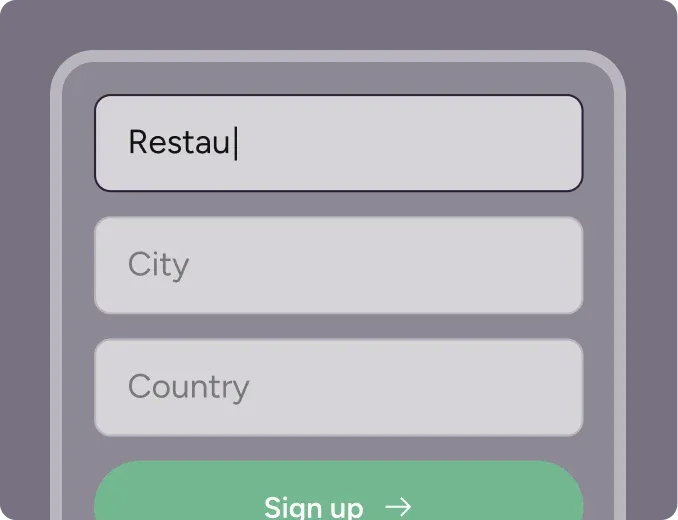
Sign up for free
Create your account in seconds. No credit card required.
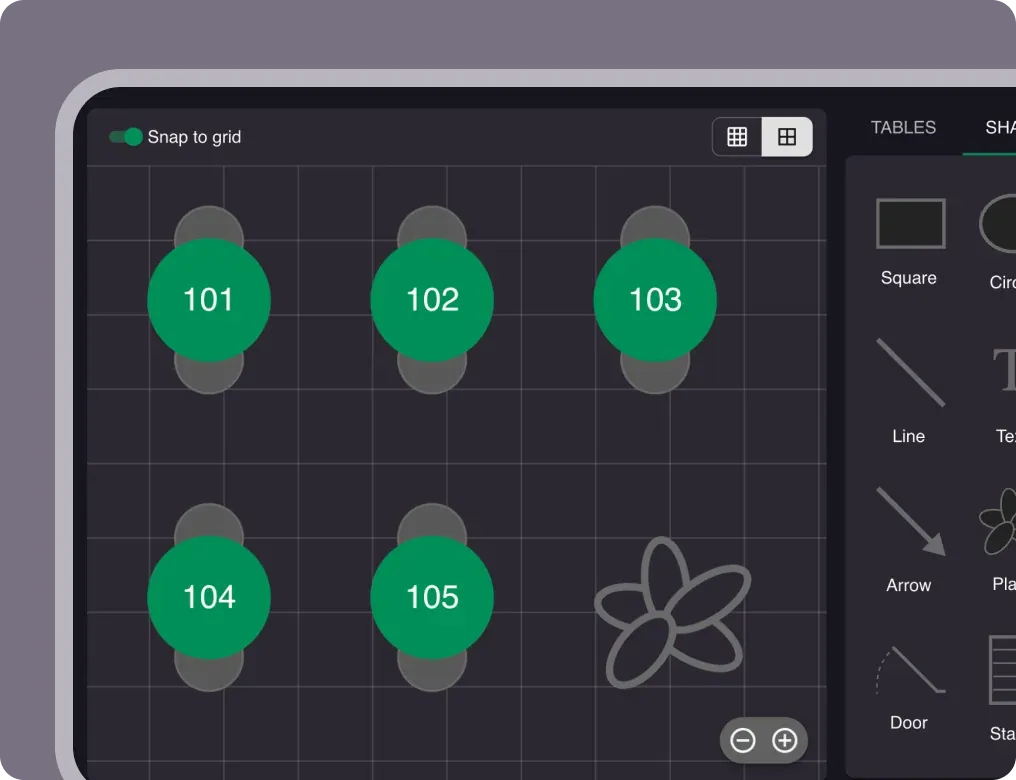
Set up your restaurant
Add your opening hours, areas, and floor plan using our easy drag-and-drop editor.
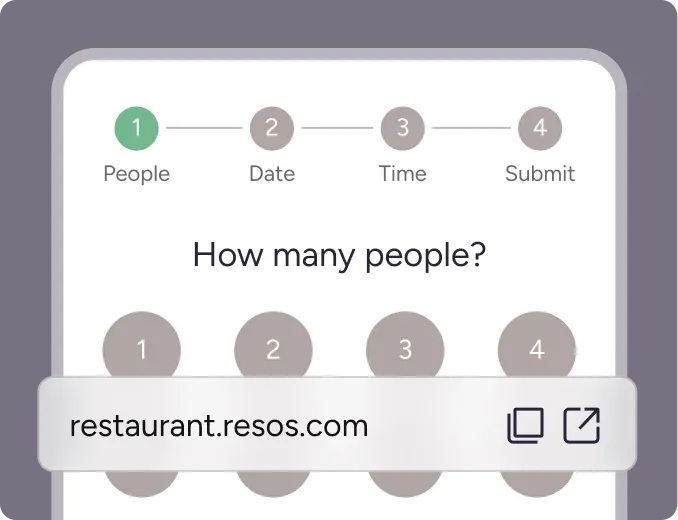
Take your first booking
Add your booking link to your website and social media. No coding required.