


How to set up table combinations
In this article
This assumes you already have Table management activated with areas and tables added - see how to add and manage tables and areas first. An area needs at least two tables in it before you can combine any of them.
A table combination lets a booking span two or more tables that can physically be pushed together in the restaurant, so a party larger than any single table can still be seated as one booking.
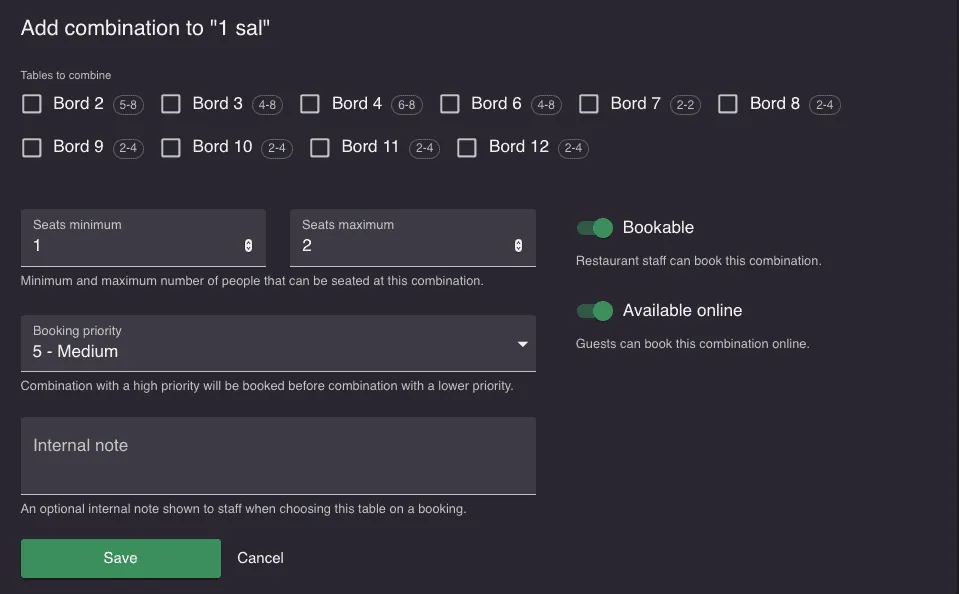
Go to Menu → Settings & add-ons → General → Tables and open the Combinations tab. Click Add combination under the area you want to combine tables in, then fill in the form:
- Tables to combine: tick at least two tables. Only tables in that area are listed, so a combination never spans two areas.
- Minimum seats and Maximum seats: the party sizes this combination can take. When you tick tables on a new combination, these are filled in with the sum of the tables’ own seats, and you can change them.
- Booking priority: ranks this combination against your other combinations that fit the party equally well. The area’s own Booking priority is compared first.
- Internal note, Bookable and Available online, as on a table.
Only combine tables that can physically be pushed together in the restaurant. Each combination is a fixed set of tables, and Resos only offers the sets you have added. If tables 1, 2 and 3 stand in a row, add 1 + 2, 2 + 3 and 1 + 2 + 3 as three combinations: Resos does not build 1 + 2 + 3 from the other two. A combination can only be booked when none of its tables is already in use by another booking at that time.
Each table combination has its own Bookable and Available online switches, separate from the individual tables it is made up of. This means a table that is available online on its own can still be unreachable for larger parties if the combinations it belongs to are not also available online, and the reverse: a combination can be available online even if one of its individual tables is not.
Set up bench seating
There is no separate bench setting. Split the bench into sections and add each section as its own table, with the seats that section holds. Then add a combination for every run of neighboring sections you are willing to seat as one party, following the row example above.
For example, a bench split into sections A, B and C of 2 seats each can be set up as:
- A, B and C as tables for 1 to 2 guests each
- A + B and B + C as combinations for 3 to 4 guests
- A + B + C as a combination for 5 to 6 guests
Tables you can push together elsewhere in the room work the same way: add each table, then one combination per group of tables you would actually join.
Why is my combination not being used?
If a combination is not offered, or a large party lands somewhere else, check these in order:
- The party size is outside the combination’s seats. Online, a combination is only offered when the party is between its Minimum seats and Maximum seats. Changing a table’s seats later does not change the seats on the combinations it belongs to, so open each combination and check its own numbers.
- The combination is not Bookable or Available online. Its switches are separate from those of its tables, as described above. The area also has to be Available online for guests to reach it.
- One of its tables is taken. If any table in the combination is in use at that time, the whole combination is unavailable.
- A single table fits. A single table that can seat the party is always chosen before a combination, whatever their priorities, so combinations are kept for the parties that need them. See how to prioritize tables and areas.
- The combination you expect was never added. Every group of tables has to be its own combination; see the row example above.
- The party is above your online maximum. A party larger than Max people on an online booking cannot book online at all. See how limits differ from maximum party size.
We hope this guide about table combinations has been useful. If you have any questions, do not hesitate to contact us at hi@resos.com.


