


How to prioritize tables and areas
In this article
With Resos you can prioritize tables and areas depending on which ones of these you want to have booked first. When you set a priority for each of the tables and areas in the system, you ensure that they are booked first. Check out how to add areas and tables for your restaurant here.
Before configuring table and area priorities, choose your preferred table assignment strategy by going to Menu → Settings & add-ons → Bookings → Managing bookings → Table assignment strategy:
- Optimized fit (default) – Picks the best-fitting table for the party size, even if it’s in a lower-priority area. This avoids seating smaller parties at larger tables.
- Priority-first (legacy) – Always picks the highest-priority area and table that fits the party, ignoring fit efficiency.
The dropdown only appears when table management is on and set to either Add table(s) to bookings automatically or Manually add table(s) to bookings. It is hidden when table management is off. For a walkthrough of both options, see how to set up the table assignment strategy.
Once you’ve chosen your strategy, you can configure table and area priorities as described below.
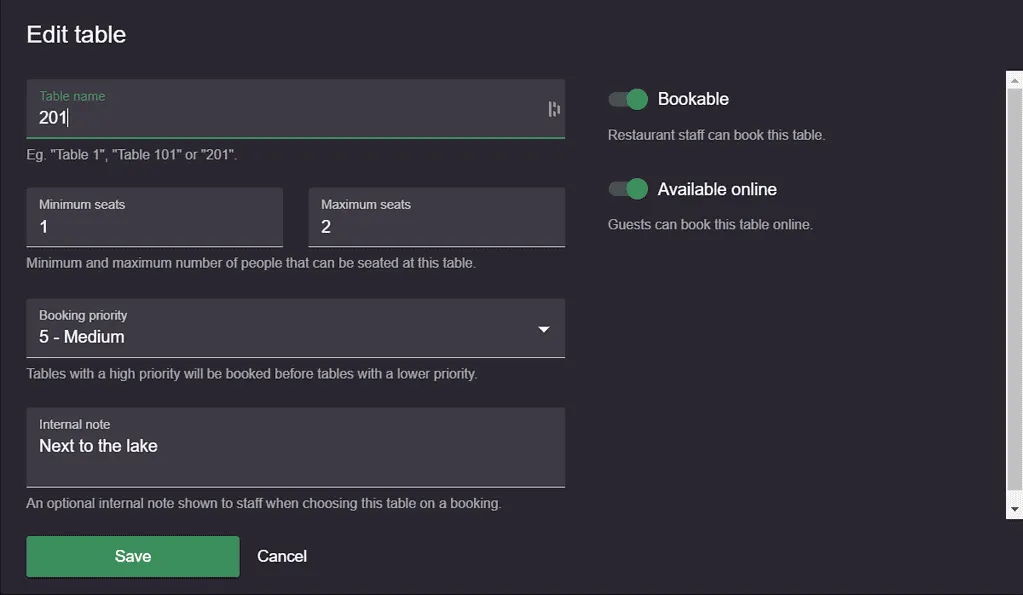
Choosing the priority of the areas and tables can be done by going to Menu → Settings & add-ons → General → Tables, then editing an area or a table.
Which number is the highest priority?
Booking priority runs from 1 to 10, and a higher number wins. The dropdown labels the ends for you: 10 - High, 5 - Medium and 1 - Low. New areas and tables start at 5. So a table you want filled first belongs at 10, not at 1.
The priority you defined for the area outranks the priority you defined for the table. This means that a table in an area with priority 10 is prioritized before a table in an area that has priority 5. Tables inside the same area are then ranked by the priority of the individual table.
Why are my table priorities not respected?
Almost every case comes down to one thing: Optimized fit is the default strategy, and it puts fit ahead of your priorities. Priorities are still read, but only after the fit rules have had their say.
Resos ranks the available tables in this order, best candidate first:
- Does the table fit the party? A table or combination that cannot seat the party goes to the bottom of the list no matter how high its priority is. This is true in both strategies.
- Single table before combination. A single table that fits always beats a table combination that fits, in both strategies. Combinations are kept for the parties that actually need them.
- The tightest fit (Optimized fit only). Among the tables that fit, the one with the fewest wasted seats wins. A table for 2 beats a table for 4 for a party of 2, even if the table for 4 sits in your highest-priority area. Optimized fit also holds back tables that are part of a combination, so the combination stays available for a larger group.
- Area booking priority, highest number first.
- Table booking priority, highest number first.
- Smallest table, then table name, as a final tiebreaker.
Under Optimized fit, step 3 decides most bookings, so your priorities only separate tables that waste exactly the same number of seats. That is why a party of 2 keeps landing on a small bar table instead of the dining room you set to 10.
Under Priority-first (legacy), step 3 is switched off. Every fitting single table is treated as equal on fit, so steps 4 and 5 decide, and your area and table priorities really do pick the table.
If switching to Priority-first changes nothing
Priorities can only break a tie between tables Resos is allowed to offer, so check these too:
- All your bookable tables share the same priority. If every online-bookable table is left at 10 (or at the default 5), there is nothing to rank. Spread the numbers out.
- The tables you expect are not bookable for that booking. A table needs Bookable for staff bookings, and Available online as well for guest bookings. A table that is switched off never appears, whatever its priority.
- The party does not fit. A party of 6 will not be seated at your high-priority table for 4, and it will only be offered a combination if you have configured one that seats 6. The same applies when the party is below the table’s Minimum seats.
- The high-priority area is staff only. If your only priority-10 tables are in an area that guests cannot book online, online bookings will never reach them.
Manual bookings and walk-ins
The same ranking happens when you manually create a booking or add a walk-in. It decides which table Resos preselects for you when table management adds tables automatically, and it always decides the order of the table dropdown, so the tables at the top of that list are the ones Resos considers the best candidates rather than the ones you use most often. If the dropdown looks scrambled, it is following the rules above, not a random order.
You can still pick a table where the criteria do not fit. When you do that, the system will show a warning.
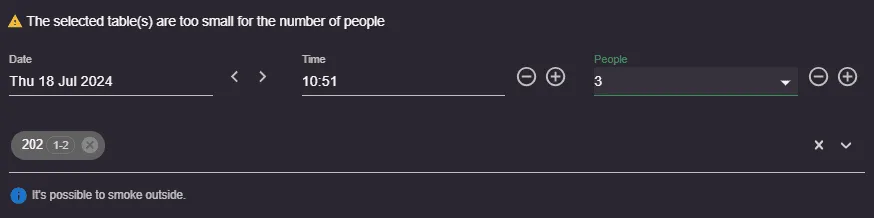
Resos is a flexible system and even though it “advises” you to choose a certain table for a booking, you can still choose the table that you see fit.
If you have questions about prioritizing tables for bookings, please contact us at hi@resos.com. We will be more than happy to help you with your questions and guide you through the setup.


