


How to set up Meta Pixel and Conversions API with Resos
In this article
- What it does
- Which events reach Meta
- Prerequisites
- Steps
- 1. Find your Dataset ID in Meta
- 2. Generate a Conversions API access token in Meta
- 3. Enter your details in Resos
- 4. (Optional) Add a Test Event Code while you verify
- Advanced matching
- Cookie consent decides whether events are sent
- Verify it worked
This guide shows you how to connect your Meta (Facebook) Pixel and the Meta Conversions API (CAPI) to your Resos booking page, so booking events appear in Meta Events Manager.
What it does
When configured, every booking step (page views, guest selection, date/time picks, and completed bookings) is sent to Meta. This lets you:
- Build retargeting audiences from visitors who started but didn’t complete a booking
- Measure ad conversions when a booking is completed
- Use Meta’s advanced matching to improve attribution accuracy
Resos sends each event in two ways:
- Browser Pixel – the classic client-side Pixel, fired from the visitor’s browser.
- Conversions API (CAPI) – the same event sent server-side, directly from Resos to Meta.
Both messages share an event ID, so Meta deduplicates them: you get one event, not two. Sending server-side as well means conversions still reach Meta when an ad blocker, a tracking-prevention browser (such as Safari with ITP), or a lost cookie would otherwise drop the browser Pixel. The result is more complete, more accurate ad measurement.
Which events reach Meta
Resos sends the same set of booking events to Meta that it sends to your other analytics tools. The full list is in How to set up Marketing & Analytics.
Two things are specific to Meta:
- Page views arrive as the standard
PageViewevent, so Meta recognizes them out of the box. - Every other event is a custom event and keeps its Resos name:
ResosBookingStart,ResosSelectExperience,ResosSelectRegularBooking,ResosSelectGuests,ResosSelectDate,ResosSelectTime,ResosAddPaymentInfo,ResosPayment,ResosBookingComplete,ResosBookingCancelandResosSendMessage. There is no standardPurchaseevent, so do not look for one.
Event names are case sensitive. The completed-booking event is spelled ResosBookingComplete, with a lowercase “os”.
ResosBookingComplete is the one you want as your ad conversion. It fires in the guest’s browser:
- right after the guest confirms a booking that needs no prepayment, and
- once the card payment is settled or the card is authorized, for bookings that require a prepayment or a no-show fee.
Where they apply, events carry value, currency, num_guests, booking_date, booking_time and order_id, so you can build custom audiences and custom conversions on those fields. The names are the same on the browser Pixel and the Conversions API, so one filter matches both.
Prerequisites
- The Marketing & Analytics add-on must be activated. See How to set up Marketing & Analytics.
- A Meta Pixel (Dataset) set up in Meta Events Manager
Steps
1. Find your Dataset ID in Meta
- Go to Meta Events Manager
- Select your Pixel (or create one if you haven’t already)
- Copy the Dataset ID – a numeric string like
123456789012345. This was formerly called the “Pixel ID”.
2. Generate a Conversions API access token in Meta
The access token is what authorizes Resos to send events to Meta server-side. Without it, only the browser Pixel runs and the Conversions API stays off.
- In Meta Events Manager, open Data Sources and select your Pixel
- Go to Settings
- Scroll to the Conversions API section and choose Generate access token
- Copy the token. Treat it like a password and don’t share it.
3. Enter your details in Resos
- Go to Settings > Add-ons > Marketing & Analytics in your Resos dashboard
- In the Meta section, fill in:
- Dataset ID – the numeric ID from step 1
- Meta Access Token – the token from step 2
- Click Save
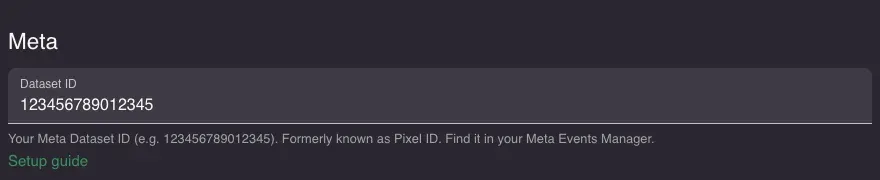
Your access token is stored securely. After you save it, the field shows dots instead of the token. To change it later, click the field and paste a new token.
Tip: Enter both the Dataset ID and the access token. With only the Dataset ID, events are still tracked through the browser Pixel, but the server-side Conversions API will not run.
4. (Optional) Add a Test Event Code while you verify
The Test Event Code field lets you confirm that server-side events are arriving before you go live. It is optional. Resos attaches the code to every Conversions API event while the field is filled in, which routes those events to the Test Events tab. Leaving the field empty never stops events from being sent, so an empty Test Event Code is not the reason events are missing.
- In Meta Events Manager, go to Test Events and copy the test code shown there
- Paste it into the Test Event Code field in the Resos Meta section and save
- Interact with your booking page – events tagged with this code appear under Test Events in real time
- Once you’ve confirmed events arrive, clear the Test Event Code field and save again, so live traffic is no longer flagged as test data
Advanced matching
When a visitor completes a booking, their email and phone number (and, where available, name and country) are sent to Meta to improve match quality – but only if the visitor has granted marketing consent via the cookie consent banner. These fields are hashed in the visitor’s browser before they are sent, so Meta only ever receives the hashed values.
If marketing consent is not granted, no Meta events are sent at all, with or without personal data. See Cookie consent decides whether events are sent below.
Cookie consent decides whether events are sent
Marketing consent is a hard gate on both halves of the integration. If a visitor has not granted marketing consent, the browser Pixel stays revoked and Resos sends nothing through the Conversions API either. Nothing is held back and delivered later, so those bookings are simply never reported to Meta.
Where the consent decision comes from depends on how the guest reaches your booking form:
- On the hosted Resos booking page, Resos shows its own consent banner. A visitor in a regulated region sees a full banner that blocks tracking until they choose on desktop or tablet, but only a small bar on a phone; visitors outside those regions get the same small bar, with tracking already on, which they can switch off. See Cookie consent in the Marketing & Analytics guide for the full regional and device breakdown. If Resos cannot establish where a visitor is, it treats them as an opt-in visitor and waits for a decision.
- In the widget embedded on your own website, your site’s cookie banner is in charge. The Resos loader reads your visitor’s choice from your consent tool and passes it into the widget, and the widget only shows its own banner when your site sends no valid consent signal. If your banner has marketing cookies off by default, or the visitor rejects them, no Meta events are sent for that visitor.
This is the most common reason a correctly configured Pixel records page views from your own website but no booking events: the test booking was completed without accepting marketing cookies.
Verify it worked
Test on your hosted Resos booking page first. It loads the Pixel itself, so you can watch both the browser Pixel and the Conversions API in one place.
- In Meta Events Manager, open Test Events, copy the test code, paste it into the Test Event Code field in Resos and save
- Open your booking page in a browser
- Open the browser console, run
resos.debug(), then reload the page - Accept marketing cookies when the consent banner appears. Skip this and the console shows
CAPI skipped (no marketing consent)and nothing reaches Meta - Click through a complete test booking. Watch for
[Meta Pixel]lines as you go:trackCustom (fbq direct)is the browser Pixel andCAPI sentis the server-side Conversions API. Both should appear for the same event - In Test Events, check that the view is not limited to standard events, then look for
ResosBookingComplete - Clear the Test Event Code field in Resos and save again
Tip: You can turn debug logging on without the console by adding
?resos_debug=trueto your booking page URL. Runresos.debug(false)to turn it off again.
If you have gone through setup and verification above but booking events still are not showing up in Meta Events Manager, see fix: Meta Pixel events missing in Meta Events Manager for the full list of checks.
If you have any questions about setting up Meta Pixel, contact us at hi@resos.com.