


How to set up Google Ads conversion tracking with Resos
In this article
This guide shows you how to report completed bookings as Google Ads conversions so you can measure which campaigns and keywords drive actual reservations.
What it does
When a visitor completes a booking, a conversion event is sent to Google Ads with the booking value. This lets you:
- See which campaigns and keywords drive actual bookings
- Optimize bidding using conversion value data
- Measure return on ad spend (ROAS)
Prerequisites
- The Marketing & Analytics add-on must be activated. See How to set up Marketing & Analytics.
- A conversion action set up in your Google Ads account
Steps
1. Find your Conversion ID and Label in Google Ads
- Go to Google Ads and sign in
- Navigate to Goals > Conversions > Summary
- Click on the conversion action you want to track (or create a new one)
- Under Tag setup, find:
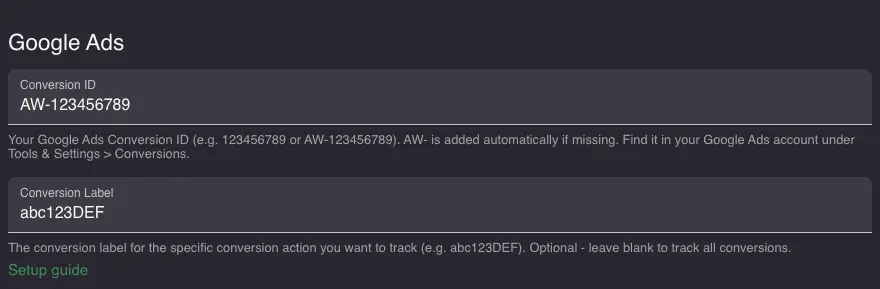
- Conversion ID - starts with
AW-(e.g.AW-123456789) - Conversion Label - an alphanumeric string (e.g.
abc123DEF)
Note: The Conversion Label is optional. If left blank, the conversion is sent to the Conversion ID without a specific label.
2. Enter the IDs in Resos
- Go to Settings > Add-ons > Marketing & Analytics in your Resos dashboard
- Enter your Conversion ID and optionally the Conversion Label in the Google Ads section
- Click Save
3. Configure Value per Guest (optional)
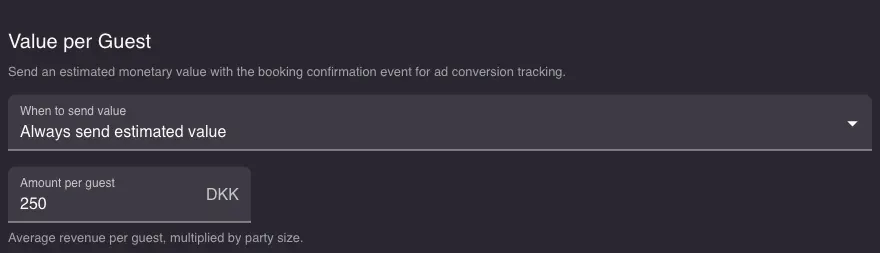
To include a monetary value with each conversion, scroll down to the Value per Guest section:
| Mode | When value is sent |
|---|---|
| Never send value | No value is included in the conversion event |
| Only when prepayment is available | Uses the actual prepayment amount from the booking |
| Only when no prepayment | Uses your estimated amount; when prepayment is available, the actual amount is used instead |
| Always send estimated value | Always uses your estimated amount per guest, multiplied by party size |
The Amount per guest field appears when you select “Always” or “Only when no prepayment”. Enter the average revenue per guest in your restaurant’s currency. For example, a booking of 4 people with 250 DKK per guest sends a conversion value of 1,000 DKK.
Verify it worked
- Open your booking page, run
resos.debug()in the browser console, and reload - Complete a test booking and look for a
[Google Ads] conversionentry with the booking value and currency in the console - In Google Ads, check Goals > Conversions - the conversion status should change from “Unverified” to “Recording” within a few hours