


How to set up the Google Tag with Resos
In this article
This guide explains the Google Tag section of the Marketing & Analytics settings - what the Google Tag ID does, when you need one, and how to optionally route all your tracking hits through your own server-side container.
What it does
The Google Tag (gtag.js) is Google’s unified loader. A single Google Tag ID can power Google Analytics 4, Google Ads, and the Google Marketing Platform from one script load. Resos injects it on your booking page when you fill in the field.
You normally only need to fill in this field if:
- You manage your tags from a Google Tag container (
GT-) in Google Tag Manager, or - You want all tracking hits to flow through your own server-side container (see Server Container URL below)
If you only use GA4 or Google Ads, the Measurement ID (G-) or Conversion ID (AW-) field alone is enough - the Google Tag is loaded automatically based on whichever ID is set.
Prerequisites
- The Marketing & Analytics add-on must be activated. See How to set up Marketing & Analytics.
- A Google Tag ID (any of
GT-XXXXXXX,G-XXXXXXXXXX, orAW-XXXXXXXXX)
Steps
1. Find your Google Tag ID
The ID can come from any of these Google products:
| Source | ID format | Where to find it |
|---|---|---|
| Google Tag Manager | GT-XXXXXXX | Select your container -> Admin > Container Settings -> copy the Google Tag ID |
| Google Analytics 4 | G-XXXXXXXXXX | Admin > Data Streams -> select your web stream -> Measurement ID |
| Google Ads | AW-XXXXXXXXX | Goals > Conversions > Summary -> select a conversion -> Tag setup > Conversion ID |
If you have more than one, use the GT- from Google Tag Manager - it can route to all your other Google services from one place.
2. Enter the ID in Resos
- Go to Settings > Add-ons > Marketing & Analytics in your Resos dashboard
- Paste your Google Tag ID in the Google Tag section
- Click Save
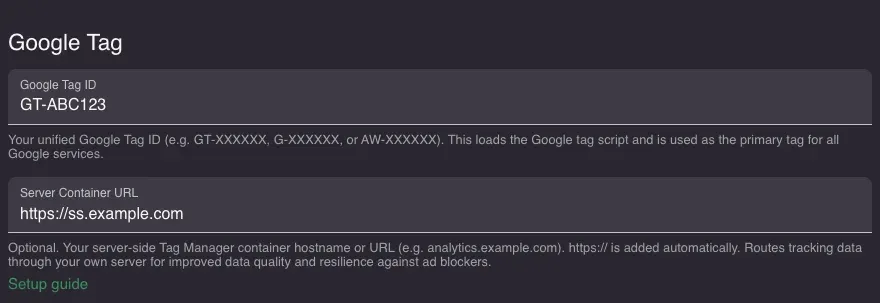
Optional: Server Container URL
Server-side Google Tag Manager (sGTM) routes all tracking hits through a container you host yourself instead of sending them directly to Google’s edge. The browser only ever talks to your domain; your server then forwards the data to Google, Meta, and any other destinations you configure.
If you already run a server-side container, you can point Resos at it here. Setting up the container itself is outside the scope of Resos support - your provider gives you a hostname like ss.example.com once it’s running.
Configure it
- In Settings > Add-ons > Marketing & Analytics, find the Server Container URL field
- Paste your container hostname (
ss.example.com) or full URL (https://ss.example.com) -https://is added automatically if missing - Click Save
Once configured, all gtag hits (page views, custom events, conversions) flow through your server container instead of going to Google directly. No other Resos settings need to change - your existing Google Tag, GA4, and Google Ads configuration just keeps working.
Note: The Conversion ID field also auto-prepends
AW-if you paste a bare numeric value. So123456789becomesAW-123456789automatically when you click Save.
Verify it worked
- Open your booking page, run
resos.debug()in the browser console, and reload - Look for
[gtag]and[GA4]entries as you click through the booking steps - if these appear, the Google Tag is loading correctly - For server container URL setups: open the browser DevTools Network tab and look for hits going to your container domain (e.g.
ss.example.com/g/collect) instead ofgoogle-analytics.com. With sGTM configured, the browser registers a service worker on your container domain and routes all measurement traffic through it. - For GTM container IDs (
GT-): open Google Tag Manager Preview mode and verify your tags fire on the Resos booking page