


How to set up Marketing & Analytics in Resos
In this article
This guide shows you how to activate the Marketing & Analytics add-on and connect your booking page to Google Analytics 4, Meta Pixel, Google Ads, and Google Tag Manager.
What it does
The Marketing & Analytics add-on tracks each step of the booking flow on your Resos booking page. This lets you measure ad performance, build retargeting audiences, and understand how visitors move through your booking funnel.
How to activate
- Go to Settings > Add-ons in your Resos dashboard
- Find Marketing & Analytics and activate it
- You’ll be taken to the settings page where you can enter your tracking IDs
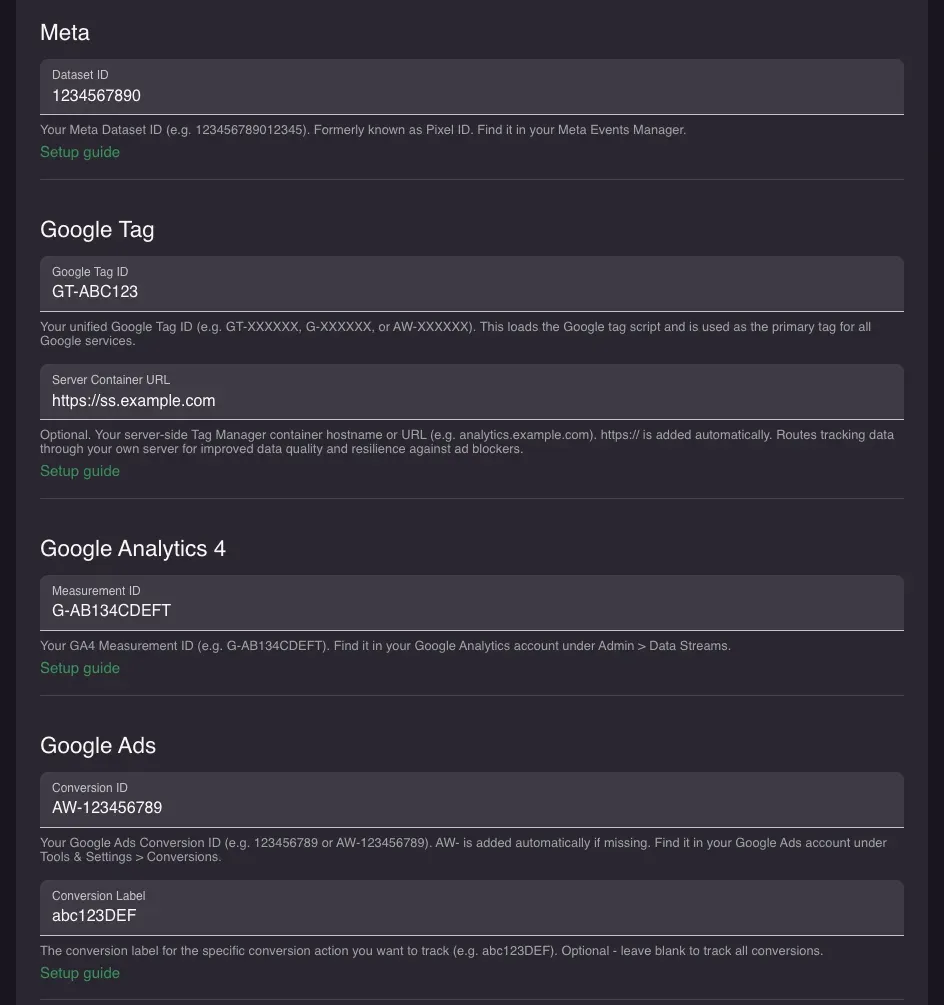
Tracked events
These events fire automatically as visitors use the booking widget:
| Event | When it fires | Data included |
|---|---|---|
ResosPageView | Each page navigation within the widget | page path |
ResosBookingStart | Booking widget opens | (basic envelope) |
ResosSelectExperience | Guest picks an experience on the experience step | experienceName |
ResosSelectRegularBooking | Guest picks the regular (“A la carte”) booking option | (basic envelope) |
ResosSelectGuests | Guest count selected | numGuests |
ResosSelectDate | Date selected | numGuests, bookingDate |
ResosSelectTime | Time slot selected | numGuests, bookingDate, bookingTime |
ResosAddPaymentInfo | Booking requires prepayment (status pending) | booking details |
ResosPayment | Prepayment captured (status settled or authorized) | booking details + value |
ResosBookingComplete | Booking confirmed | numGuests, bookingDate, bookingTime, bookingId, value (if configured) |
ResosBookingCancel | Guest cancelled the booking | bookingId |
ResosSendMessage | Guest sent an activity / chat message | bookingId |
Events are sent to all configured services simultaneously: GA4, Meta Pixel, Google Ads, and the dataLayer (for GTM).
Meta specifics:
ResosPageViewis forwarded to Meta as the standardPageViewevent so it shows up in Meta Events Manager alongside ads data. When marketing consent is granted, every event is sent twice (browser Pixel and the server-side Conversions API) and deduplicated by event ID, which improves match quality without inflating counts. Personal fields (email, phone, name) are hashed client-side before transmission. Without marketing consent, no Meta events are sent at all, on either the browser Pixel or the Conversions API.
Cookie consent
Visitors in regulated regions such as the EU and UK are asked for consent before any tracking that stores cookies runs. What happens before they answer is not the same for both services:
- Google (Analytics 4, Google Ads, Tag Manager): consent-aware Google tags load with advertising and analytics cookie storage set to denied, so they restrict the analytics and advertising cookies they set or read on the visitor’s device. They still send Google limited cookieless measurement, including consent state, events and conversions, such as the booking events the widget sends. Google calls this Consent Mode, and it is described in Google’s consent mode documentation. A tag placed in a Tag Manager container without its own built-in consent checks needs separate consent configuration; it does not automatically pick up these defaults. Once the visitor accepts, the storage types switch to granted and normal measurement begins.
- Meta Pixel: nothing is sent before the visitor accepts marketing cookies. Neither the browser Pixel nor the server-side Conversions API sends an event until then.
There is no setting that turns this banner on or off, forces a particular version of it, or changes when it appears. What a visitor sees is decided by their region, their device, and by whether the booking widget is embedded, not by anything you configure.
The banner takes one of three forms:
- On your hosted Resos booking page, on a desktop or tablet screen, a visitor in a regulated region sees a full banner that blocks interaction until they choose.
- On a phone screen, the same visitor sees a small bar at the bottom of the page instead. The consent state behind it is identical to the full banner, described above, and only the presentation is smaller. A full-screen banner would cover the booking form on a phone, so Resos uses the compact version there.
- When the widget is embedded on your own website, visitors always see the small bar, never the full banner, on any device - again for the same reason: a full-screen banner would take over your page.
- Visitors outside regulated regions see the same small bar, on the hosted page or embedded, but with tracking already on by default, which they can switch off.
If your website has its own cookie-consent tool and it forwards a valid, complete consent choice to the embedded widget, Resos shows no banner of its own at all and simply follows your site’s decision. Resos only shows its own (small-bar) banner in the embed when your site’s cookie tool does not forward a valid choice, for example when your site has no cookie tool or it doesn’t support forwarding consent to embedded content. So if a visitor in a regulated region sees no banner at all inside an embedded widget, check your website’s own cookie-consent tool first - that is almost always the reason, not a Resos malfunction.
A visitor’s choice is remembered in a cookie for one year. On your hosted Resos booking page that cookie persists across visits as normal. Inside an embedded widget, the cookie belongs to the widget’s own origin rather than your website’s, and some browsers (Safari, and increasingly Chrome) restrict or block this kind of cookie for embedded content as a privacy measure. When that happens, Resos can’t tell the visitor already answered, and the banner reappears on their next visit. This is a browser privacy setting, not something Resos or you can turn off per visitor. Occasionally, an update to the consent options on our side (for example adding a new consent category) resets every visitor’s stored choice at once - a wave of the banner reappearing right after such an update is expected, and it clears itself as visitors re-answer once.
The Consent section in the settings page lets you enable Google’s ads_data_redaction flag, which further anonymises Google Ads conversion hits when consent is denied.
Verify it worked
To verify your tracking setup is working, open the browser console on your booking page, run resos.debug() and reload the page. Each tracking event is then logged with a color-coded label per service:
| Label | Service |
|---|---|
[gtag] | Unified Google Tag (gtag.js) |
[GA4] | Google Analytics 4 page views and events |
[Google Ads] | Google Ads conversions |
[Meta Pixel] | Meta Pixel events and Conversions API |
[postMessage] | Events forwarded to a parent window (when the widget is embedded in an iframe) |
Run resos.debug(false) to turn it back off. The setting is stored in localStorage, so it persists until you disable it.