


How to set up the spam protection feature
In this article
What is the spam protection feature?
Spam protection is an essential feature for any online booking system, as it helps prevent fake bookings and ensures that your restaurant’s reservation system runs smoothly.
The Resos app offers a spam protection feature to help restaurants address this issue. It analyzes booking patterns to identify suspicious activity, such as multiple bookings with the same email, phone number, or IP address within a short timeframe. By setting up spam protection, restaurants can maintain a more accurate and reliable booking system.
Read more about the Spam Protection feature.
How Spam Protection Works
This feature examines how many bookings made within the past 24 hours share the same email, phone number, or (if enabled) IP address as a new online booking. If a duplicate booking is attempted and the “Max similar bookings within 24 hours” limit is reached, the bookings will be blocked, and the guest will be instructed to contact you directly.
Why does my booking page say “We are currently unable to process your request online”?
The guest sees this message: “We are currently unable to process your request online, please call or email us regarding your booking. Sorry for the inconvenience!”
It means spam protection blocked the booking. In the last 24 hours, your restaurant has already received as many bookings as the limit allows with the same e-mail address or phone number as the one the guest typed in. If Also block by IP address is on, bookings from the same IP address count too. When the limit is reached, a new online booking with those details is not saved and the guest sees the message instead.
The limit is Max similar bookings within 24 hours, and it is 10 unless you have chosen another number. The check counts every booking created in the last 24 hours with the same details, whatever its booking status, so cancelled bookings and bookings you entered yourself count as well. Bookings whose online payment expired are not counted.
The most common cause is testing. If you make many test bookings with the same e-mail address or phone number, for example while setting up a new account, you hit the limit and the next attempt is blocked. To fix it:
- Wait 24 hours, or use a different e-mail address and phone number for each test.
- Raise the limit, or choose Disabled to switch spam protection off. Choosing 1 (only unique bookings) is the strictest setting: a second booking with the same e-mail or phone within 24 hours is blocked.
If real guests see the message, check whether Also block by IP address is on. Many guests can share one IP address, for example in a hotel or an office, so turn this off if the guests are booking from one place.
How to activate the spam protection feature in the Resos app?
There are 4 simple steps to set it up:
-
Access the menu: Log in to your Resos account and navigate to the Dashboard → Menu.
-
Go to settings: Select the “Settings” option in the Menu section on the upper left side of your Dashboard.
-
Locate the feature: In the settings section, go to Bookings → Spam protection.
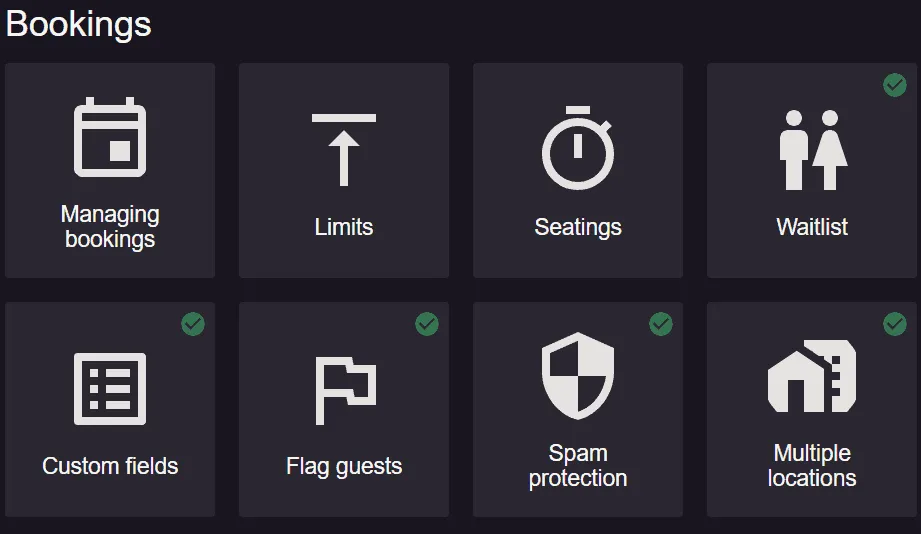
- Click on the feature: Access further settings of the spam protection feature.
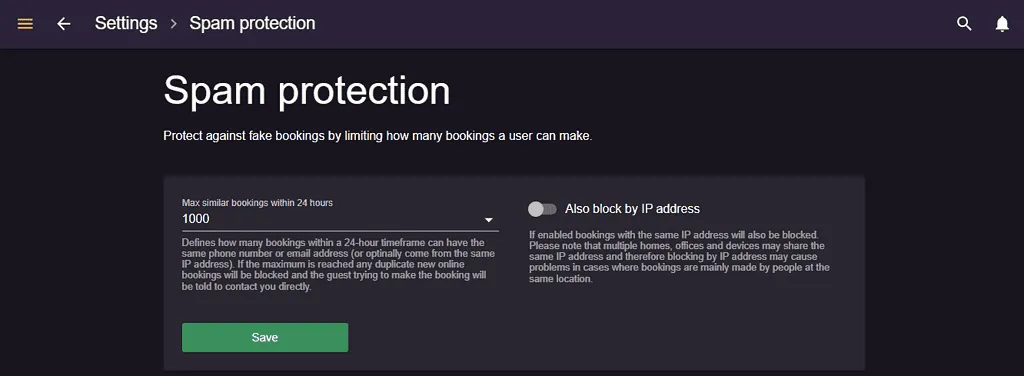
-
Set max similar bookings: Select Max similar bookings within 24 hours and choose a limit. The default is 10. Disabled switches spam protection off.
-
Also block by IP address: Enable the option to block similar bookings by IP address if desired.
Additional tips for preventing spam
-
Block similar bookings by IP address: If you observe frequent spam or want added security, consider blocking similar bookings by IP address. Just remember, many places and devices can use the same IP address, so blocking based on IP could cause problems if most bookings come from one location.
-
Monitor your bookings: Regularly review your bookings for patterns that may indicate spam or fake bookings. If you identify any suspicious activity, take appropriate action to block or report it.
-
Contact support: If you need assistance with setting up spam protection or have questions or concerns about the system, contact our support team at hi@resos.com.
The similar-bookings limit above is about repeat bookings from the same details. If your problem is instead that a booking arrived without a phone number or an e-mail address, that is the Required contact information setting: see Require a phone number or e-mail on your booking page.


